Configuring the Mode for Managing USB-DAC Using Controller App
By default, “Hybrid Mode” is selected and it supports many types of controller apps. However, depending on the
controller app you are using, we recommend changing the controller settings to one of the following modes. It will
optimize communication between the Digital Music Library and the controller app.
The controller app by Roon Labs LLC will not work until the controller settings is changed to “Roon Ready Mode”.
UPnP AV/DLNA Derivatives
• UPnP/DLNA compatible Mode: Select when your controller app is UPnP/DLNA-compatible.
• Playlist Mode: Select when your controller app is OpenHome-compatible.
• Hybrid Mode: This mode supports both UPnP/DLNA-compatible apps and OpenHome-compatible apps.
Roon Ready Mode
Select when your controller app is by Roon Labs LLC.
Note: If the selected controller mode does not support the controller app, the Digital Music Library may not appear
as a player on the app.
To change the controller settings, follow the procedure below.
Changing to UPnP/DLNA compatible Mode or Playlist Mode
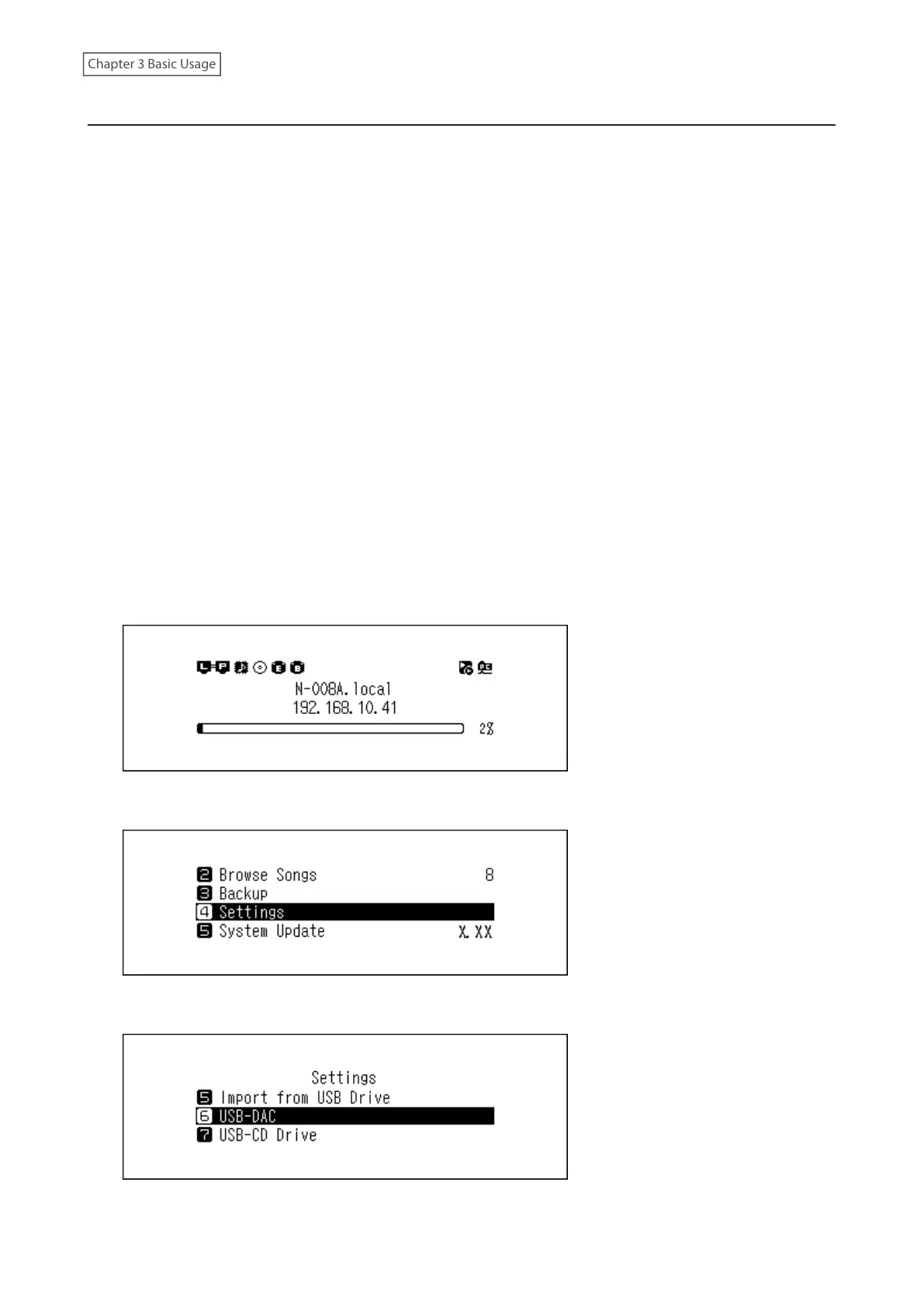
1 Press the Menu/Enter button to display the menu list at the home screen.
2 Press the Up/Down buttons and select “Settings”, then press the Menu/Enter button.
3 Press the Up/Down buttons and select “USB-DAC”, then press the Menu/Enter button.
34



 To Next Page