SECTION 3
TROUBLESHOOTING
24
Toolbox System Status Messages
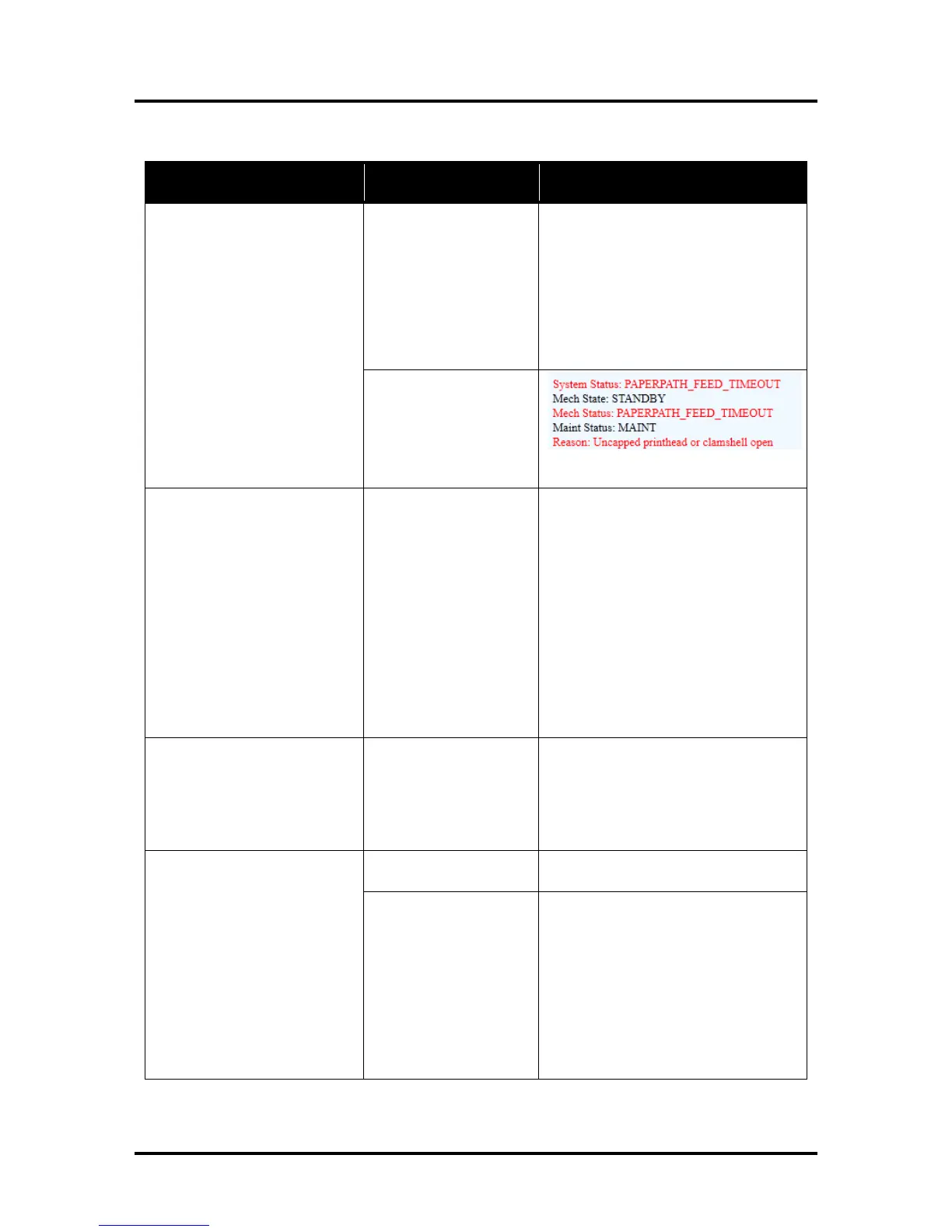
Displayed, in red, in the M Series Toolbox utility.
SYSTEM STATUS PROBLEM SOLUTION
OUT
Media is not reaching
the print engine.
Hesitation in media feed.
Load media into printer and press the
PAPER/RESUME button.
If media is present; check/adjust the
guides and separators.
Tip: It is also possible to get this error if
the media jams after reaching the
Paperpath Exit sensor, and the trailing
edge is still in the Entry sensor. See
error is shown in
combination with
“Reason: Uncapped
printhead or clamshell
open” message.
See “Paperpath_Paperjam” solutions.
PAPERPATH_PRINTZONE
_BLOCKED
or
PAPERPATH_PAPERJAM
Paperpath: Entry:Yes Exit:Yes
or
Paperpath: Entry: No Exit:Yes
or
Paperpath: Entry:Yes Exit:No
No = not blocked
Yes = blocked (interrupted)
Media jam detected.
Printer has detected that
one of the media sensors
is blocked (interrupted).
Carefully open the Clamshell, remove
jammed Media from printer and close
the Clamshell. The System Status
message in red should go away.
The toolbox “Paperpath” line should
change to:
Paperpath: Entry: No Exit: No
After you clear the jam you can;
Press RESUME button to continue
printing.
Press the CANCEL button to cancel the
job, and then manually clear the job
from the computer’s print queue.
Printer has detected that
the “Clamshell” is open.
Sensor cable P2002 may
be unplugged.
Verify that the “Clamshell” is closed
and securely latched at both sides.
If closed; check the clamshell latch &
switch. Use Scan Sensors feature in the
Toolbox Service Menus to test
Printer is performing
maintenance.
No action is required. Wait for printer
to finish.
perform maintenance;
if error is shown in
combination with
“Reason: Uncapped
printhead or clamshell
open" and there is no
maintenance activity
(noise) coming from
printer.
Remove media from print engine. See
“Paperpath_Paperjam” solutions.
If problem continues clean Paperpath
Entry and Exit sensors.
If problem continues check/test/replace
sensor(s).


 To Next Page