SECTION 4
TOOLBOX SERVICE FEATURES
33
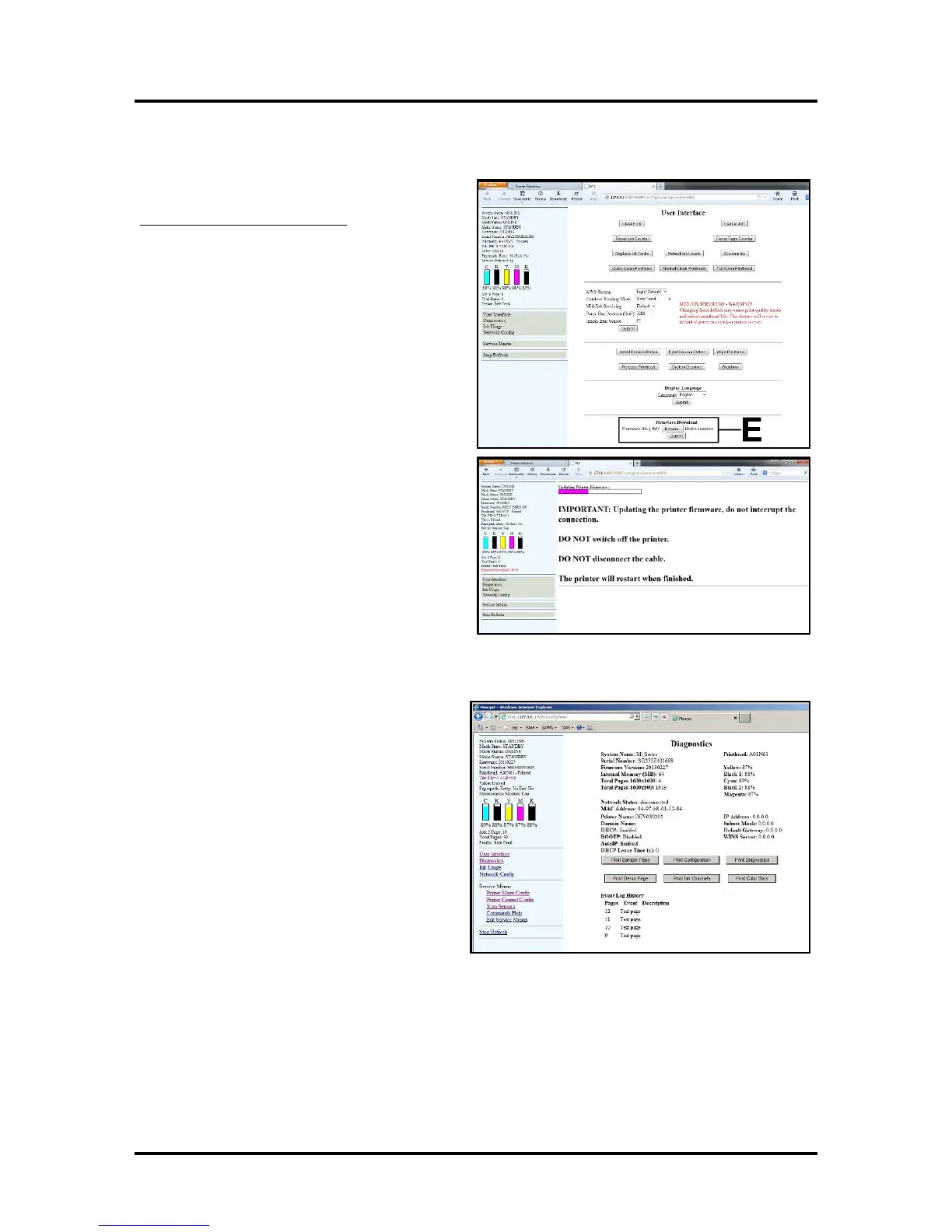
Firmware Download Feature
[E] Firmware Download – Get the latest version
of firmware for your Printer.
How to download new firmware:
1. When you are notified that new firmware
is available for your Printer, download the
*.fbf file and save it to your desktop.
2. Open the Toolbox. On the “User
Interface” page, find Firmware
Download.
3. Click the “Browse” button, then select the
file you just saved to your desktop.
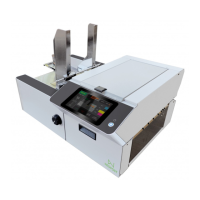
4. Click “Submit”. DO NOT touch the
Printer until the firmware is loaded!
A message will appear on your screen
warning you not to unplug or shut off the
Printer.
5. Once the firmware finishes loading (about
5-10 minutes), the Control Panel lights and
the Printer shuts OFF, then restarts
automatically to complete the installation.
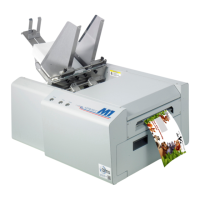
Diagnostics Menu
From this screen you can see the current status of
your Printer. You can also:
Print Sample Page – Prints type and color bands
to check print quality.
Print Configuration Page – Displays the current
configuration of the Printer including Firmware
Version, Network Connection, Printer Serial
Number and more.
Print Diagnostic Page – Displays basic Printer
information, memory, Network Settings, Event
Log and RAM partitions.
Print Demo Page – Prints a 4-color sheet.
Print Ink Channels – Prints 5 bars (1 bar from
each ink tank) to indicate how well the Printhead Nozzles are working. NOTE: This function can also be
accessed by pressing the “Print Ink Channels” button on the right side of the Print Engine.
Print Color Bars Page – Prints a series of 8 color bars to indicate how well the Printhead is mixing colors
and printing.


 To Next Page