Chapter 2 Basic Operations
2-8
Preparing the Heater
Changing heater temperature settings
Set the heater temperature to suit the type and
characteristics of media used. The temperature can be
altered while printing is in progress, but this may cause
color variations to occur.
1
On the LOCAL mode screen, select
[HEATER].
• The heater temperature adjustment screen is
displayed.
2
Enter the heater temperatures, then press
the [ENTER] key.
• Heater selection: Select with
[
]
/
[
]
• Temperature setting: Set with
[
]
/
[
]
• The heater now begins to heat up. The heater
icon on the display turns green when the heater
temperature reaches the specified level.
Test Printing
Print a test pattern to check for nozzle clogging or other
discharge defects (such as nozzle clogging or nozzle
deflection).
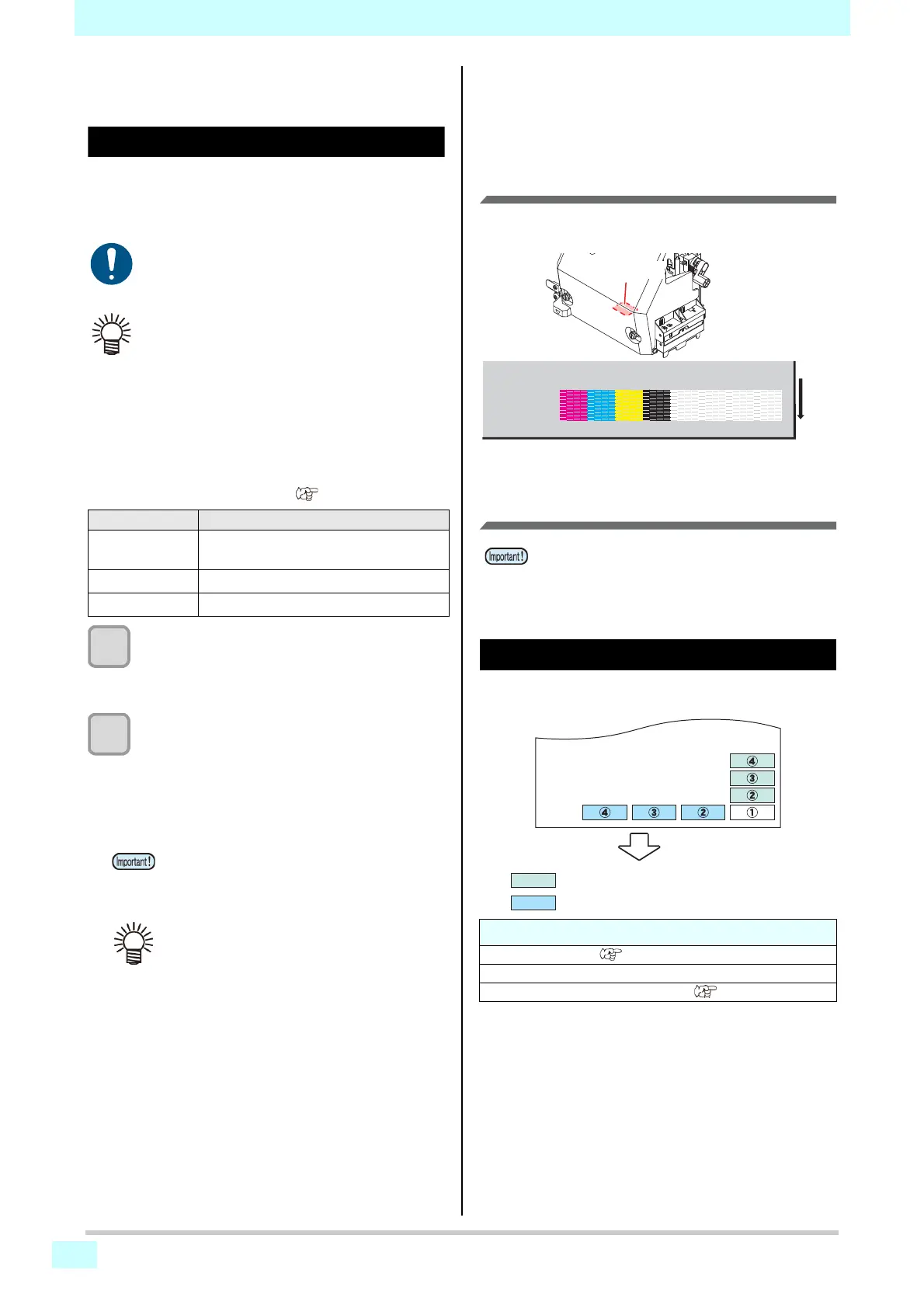
Relationship of test patterns to head rows
Printing positions in test patterns are related to the head
array as follows.
Test printing precautions
Test printing
Two options are available for the test pattern
orientation. Select the option that suits your purpose.
• Adjust the heater temperature to suit the media
type and characteristics. Depending on the type,
the media may expand or shrink or become rip-
pled.
• The temperature setting in the RIP software
takes precedence. If you are using the Mimaki
RIP software (RasterLink), the recommended
values are stored in the color profile.
• It may take several minutes to several tens of
minutes to reach the specified temperature,
depending on the ambient temperature.
• By default, the heater temperature is set to
"OFF."
• The heater temperature set here is stored in the
"Heater" setting menu ( P.3-4 [Heater]).
Type of heater Function
Preheater
Preheats the media before printing to
suppress rapid temperature change.
Print heater
Helps prevent ink bleeding.
Post-heater
Allows ink to dry after printing.
• The machine can be used in an environment
of 20–30°C. Some ambient temperature con-
ditions may prevent the machine from reach-
ing the specified temperature.
• To fully deactivate heating, press [FUNC3]
(OFF) in step 2. You can also increase all
heating temperatures by 10°C by pressing
[FUNC1].
• When using roll media, manually rewind the
media before printing to keep it taut. Failure to
observe these instructions may result in image
quality problems.
Check before test printing
• Media is loaded P.2-4
• The origin is set
• The head gap has been adjusted P.2-4
Test pattern
Media feed direction
Head
Media feed direction
: With "FEED DIR" specified
: With "SCAN DIR" specified







 To Next Page