Chapter 2 Basic Operations
2-11
2
2
2
5
6
If the Positions of Dots
Shift
Changing the media and print head height and
temperature changes around the print head will also
alter the drop positions. Correct the drop position to suit
the type of media used. Image defects (e.g., overlaid
lines or blurred images) will result if the drop position is
not properly corrected.
Dot position correction
1
Load the media.
• P.2-4 [Loading Media]
• Printing a pattern requires media at least 500 mm
wide.
2
With the screen in local mode, select
[
ADJUST
].
• The adjustment menu is displayed.
3
Select [DROP.POScorrect] and press the
[ENTER] key.
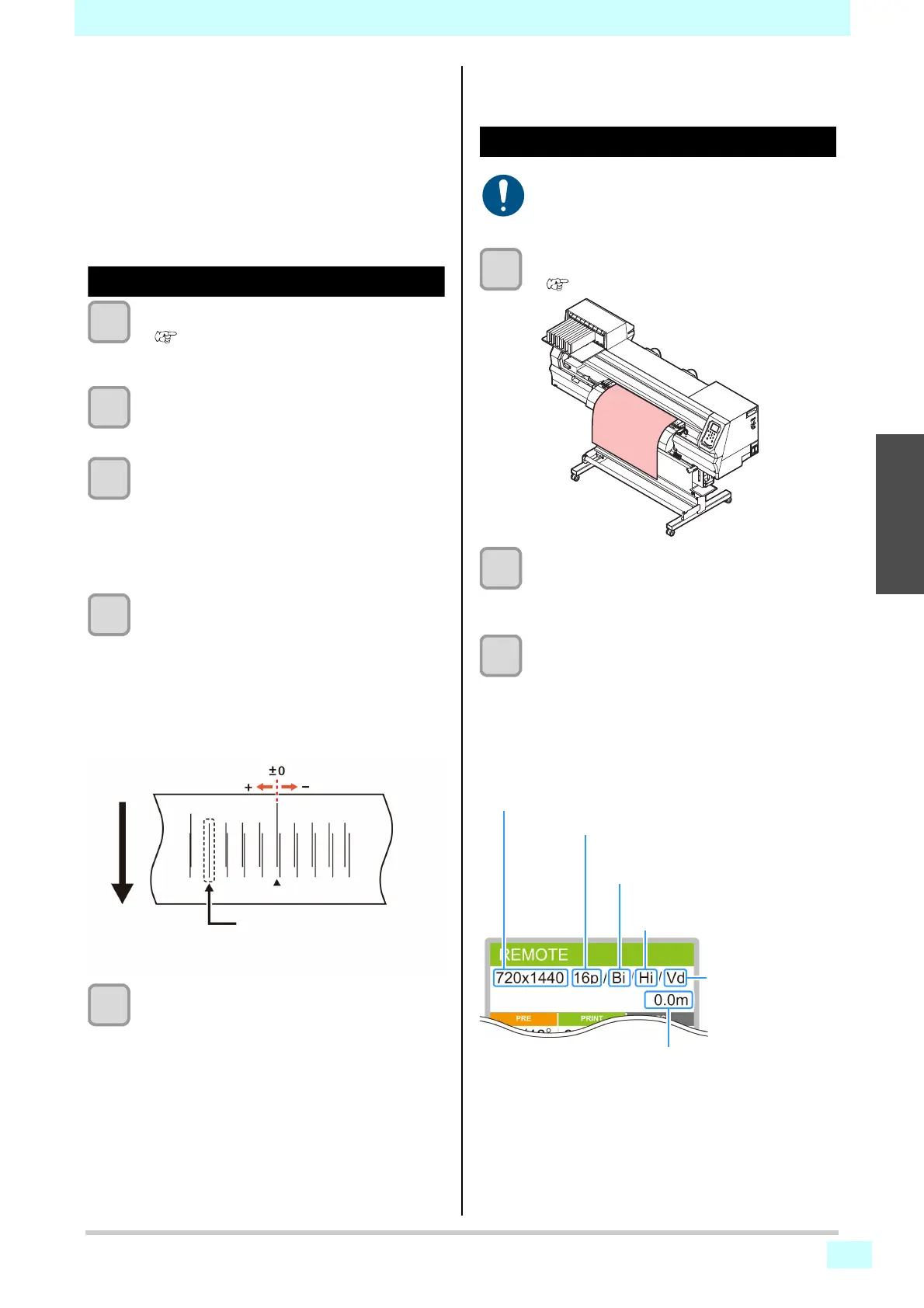
• The pattern for correcting the drop position is now
printed.
• Multiple test patterns are printed, which are
referred to by the order of printing (1, 2, 3, and so
on).
4
Enter the correction value for pattern 1,
and then press the [ENTER] key.
• Correction value:-40 to 40
• The position where the outward and return lines
form a single straight line indicates the correction
value to use.
• If the correction value to use does not lie in the
range of -40 to 40, adjust the printing head height
and repeat this process from step 2.
5
Do the same to enter a correction value for
pattern 2, and then press the [ENTER] key.
Printing Data
Starting printing
1
Load the media.
• P.2-4 [Loading Media]
2
With the screen in local mode, press
[REMOTE].
• The machine enters remote mode and can
receive data from a computer.
3
Send the RIP data from the computer.
• Printing now begins. Even for the same data,
printing speed varies depending resolution, media
width, and print origin position.
• The ACTIVE lamp flashes, and the display shows
print conditions.
• For details on how to send data, refer to the RIP
software instruction manual.
In this case, the dot position
correction value is 4.0.
Print direction
• When using roll media, manually rewind the
media before printing to keep it taut. Failure to
observe these instructions may result in image
quality problems.
Number of passes
Length of media printed or
Remaining media amount (when the
media amount display is ON))
Type of data
Vd: Variable data
Nd: Normal data
Resolution
360 / 540 / 720 / 1440 DPI
Scanning direction
Uni: Unidirectional
Bi: Bidirectional
Scanning speed
Std: Standard speed
Hi: Double speed








 To Next Page