Chapter 5 Troubleshooting
5-5
1
2
2
2
5
Ink errors
Ink errors are also displayed in local guidance ( P.3-19 [Displaying information]).
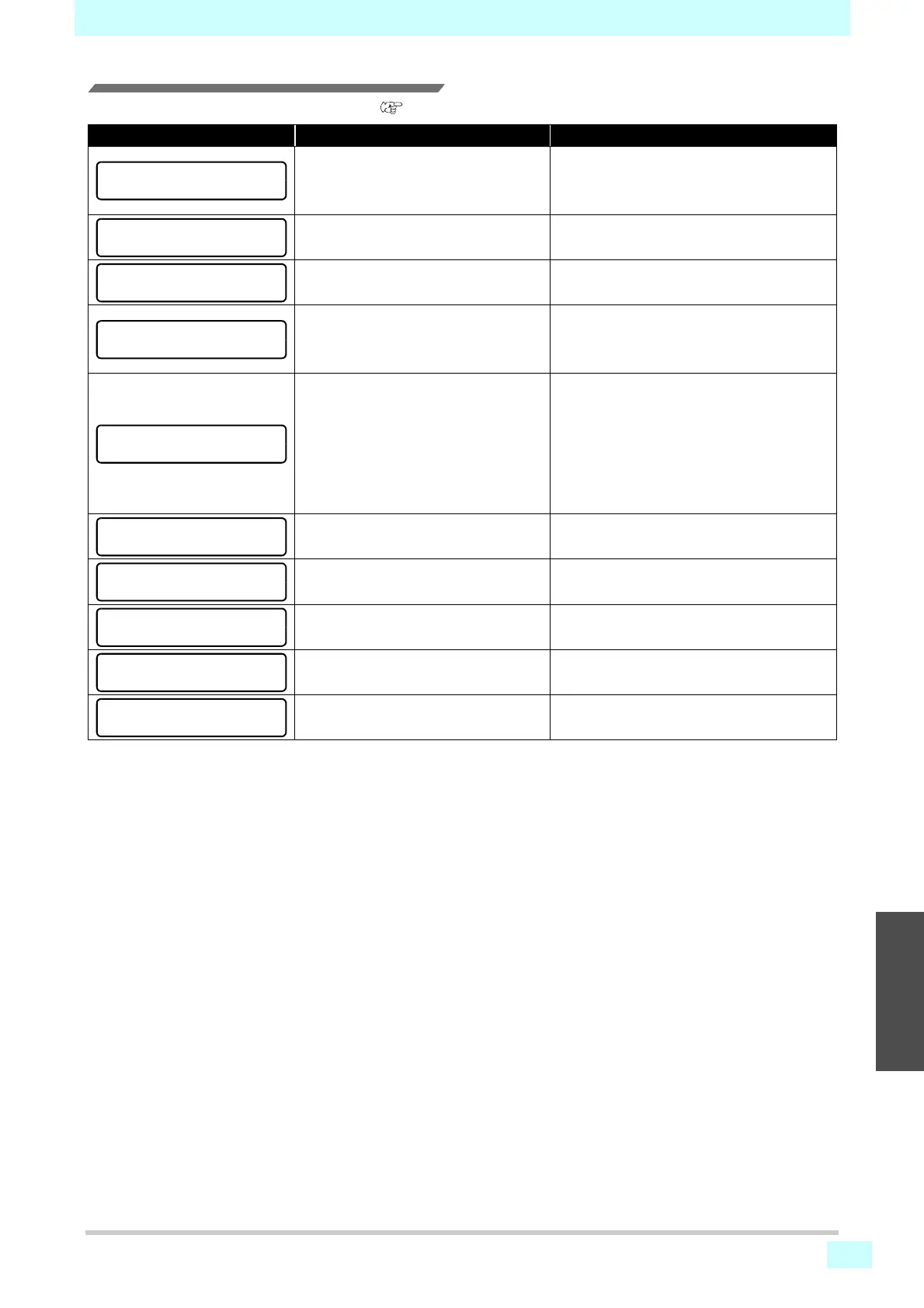
Message Cause Corrective action
The ink IC chip of the ink cartridge can-
not be read correctly.
• Reinsert the cartridge that caused the warn-
ing.
If the warning persists, contact your dealer,
or our sales office or call center.
The type of ink in the ink cartridge is dif-
ferent from the ink currently supplied.
• Check the type of ink in the cartridge that
caused the warning.
The color of ink in the ink cartridge is dif-
ferent from the ink currently supplied.
• Check the color of ink in the cartridge that
caused the warning.
An error occurred with the ink IC chip
information for the ink cartridge.
Amount used exceeds the stipulated
value.
• Replace the cartridge that caused the warn-
ing.
• Make sure there is no nozzle clogging.
No ink cartridge in the slot.
• Insert a cartridge in the slot that caused the
warning.
• Make sure that the cartridge is inserted cor-
rectly.
• Temporarily turn off the main power supply,
and then turn it on again. If the message
appears again, contact your dealer, or our
sales office or call center.
The ink cartridge is out of ink.
• Replace the cartridge that caused the warn-
ing.
The ink cartridge is almost out of ink.
• Be aware that ink will run out soon.
The ink has expired.
• Replace with new ink or use up as quickly as
possible. Printing is possible.
One month has passed since the ink
expiration date.
• Replace with new ink or use up as quickly as
possible. Printing is possible.
Two months have passed since the ink
expiration date.
• Replace with new ink. Printing is not possi-
ble.







 To Next Page