156
4. Once you have selected the file to be installed, click Open. The
file’s directory path is displayed in the Update file: text box.
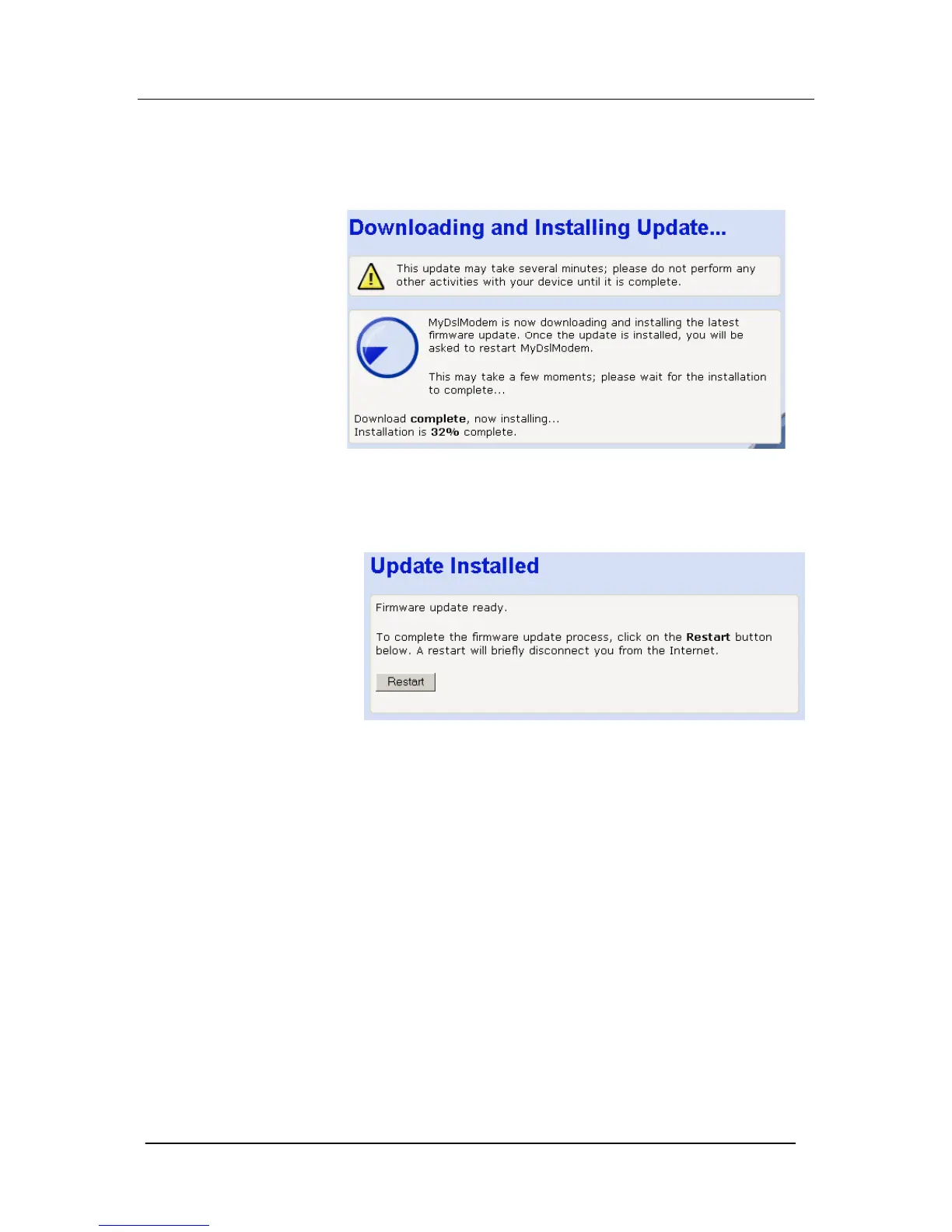
5. Click Update Now. The following page is displayed.
6. The page tells you that the firmware update is currently being
downloaded and installed on your Mitel 1000.
Once installation is complete, the following page is displayed:
7. You must restart your Mitel 1000 in order to make the Mitel
1000 aware that a new firmware version has been installed. To
do this, click Restart.
Once the system has been restarted you should restore the
database if you have saved it as shown above.




 To Next Page