USING CFWD VIA THE IP PHONE UI
Once CFWD is enabled on your phone, you can access and change the configuration using
the IP phone UI or the Mitel Web UI. You can access the CFWD menus by pressing a
pre-configured CFWD key, or by selecting Options > Call Forward from the IP phone UI.
CFWD in Account Mode
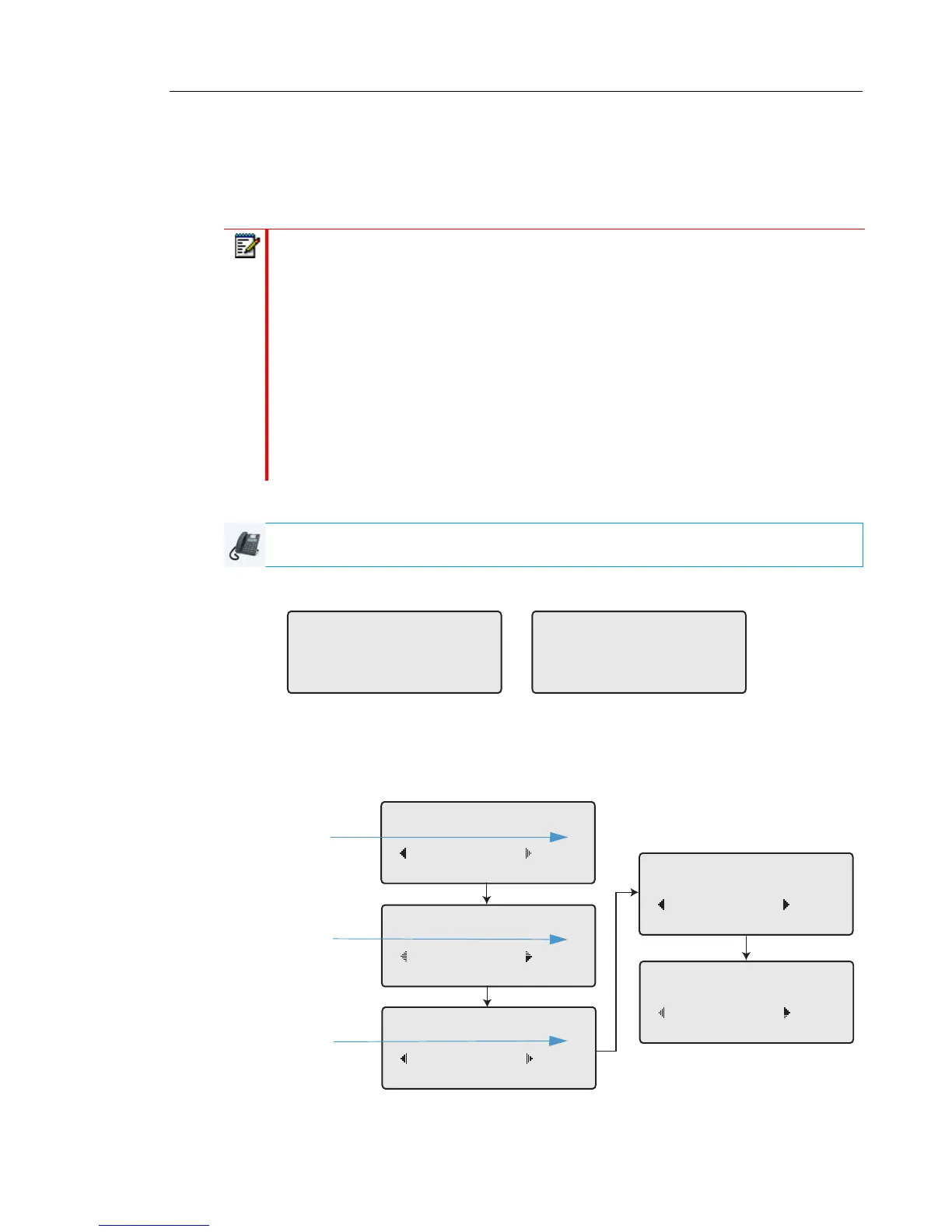
1. Use the 3 and 4 navigation keys to scroll through each account.
In the above example, account 1 has CFWD All enabled and account 2 has CFWD Busy
enabled.
2. Press the programmed Call Forward key. The Call Forward Mode screen displays. Use
the 2 and 5 navigation keys to scroll through each state type.
Notes:
1. If there is no CFWD key configured on the phone or it is removed, you can still enable
CFWD via the IP phone UI at the path Options > Call Forward.
2. If there is only one account configured on the phone, then the mode setting is ignored
and the phone behaves as if the mode was set to Phone.
3. Using the Mitel Web UI, if you change the CFWD mode to Phone, all accounts
synchronize to the current setting of Account 1.
4. If the BroadSoft BroadWorks Executive and Assistant Services feature is enabled
and your phone is configured with the Assistant’s role, an additional Forward Filtering
option may be available on the Account Configuration page. For information on the
BroadWorks Executive and Assistant Services feature, refer to BroadSoft
BroadWorks Executive and Assistant Services on page 175.
IP PHONE UI
John Smith
CFWD All
Tue Aug 20 2:55pm
L1
J. Smith
CFWD Busy
Tue Aug 20 2:55pm
L2
Cfwd Mode
1. All
Done Change
Cfwd Mode
2. Busy !
Done Change
Cfwd Mode
3. No Answer X
Done Change
Cfwd Mode
4. All Off
Done Change
Cfwd Mode
5. All On
Done Change
Indicates
Indicates
CFWD Enabled
CFWD Disabled
Indicates
no CFWD
phone number
configured



 To Next Page