EasyManua.ls Logo

Native Instruments M32 User Manual

Native Instruments M32
123 pages
To Next Page IconTo Next Page
To Previous Page IconTo Previous Page
Page #100 background image
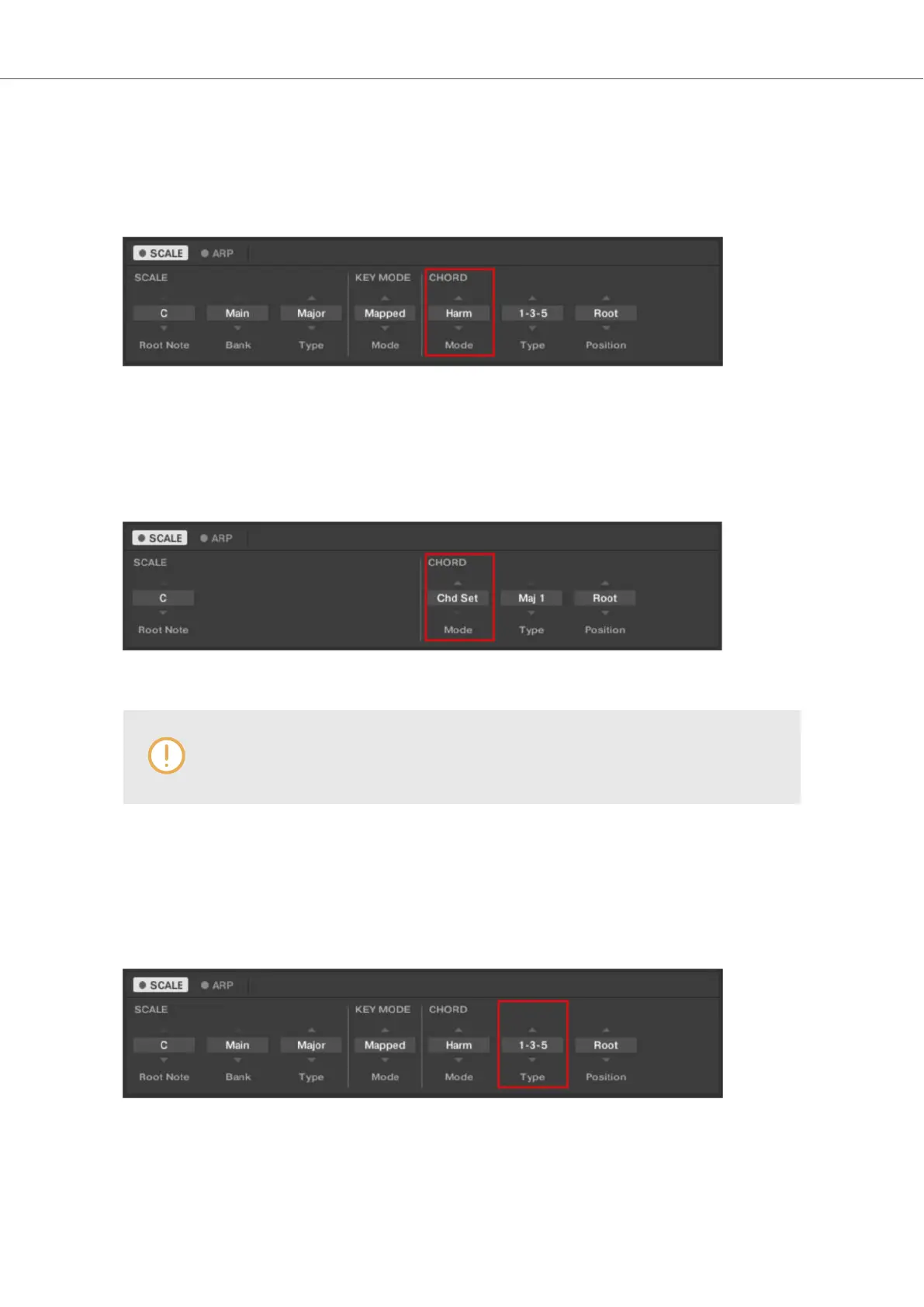
Harm
If CHORDMode is set to Harm, the CHORDType menu allows you to specify the interval of notes
in the selected SCALEType that will constitute the chord: E.g., a triad in the form of the root note,
the third note, and the fifth note (CHORDType value 1-3-5).
The CHORD parameter Mode, set value Harm.
Chd Set
If CHORDMode is set to Chd Set, the CHORDType menu allows you to choose from a selection
of major and minor chords depending on the current Root Note.
The CHORD parameter Mode, set value Chd Set.
The SCALE Type and KEY MODE parameters are not available when CHORD
Mode is set to Chd Set.
12.8.2. CHORD Type
The second CHORD parameter is Type. On the keyboard, it is mapped to Knob 6 of the Control
section in Scale Edit mode. Use it to define a chord that will be generated from a single note used
as input.
The CHORD parameter Type.
The available CHORD Type values depend on whether CHORD Mode is set to Harm or Chd Set,
as described in detail below.
Smart Play – Playing and Editing Scales and Chords
95

Table of Contents

Question and Answer IconNeed help?

Do you have a question about the Native Instruments M32 and is the answer not in the manual?

Native Instruments M32 Specifications

General IconGeneral
Keys32
ConnectivityUSB
PowerUSB powered
TypeMIDI Keyboard Controller
DisplayOLED
Software IncludedAbleton Live Lite
DAW IntegrationAbleton Live, Logic Pro X, Garageband, Cubase, Nuendo
Controls8 knobs
Weight2.2 lbs

Summary

5. SOFTWARE OVERVIEW

5.2. Browser

Introduces the Browser for finding, loading, and organizing instruments, loops, and presets.

5.2.1. Library Pane

Details the Library pane for browsing content by types, characters, and tags.

6. KEYBOARD OVERVIEW

Top View

Provides a detailed layout of the KOMPLETE KONTROL M32 keyboard's top controls.

7. GLOBAL CONTROLS AND PREFERENCES

7.5. Preferences

Accesses system-wide settings for KOMPLETE KONTROL.

7.5.1. Preferences – Audio Page

Configures audio driver, device, sample rate, and buffer size.

7.5.2. Preferences – MIDI Page

Sets up MIDI input and output ports for standalone operation.

7.5.5. Preferences – Plug-ins Page

Manages VST plug-in locations and activation.

8. BROWSING THE LIBRARY

8.1. Browser Basics

General concepts and overview of the KOMPLETE KONTROL Browser interface.

8.2. Opening the Browser

Methods to open and access the Browser interface.

8.3. Loading Preset Files

How to load preset files from the Browser and the keyboard.

8.5. Filtering Preset Files by Product

Selecting specific products to filter the displayed preset files.

8.8. Types and Characters Tags

Using tags to search for presets based on sound characteristics.

8.9. Working with Favorites

Managing and using favorite preset files for quick access.

8.10. Performing a Text Search

Using the search field to find presets by keywords.

9. WORKING WITH EFFECTS

9.2. Adding Effects

Steps to add effects to the instrument's plug-in chain.

9.6. Bypassing Effects

Temporarily disabling effects for A/B comparison.

9.7. Removing Effects

Deleting effects from the plug-in chain.

10. MANAGING THE LIBRARY

10.1. Saving Preset Files to the User Library

How to save custom sounds as user presets.

11. CONTROLLING INSTRUMENT, LOOP, ONE-SHOT AND EFFECT PARAMETERS

11.2. Adjusting Parameters

How to control instrument and effect parameters using keyboard knobs.

12. SMART PLAY – PLAYING AND EDITING SCALES AND CHORDS

12.3. Selecting and Playing a Scale

How to choose and play scales using the keyboard.

12.4. Playing Chords

Methods for playing chords using Smart Play features.

13. SMART PLAY – PLAYING AND EDITING ARPEGGIATOR SEQUENCES

13.1. Playing Arpeggiator Sequences

How to create and play arpeggiated note sequences.

13.2. Editing the Arpeggiator

Overview of Arpeggiator parameters for shaping note sequences.

14. MIDI COMMUNICATION

15. HOST INTEGRATION

Related product manuals