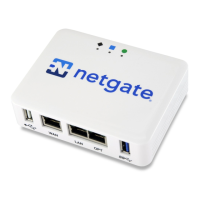
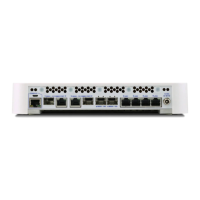
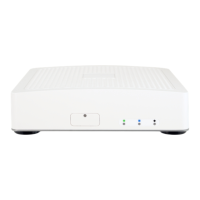
FXS Gateway Overview
- 19 -
Step 2. Connect the VoIP Gateway to the WAN port
Connect the WAN port (silver) on the VoIP Gateway to the Ethernet port on the
cable modem using the cable that came with your cable modem. The Ethernet port on
the cable modem is sometimes labeled “PC” or “Workstation”.
Step 3. Connecting the PC to the LAN
If you have more than one PC, you must use an external hub. Connect the
10/100M LAN Port (gold) on the VoIP Gateway to a port on the hub using a straight
through Ethernet cable. If you only have one PC, you can connect the VoIP Gateway
to the PC directly without a hub. For a single PC, connect the 10/100M LAN port on the
VoIP Gateway to the Network Adapter on the PC using a crossover cable (red tag).
Step 4. Connecting the Power Adapter to your VoIP Gateway
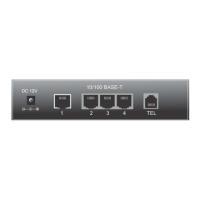
Connect the power adapter to the port labeled POWER on the rear panel VoIP
Gateway.
Caution: To prevent damage to the VoIP Gateway, first make sure you have the
correct AC power adapter. Please see the Appendices for AC power adapter
specifications for your region.
Step 5. Grounding the VoIP Gateway
If you want to ground the VoIP Gateway then connect a grounded wire to the F.G.
(Frame Ground) of the VoIP Gateway.


 To Next Page