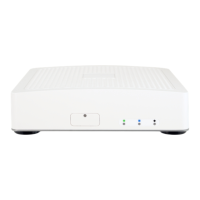
FXS Gateway Overview
- 46 -
Configuration Data screen to Display Commit to Flash OK!, When the
Commit Data Ok.
Step 3. Click [Reboot System] on the navigation panel. In the VoIP Gateway
screen, click the [Reboot] button. It will take 40 seconds to reboot.
Step 4. Close the current browser windows and launch your web browser
again. Enter the new IP address in the Location or Address field.
Step 5. Setup PC use LAN IP connection Network
Select [Specify an IP Address] and enter [192.168.123.111] in the [IP
Address] location (where xxx is a number between 2 and 254 used by the
VoIP Gateway to identify each computer), and the default [Subnet Mask
255.255.255.0]. Note than no two computers on the same LAN can have


 To Next Page