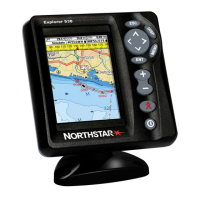
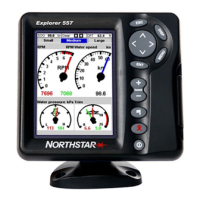
19Northstar Explorer 650 Installation and Operation Manual
3-1-1 Navigating to a point
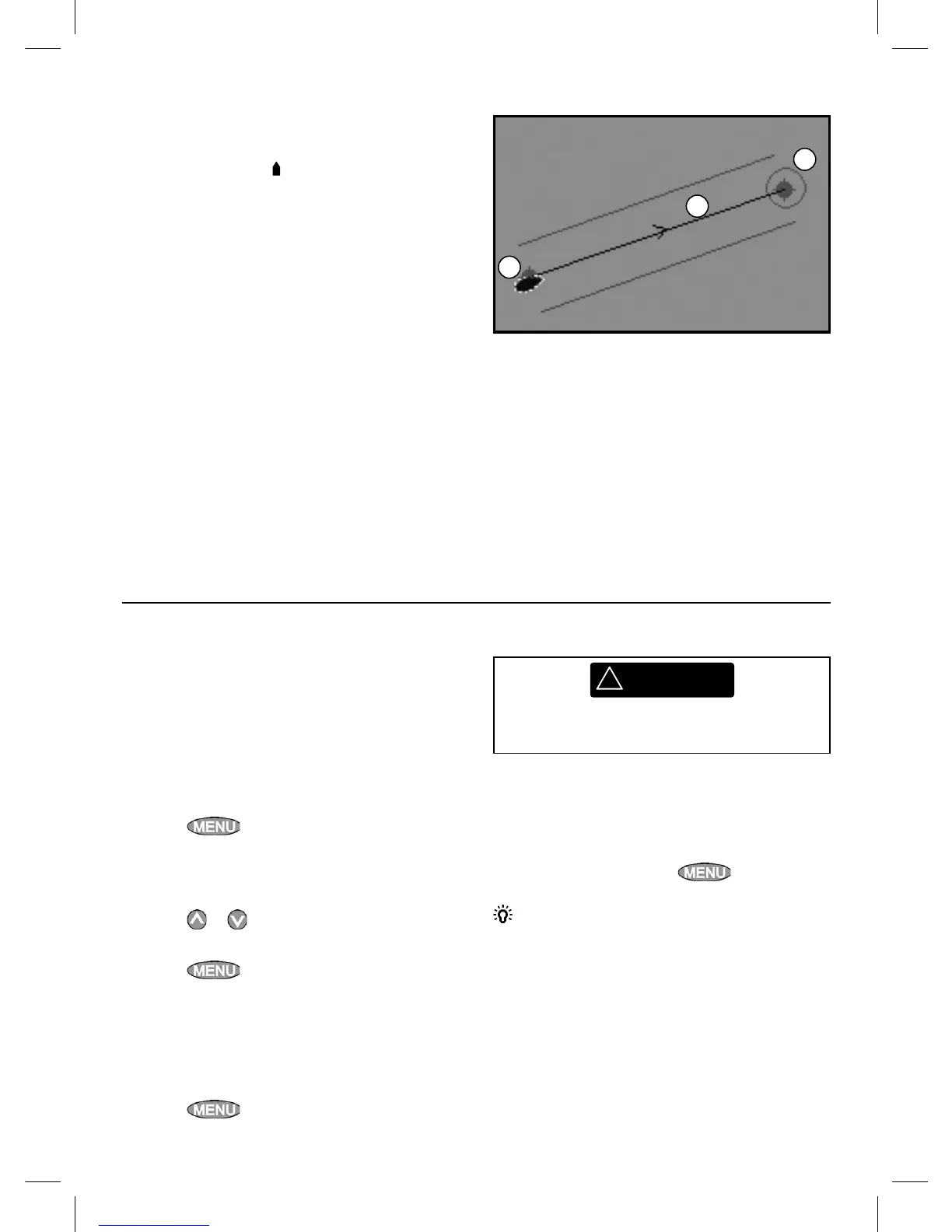
When the Explorer is navigating to a point, the
chart and highway displays show navigation data:
A The boat position
.
B The destination point marked with a circle.
C The boat’s plotted course to the destination.
D Two CDI lines, parallel to the boat’s plotted
course, which indicate the maximum
expected deviation from the plotted course.
For more information, see appendix C.
If the Explorer is connected to an autopilot, the
Explorer will send data to the autopilot to steer
the boat to the destination. Start the autopilot
before starting to navigate to the point.
If the Explorer has no autopilot, steer the boat
manually:
a use the boat position and destination on the
chart or highway displays
b or use navigation data displayed on the data
header (see section 2-7-3)
c or use COG and BRG on the compass (see
section 2-7-4).
Note:
1 If the XTE alarm is enabled, an alarm will
sound if the boat deviates too much from its
intended course (see section 17-8).
2 If the arrival radius alarm is enabled, then an
alarm will sound to show that the boat has
reached the destination
(see section 17-8).
A waypoint is a position that you can set on the
Explorer chart, for example a fishing spot or a
point on a route (see section 5).
Going to a waypoint from the chart display
1 Go to the chart display.
2 Move the cursor to the waypoint: either use
the cursor keys or use Find (see section 3-2-5).
3 Press
and select Goto.
Going to a waypoint from the waypoints
display
1 Go to the waypoints display.
2 Press
or to highlight the waypoint to
go to.
3 Press
and select Goto.
Going to a point on the chart
1 Switch to a chart display.
2 Move the cursor to the destination point:
either use the cursor keys or use Find (see
section 3-2-5).
3 Press
and select Goto cursor.
3-1-2 Going to a waypoint or to a point on the chart
A
B
C
!
WARNING
Make sure the course does not pass over land
or dangerous waters.
Navigating
The Explorer navigates to the point as described
in section 3-1-1.
Cancelling navigating
Go to a Chart display, press
and select
Cancel goto.
Tip: Before starting, create waypoints at points
of interest. Create a waypoint at the start of the
trip for you to navigate back to (see section 5-2-1).



 To Next Page