17
H.264 4/8/16-channel Networkable DVRs
SECTION 3: DVR SETUP
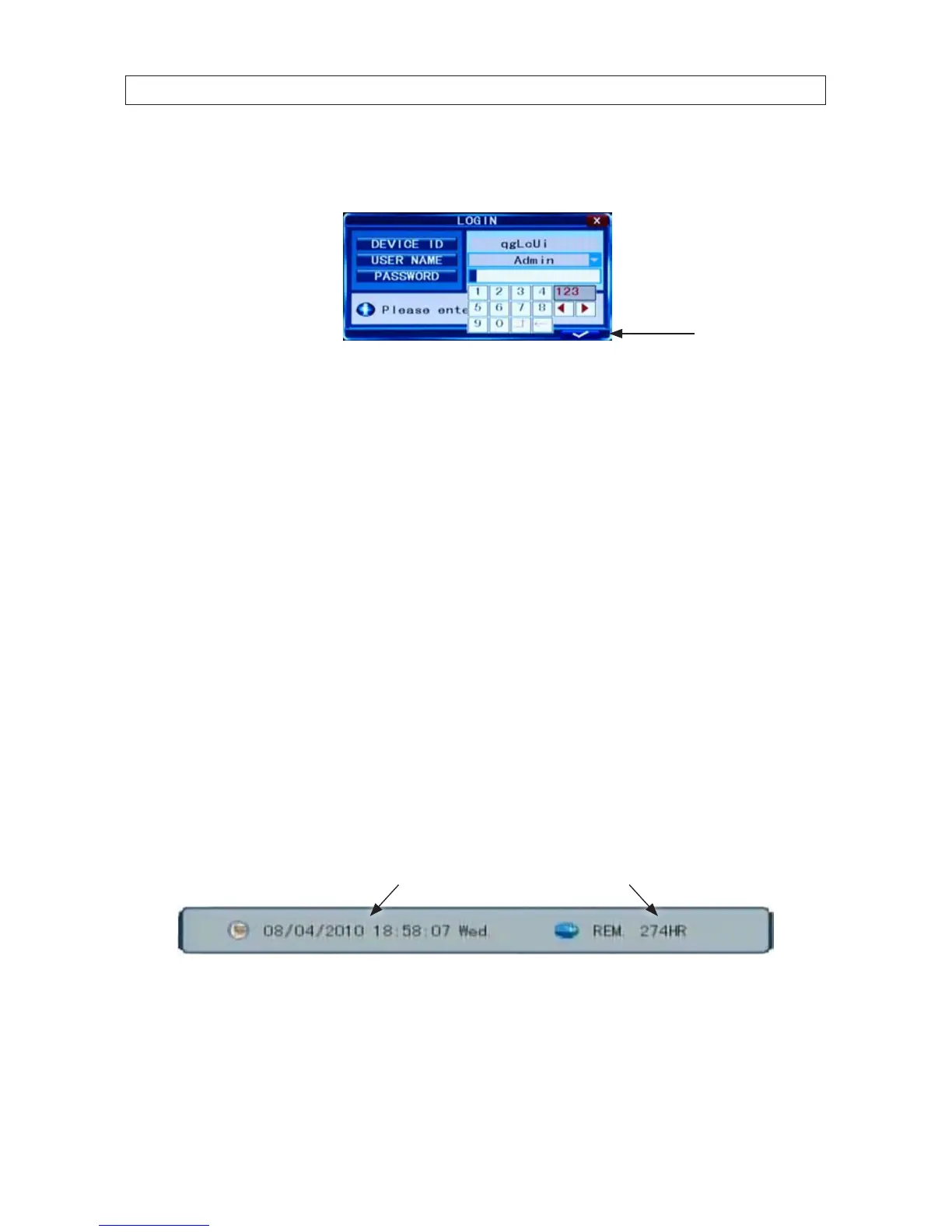
2. Press the MENU button on the front panel twice, or right-click the mouse twice anywhere on the screen. An Input
Password window will appear.
Conrm entry
3. Click the q icons to the right of the User Name eld parameter eld and select Admin. To make conguration changes to the
system, you must login to the Admin account.
4. Using the mouse, click the entry eld on the PASSWORD line, then click the number buttons that appear to enter the account
password. For example, to enter the default Admin password, 888888, click the “8” button six times, then click the conrm
entry icon.
5. Click the a (check mark) icon in the lower right corner of the window to conrm your entry and enter the login information.
A tool bar icon strip will appear at the bottom of the screen.
3.2 Conguring the system
Basic system conguration settings include setting the screen language, video system format, system time, creating users,
initializing the hard disk drive (HDD), and setting up automated recording.
1. If the system is not running, power on the DVR and wait until it completes initialization.
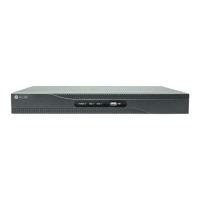
2. Right-click anywhere on the desktop, or press the MENU button. A status bar will appear.
3. Compare the DVR system date and time shown on the Status Bar with an accurate clock.
System Date and Time Remaining HDD Recording TIme
Status Bar
Note: To see an accurate clock, access a reliable Internet time server, such as tf.nist.gov


 To Next Page