30
SECTION 3: DVR SETUP
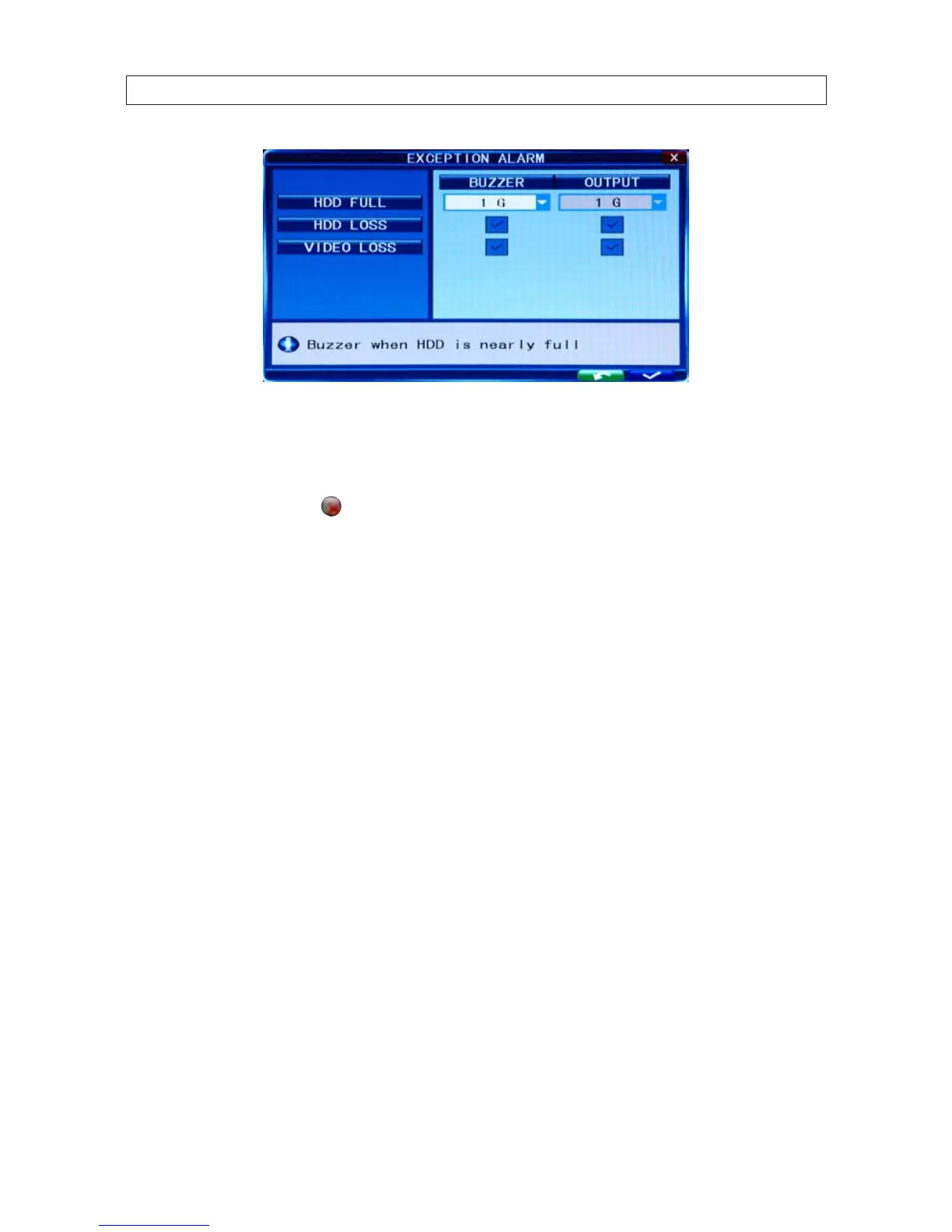
7. Click the >> icon at the right end of the HDD FULL line. This feature enables the buzzer sound when the HDD is nearly full.
Select either OFF, 1 G (remaining), 5 G ,10 G, 1 HOUR, 5 HOUR , 10 HOUR, or 20 HOUR.
8. Click the checkbox to the right of the HDD LOSS label to enable this alarm. When the HDD is not available, this feature will
sound the buzzer and place the
on the desktop.
9. Click the checkbox to the right of the VIDEO LOSS label to enable this alarm. When a video signal from a channel is not
detected, this feature will sound the buzzer and place the Video Loss label in the channel LIVE view window.
10. After conguring your network settings, click the conrm icon (a) in the lower right corner of the screen, click the Conrm
button in the Note window.
11. Press the MENU button on the front panel, or right click anywhere to return to the ALARM menu.
3.6.1 Motion detection setup
Motion detection can be congured for each channel individually, or you can apply the same settings to all channels at one time.
1. On the ALARM tab menu, click the >> icon on the MOTION line to open the MOTION DETECTION menu.


 To Next Page