22
SECTION 3: DVR SETUP
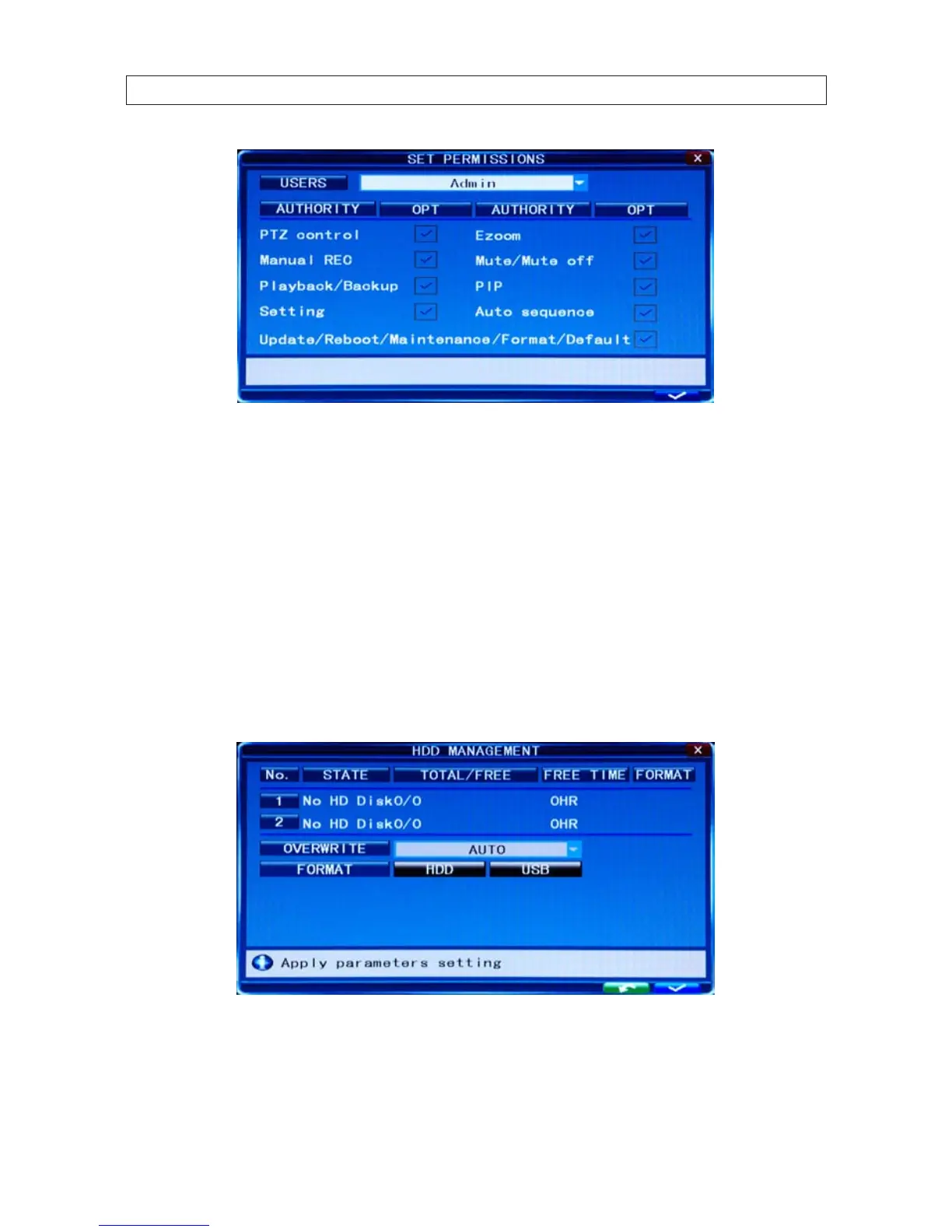
8. Click the q icon at the right end of the USERS line. From the dropdown list, select the name of the user you just created.
9. Click the OPT checkboxes to assign permissions to the new user.
10. Click the conrm icon (a) in the lower right corner of the screen, then click the Conrm button in the Note window.
11. Press the MENU button on the front panel to return to the USER MANAGEMENT window, then press the MENU button again
to return to the SETTINGS window SYSTEM tab.
3.2.4 Set HDD overwrite option
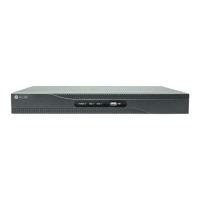
1. On the SYSTEM tab HDD line, click the >> icon to open the HDD MANAGEMENT window.
2. Click the q icon at the right end of the OVERWRITE line. From the dropdown list, select the option you prefer:
Close: When the HDD becomes full, no additional recordings are written to the HDD


 To Next Page