18
SECTION 3: DVR SETUP
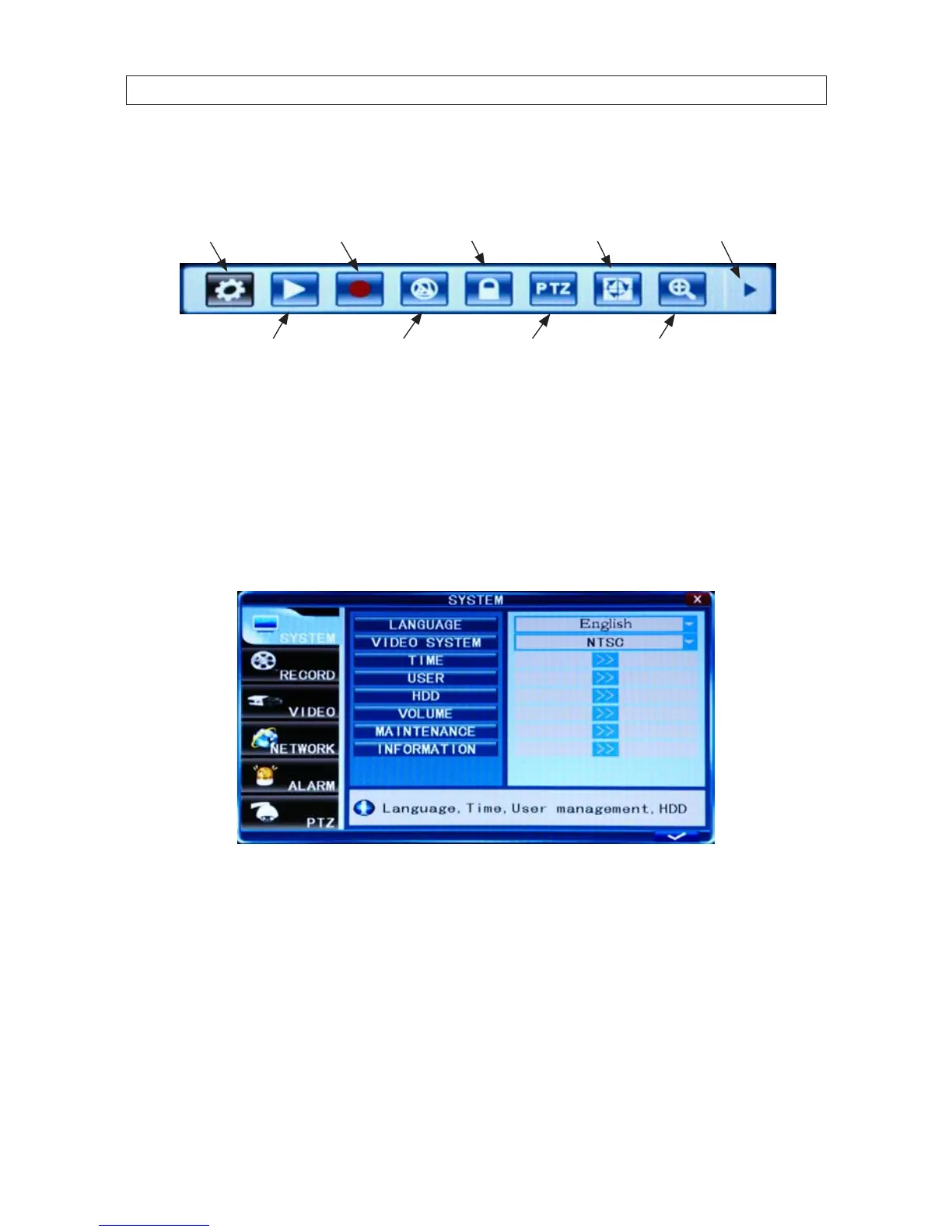
4. Right-click the mouse anywhere on the screen again. The Status bar will change to a Tools Bar or a login window. If a LOGIN
window opens, log in to the system as an Admin (see above).
System Settings
EZoomPTZPlay
Manual Record /
Stop Manual Record
Auto
Sequence AdvanceKeylock
Mute On/O
Tool Bar
5. Click the Settings button on the Tool Bar.
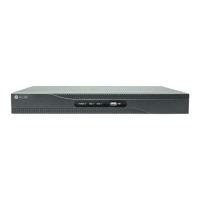
3.2.1 Setting the screen language and video system format
6. In the Settings window SYSTEM tab, click the q icon at the right end of the LANGUAGE line. Select (click) the screen
language you prefer from the dropdown list.
7. If the VIDEO SYSTEM option does not indicate NTSC, click the q icon at the right end of the VIDEO SYSTEM line, then select
NTSC from the dropdown list.
3.2.1 Setting the system time
1. On the TIME line, click the >> icon to open the TIME SETUP window.


 To Next Page