21
H.264 4/8/16-channel Networkable DVRs
3. Click the q icon at the right end of the USER NAME line. From the dropdown list, select Admin.
4. Click the OLD PASSWORD entry eld, then enter the current Admin password using the virtual keyboard.
5. Enter both the NEW PASSWORD and CONFIRM PASSWORD elds with a dierent password. Passwords cannot be more
than 6 digits in length.
6. Click the conrm icon (a) in the lower right corner of the screen, then click the Conrm button in the Note window.
7. Repeat steps 3, 4, 5, and 6 above to change the user1 password.
3.2.3 Add users to the system
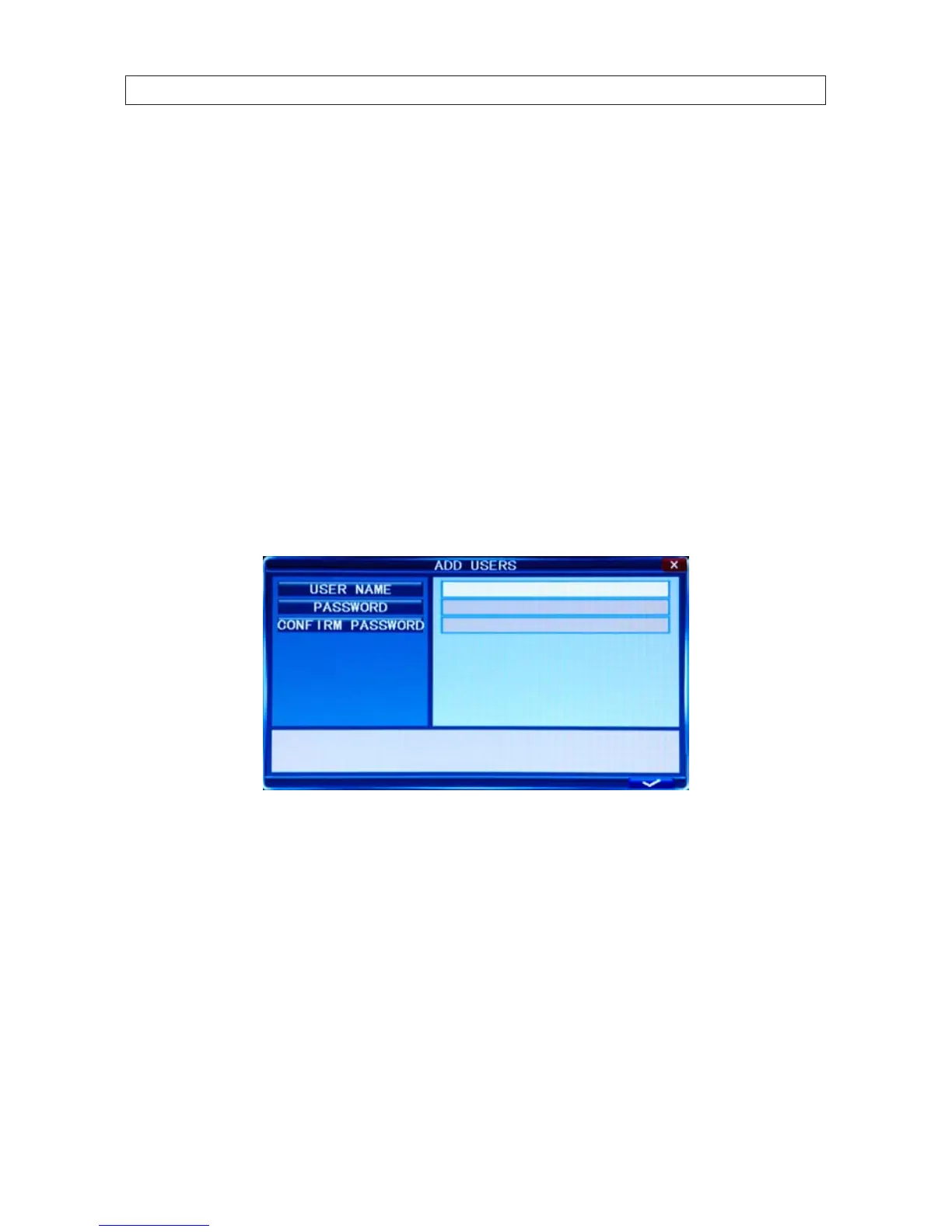
1. On the SYSTEM tab USER line, click the >> icon to open the USER MANAGEMENT window.
2. In the USER MANAGEMENT window, click the >> icon on the ADD USER line.
3. Click the entry eld on the USER NAME line to open a virtual keyboard. Click the letters and numbers to enter a username,
then click the = icon to close the keyboard.
4. Enter both the PASSWORD and CONFIRM PASSWORD elds with a password for the user. Passwords cannot be more than
6 digits in length.
5. Click the conrm icon (a) in the lower right corner of the screen, then click the Conrm button in the Note window.
6. Press the MENU button on the front panel or right click on the desktop to return to the USER MANAGEMENT window.
7. In the USER MANAGEMENT window, click the >> icon on the SET PERMISSIONS line.
SECTION 3: DVR SETUP


 To Next Page