62
SECTION 7: DVR SYSTEM MENUS
7.2.5 VOLUME
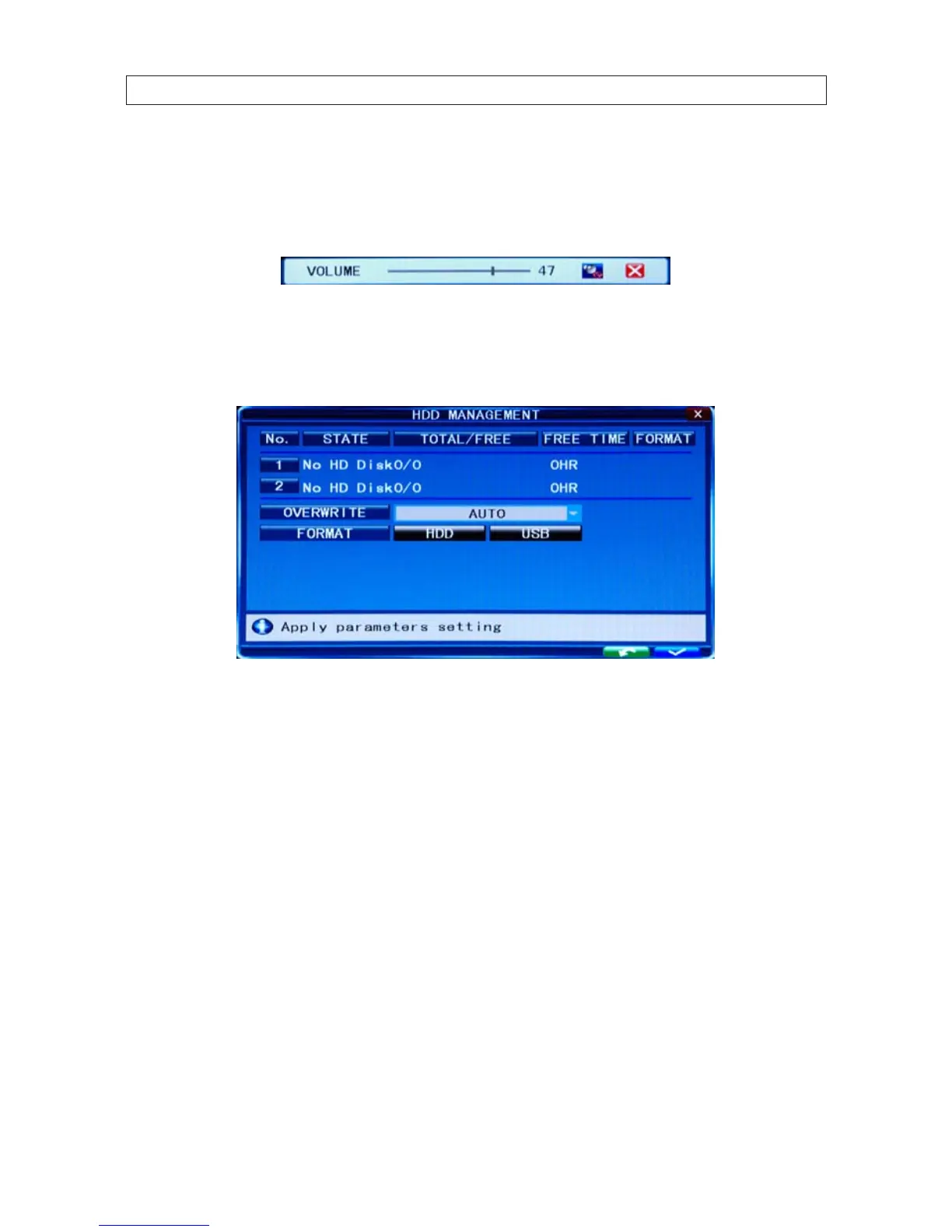
Click VOLUME [System Settings -> System -> Volume] to open the Volume setting window. In the Volume window, drag the
slider left or right to decrease or increase the volume level.
7.2.6 HDD
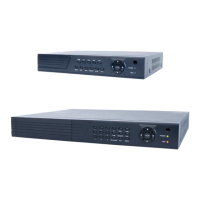
Click HDD [System settings -> System -> HDD] to open the HDD (hard disk drive) management menu.
STATE: The HDD can have one of three possible “states”: OK, un-format, and No Disk. If the HDD cannot operate normally
(un-format or No Disk), an icon will be displayed on video live view window. If a new HDD is used by the DVR for the rst time,
the system will restart after the HDD is formatted.
TOTAL/FREE: Indicates total space available on the HDD.
FREE TIME: Indicates remaining recording time of the HDD.
OVERWRITE: Includes: CLOSE, AUTO, 1 HOUR, 3 HOURS, 1 DAY, 2 DAYS, 7 DAYS, 30 DAYS and 90 DAYS:
CLOSE: the recording stops when the hard disk drive is full. It will continue recording if “overwrite” is enabled.
AUTO: the recording continues and overwrites previous recordings when hard disk drive space is full.
2 DAYS: a recordings remains on the HDD for two days at most. After two days, a recording may be overwritten.
Other options: Similar to the 2 DAY option.
FORMAT HDD: Move the cursor to select the device, then press HDD to start formatting.
FORMAT USB: This function allows you to format a USB storage device.


 To Next Page