53
H.264 4/8/16-channel Networkable DVRs
SECTION 6: KWEYE SMARTPHONE APP
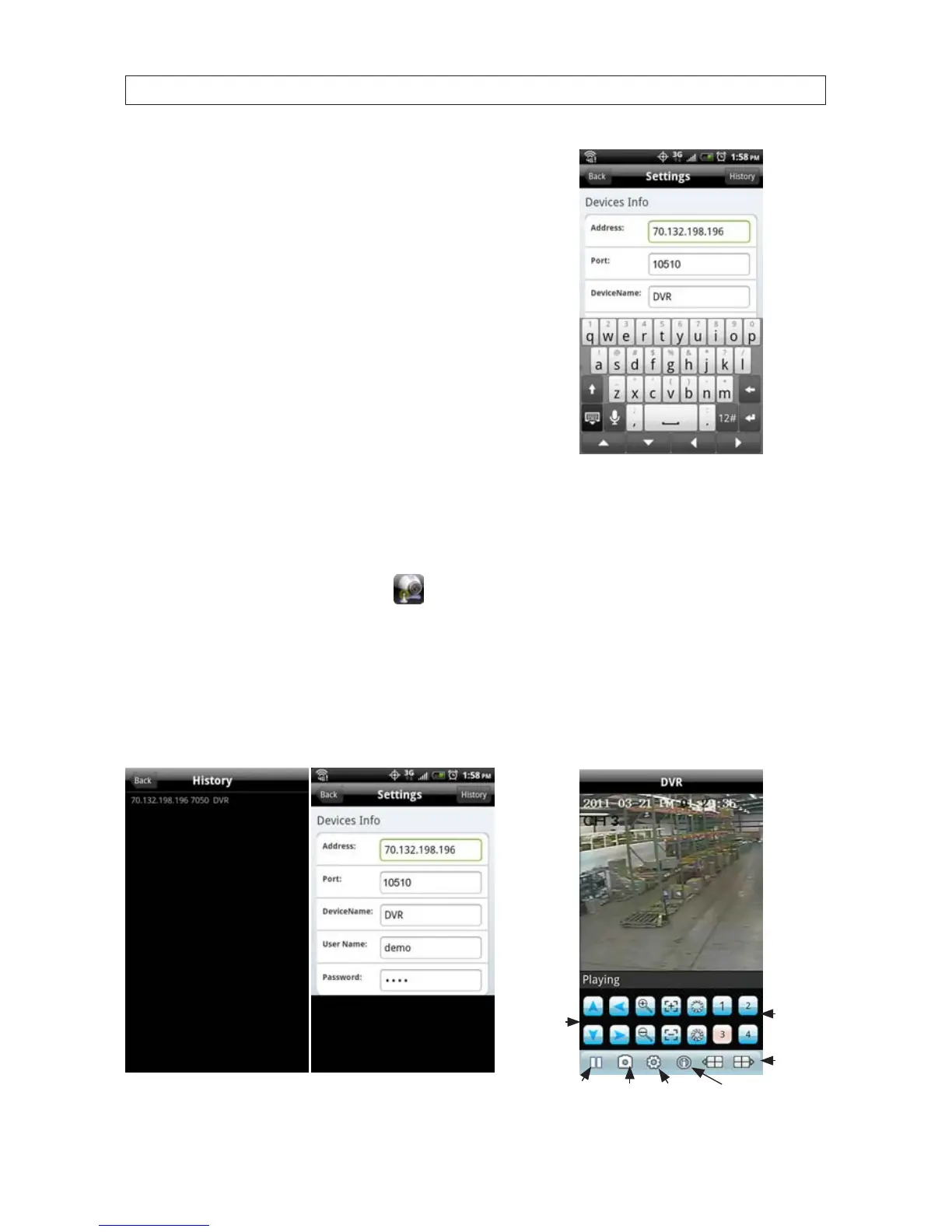
• Tap the Settings icon. The splash screen will change to the Settings
screen.
• In the Device Info elds, enter the appropriate information for your
DVR:
Address: IP address used to connect to your DVR modem from
the Internet, or the URL of the DynDNS server you use.
Port: Mobile monitor server port number congured in the DVR’s
network mobile submenu. The default port number is 10510.
DeviceName: A name you use to identify your DVR.
UserName and Password: Enter the username and password
you use to log into your DVR. NOTE: You may have to slide the
screen up to display the UserName and Password elds.
• After completing the entries in the Settings menu, tap the Back button to test the settings and connect to your DVR. When
connecting to your DVR, the Device Info settings will be logged in the History screen for easy retrieval.
6.3 Using KWeye
• If KWeye is not running, tap the KWeye icon to open the app. The KWeye History screen will appear.
• In the History screen, tap the entry for the DVR you want to connect to open. The Settings screen will open.
• To use the Device Info in the Settings screen to access your DVR, tap the Back button in the upper left corner.
• Tap the Play button to start watching video from the DVR.
PTZ Controls:
Direction,
Zoom, Iris,
Focus
Play/Stop
Select
Channel
Switch
Channel
Group
SW InformationSnapshot Settings


 To Next Page