63
H.264 4/8/16-channel Networkable DVRs
7.2.7 Maintenance
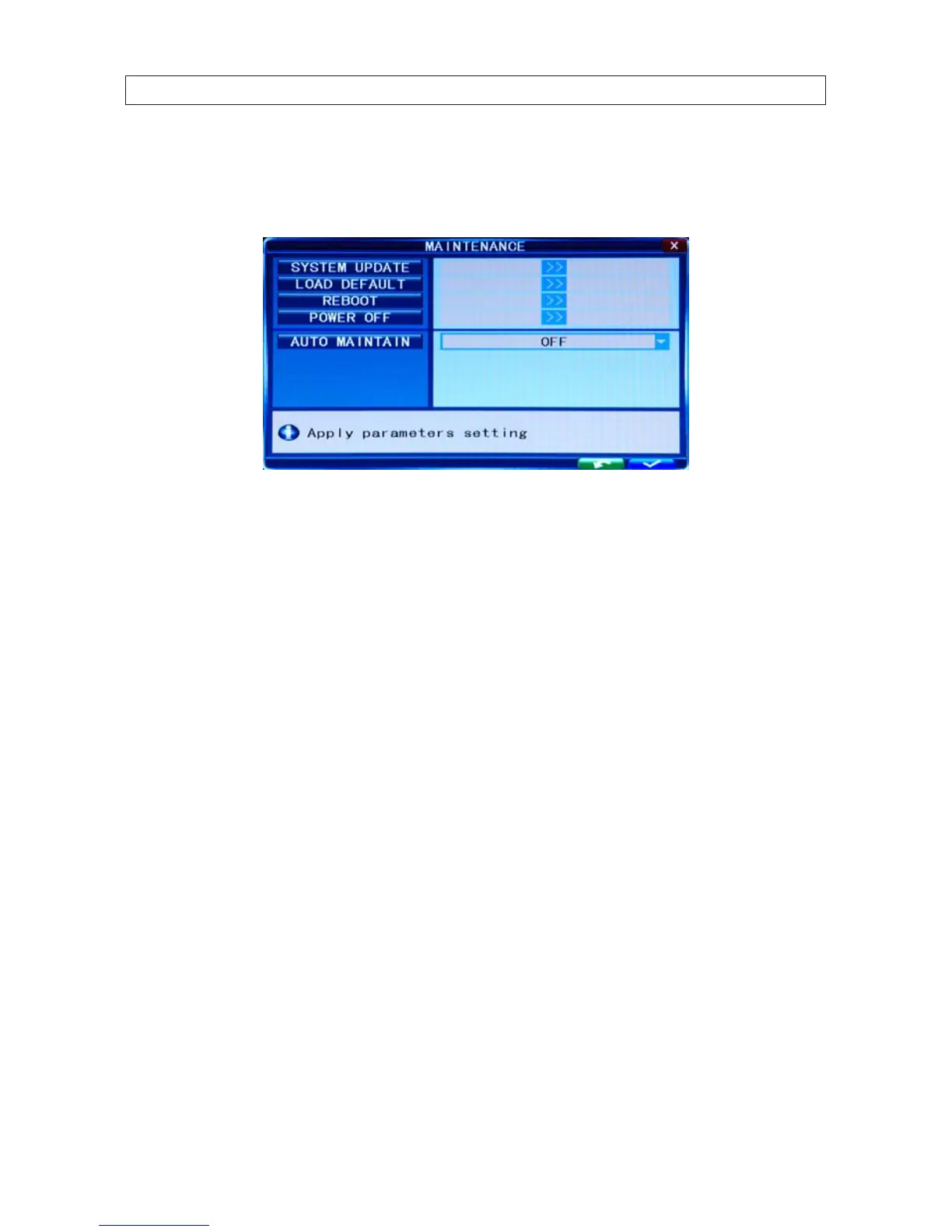
Click Maintenance [System settings -> System -> Maintenance] to open the Maintenance setup menu.
SYSTEM UPDATE: To perform a system update:
1. Insert a thumb drive into a Windows PC USB port, then.
a. Format the thumb drive for a FAT32 le system.
b. Create a root directory on a thumb drive named “dvrupgrade”.
c. Copy the update le to the “dvrupgrade” directory.
d. Eject the thumb drive from the Windows PC.
2. Insert the thumb drive into a USB port on the DVR, then:
a. Click the >> icon on the SYSTEM UPDATE line.
b. Wait until the DVR recognizes the thumb drive.
c. Press Enter to upgrade the rmware. The progress of the system upgrade will be displayed. After completing the
upgrade, the DVR will restart. NOTE: The system upgrade usually requires more than two minutes to complete.
LOAD DEFAULT: Restores all the system conguration to the factory settings.
REBOOT: Use this function to restart the DVR.
POWER OFF: Use this function to power o the DVR.
SECTION 7: DVR SYSTEM MENUS


 To Next Page