19
H.264 4/8/16-channel Networkable DVRs
SECTION 3: DVR SETUP
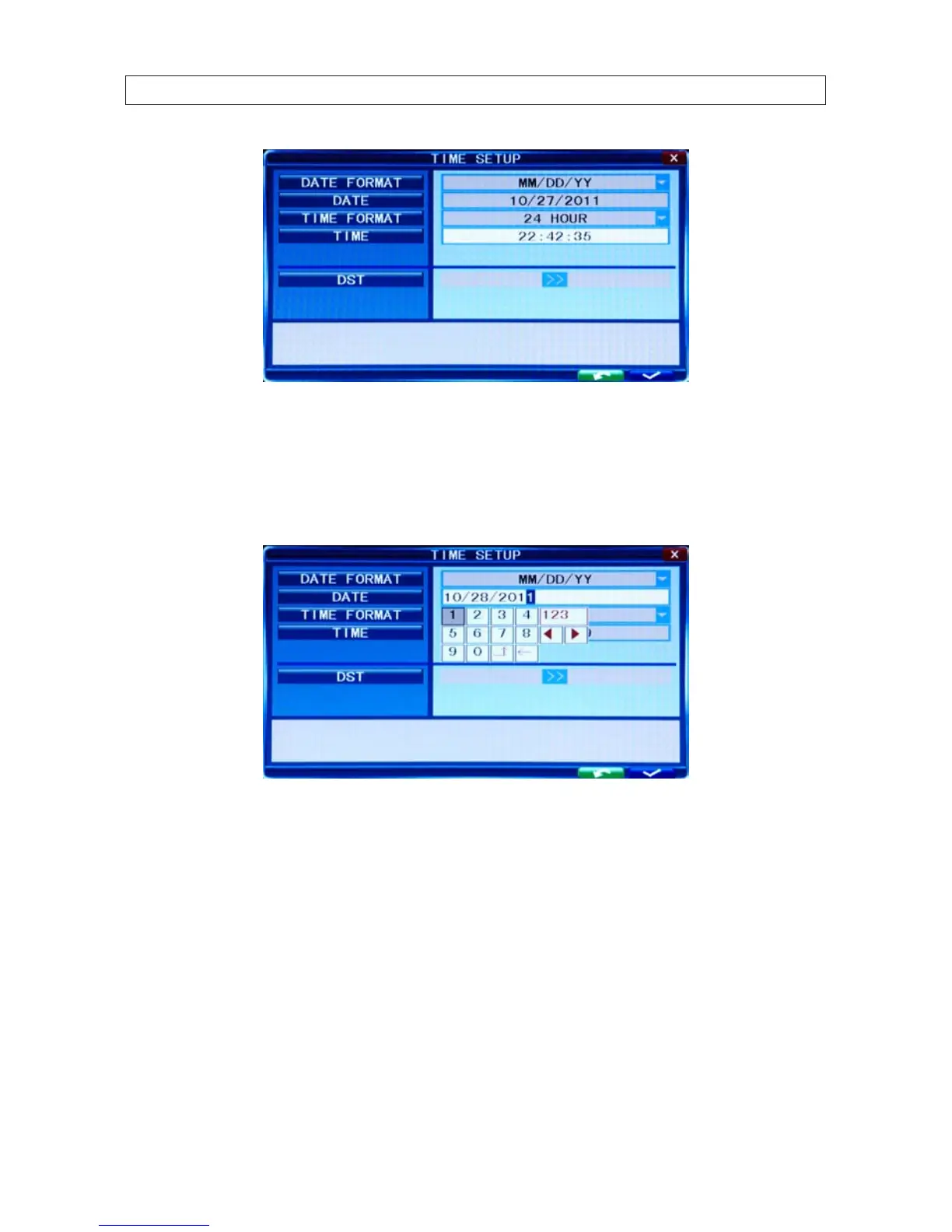
2. Click the q icon at the right end of the DATE FORMAT line. Select the format you prefer: MM/DD/YY, YY-MM-DD, or DD-
MM-YY.
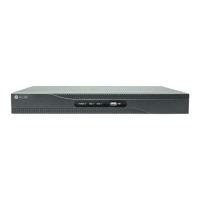
3. Click the entry on the DATE line. Click the t or u icons to highlight a digit of the date, then click the number value of the
digit To complete the entry and close the virtual keyboard, click the = button.
4. Click the q icon at the right end of the TIME FORMAT line. Select the format you prefer: 12 hour or 24 hour.
5. Click the entry on the TIME line. Click the t or u icons to highlight a digit of the current time, then click the number value of
the digit. To complete the entry, click the = button.
6. If you selected a 12 hour time format, click the q icon on the line below the TIME entry, then select either AM or PM.
7. On the DST line, click the >> icon to open the DST (ON/OFF) option window. If you select ON, a DST setup window will open.
Use the method like that detailed above to setup the DST start and end time, then click the conrm entry check (
a) in the
lower right corner to conrm your entries.
8. Click the CONFIRM button in the NOTE window.


 To Next Page