3.3 Working with PLUs
You can save your item data in the scale's PLU memory and easily call it up later.
PLUs are created in sub-menu F111.
3.3.1 Calling up a PLU
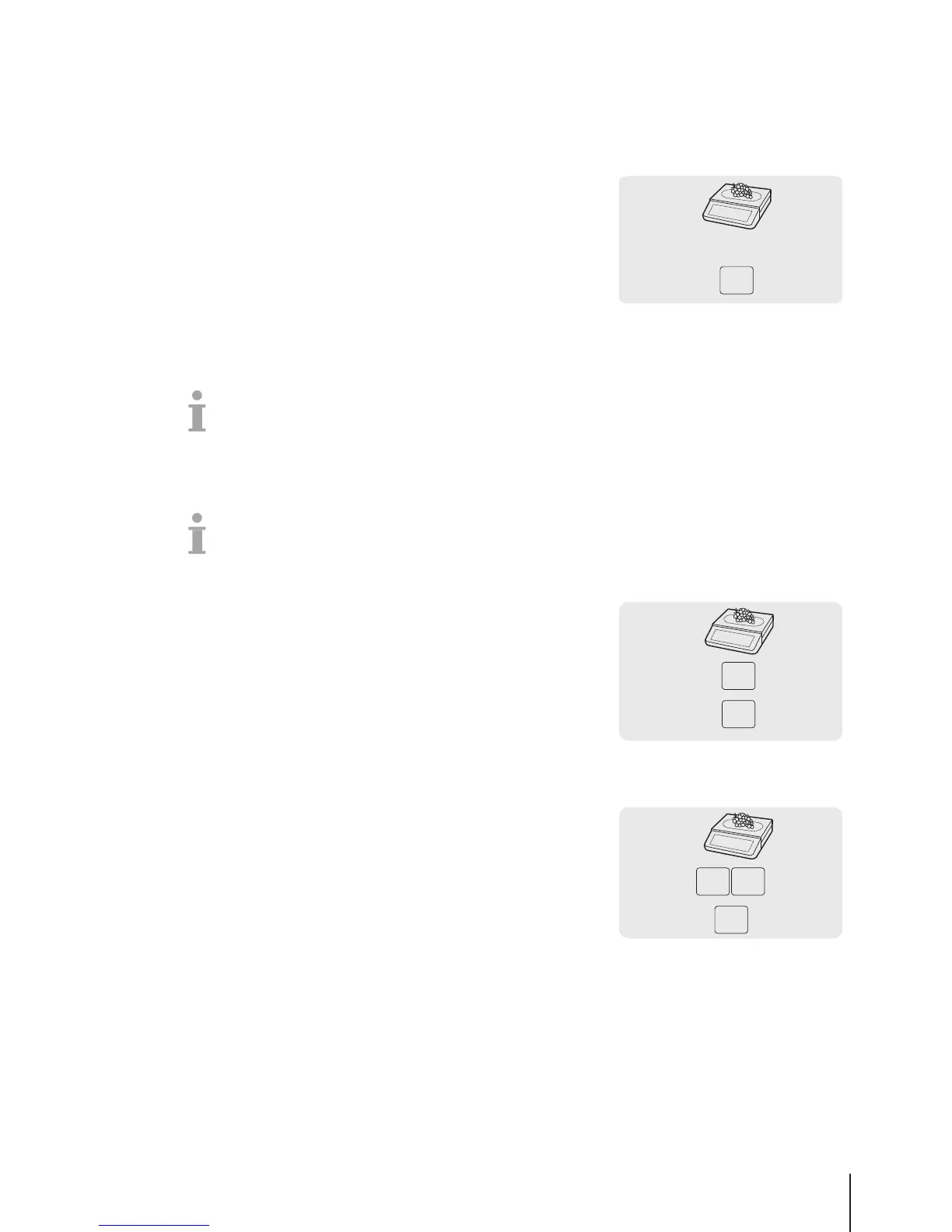
1 If Direct Price is displayed, press the PLU key.
ð Enter PLU number is displayed.
2 Place the item on the scale.
3 Enter the corresponding PLU number.
ð The unit price and item name appear in the display.
4 Confirm the entry with the Vendor key.
5 For more items, repeat steps 1 to 4.
6 Complete the transaction as described in section [Free
input}Page14].
• When pressing the PLU key long, the default switches permanently from "Direct price" to "Enter PLU
number".
• If you discover that you have entered the wrong PLU number before you have confirmed the entry
with the Vendor key, you can clear it with the Clear key and then enter the correct PLU.
3.3.2 Calling up a PLU with preset keys
• You can save the most important PLUs to the keys in the keyboard.
• There are two layers of preset keys.
Preset keys on the first layer
1 Place the item on the scale.
2 Press the relevant preset key, e.g., "Grape".
ð The unit price and item name appear in the display.
3 Confirm the entry with the Vendor key.
4 For more items, repeat steps 1 to 3.
5 Complete the transaction as described in section [Free
input}Page14].
Preset keys on the second layer
1 Place the item on the scale.
2 Press the relevant preset key twice.
ð The unit price and item name appear in the display.
3 Confirm the entry with the Vendor key.
4 For more items, repeat steps 1 to 3.
5 Complete the transaction as described in section [Free
input}Page14].
Fast and easy operation 15Skippper 5000



 To Next Page