4.3.2 Example for creating a PLU
For operating the menu, refer to [Entering the menu}Page28].
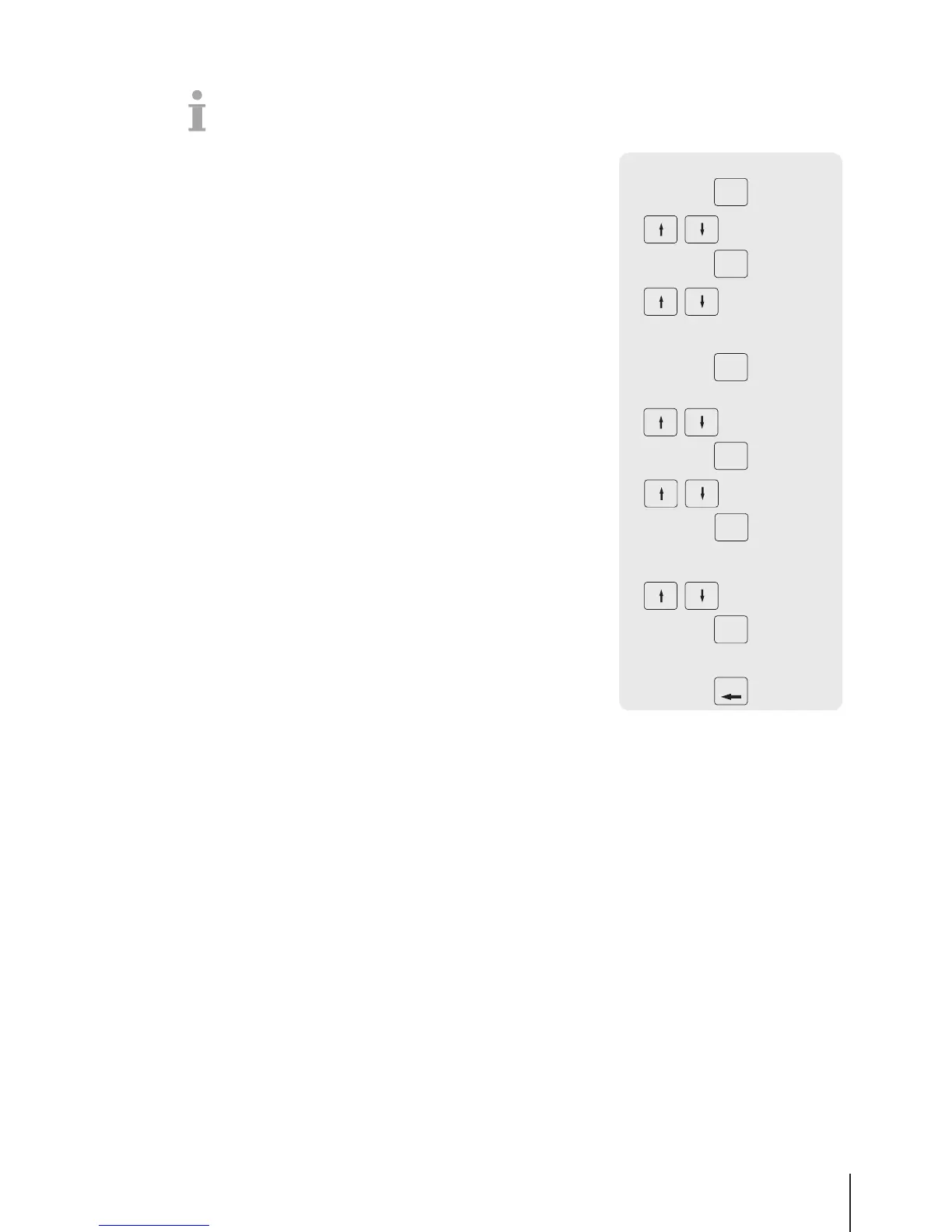
1 Enter the menu and navigate to sub-menu
F111PLUDatabase/Edit.
2 Press the OK key.
3 Use the arrow keys to select Create New? and confirm with
the OK key.
4 Select Item Number and confirm with the OK key.
5 Enter an unused item number and confirm with the OK key.
6 Use the arrow keys to step through the configured PLU items.
7 Use the OK key to edit an item.
8 Enter numerical values, e.g., price, and confirm with the OK key.
9 Use the arrow keys to select from a list, e.g., units of measure,
and confirm with the OK key. Selecting New opens the menu to
create a new list entry, e.g., a new group.
10 When all mandatory entries are made, press the Back key
repeatedly until the normal selling display is shown.
ð All settings are saved automatically.



 To Next Page