3.11 Changing prices
3.11.1 Overwriting a price temporarily
To be able to change a PLU price, the following settings must be made:
• "Overwrite Price" enabled or set to "Up to PLU" in sub-menu F215.
• If the price overwrite is "Up to PLU", the functionality must be enabled for each PLU individually in
sub-menu F111.
• A key defined as [Overwrite Price] in sub-menu F232.
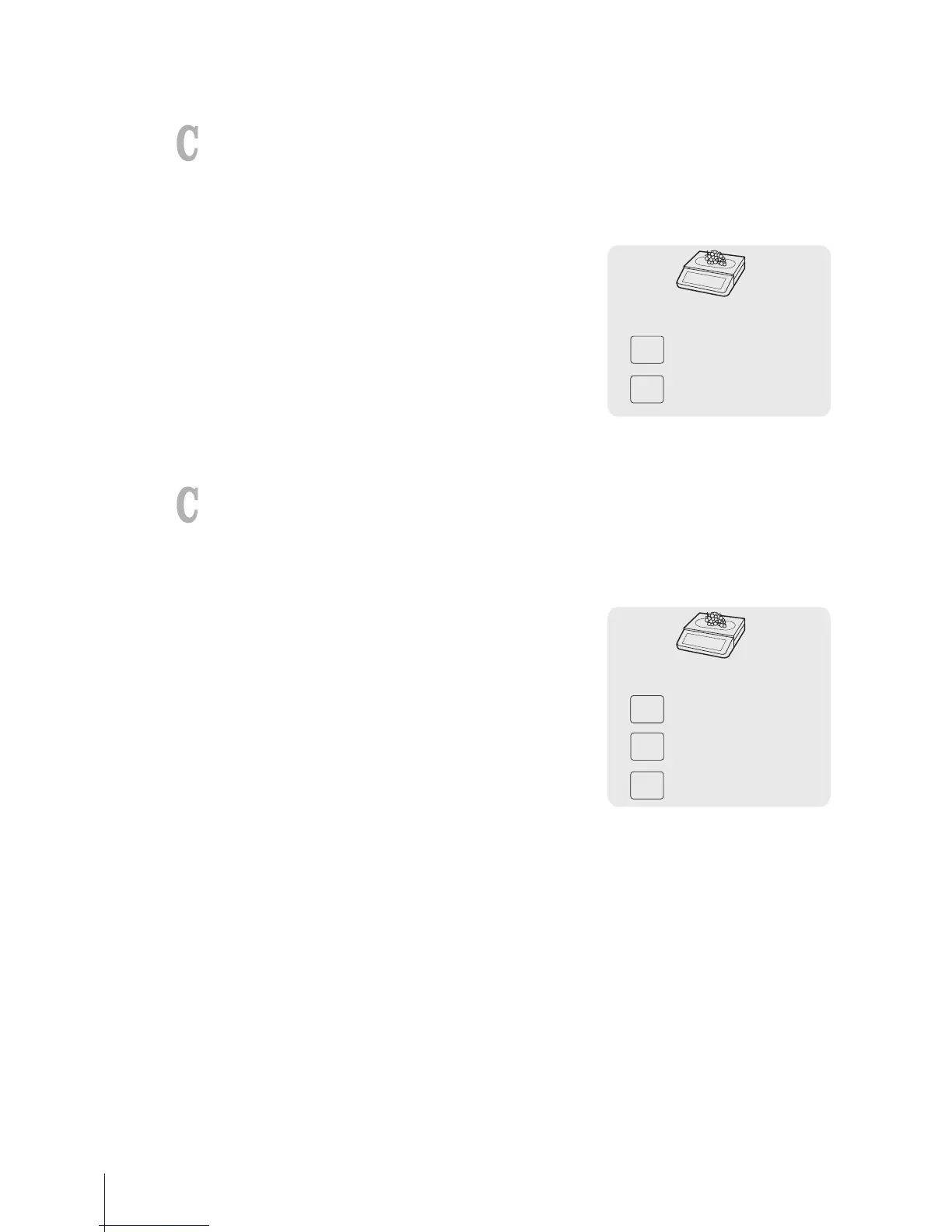
1 Call up the PLU.
2 Press the [Overwrite Price] key and enter the new unit price
directly.
3 Complete the transaction as described in section [Free
input}Page14].
3.11.2 Overwriting a price permanently
To be able to change a PLU price permanently, the following settings must be made:
• "Overwrite Price" enabled or set to "Up to PLU" in sub-menu F215.
• If the price overwrite is "Up to PLU", the functionality must be enabled for each PLU individually in
sub-menu F111.
• Keys defined as [Save Price] and [Overwrite Price] in sub-menu F232.
1 Call up the PLU.
2 Press the [Overwrite Price] key and enter the new unit price
directly.
3 Press the [Save Price] key.
ð The new price is now saved permanently.
4 Complete the transaction as described in section [Free
input}Page14].



 To Next Page