3.13.2 Working without return
For direct ticket print, without entering the payment screen when working with a single vendor, enable
"Direct Printout" in sub-menu F245.
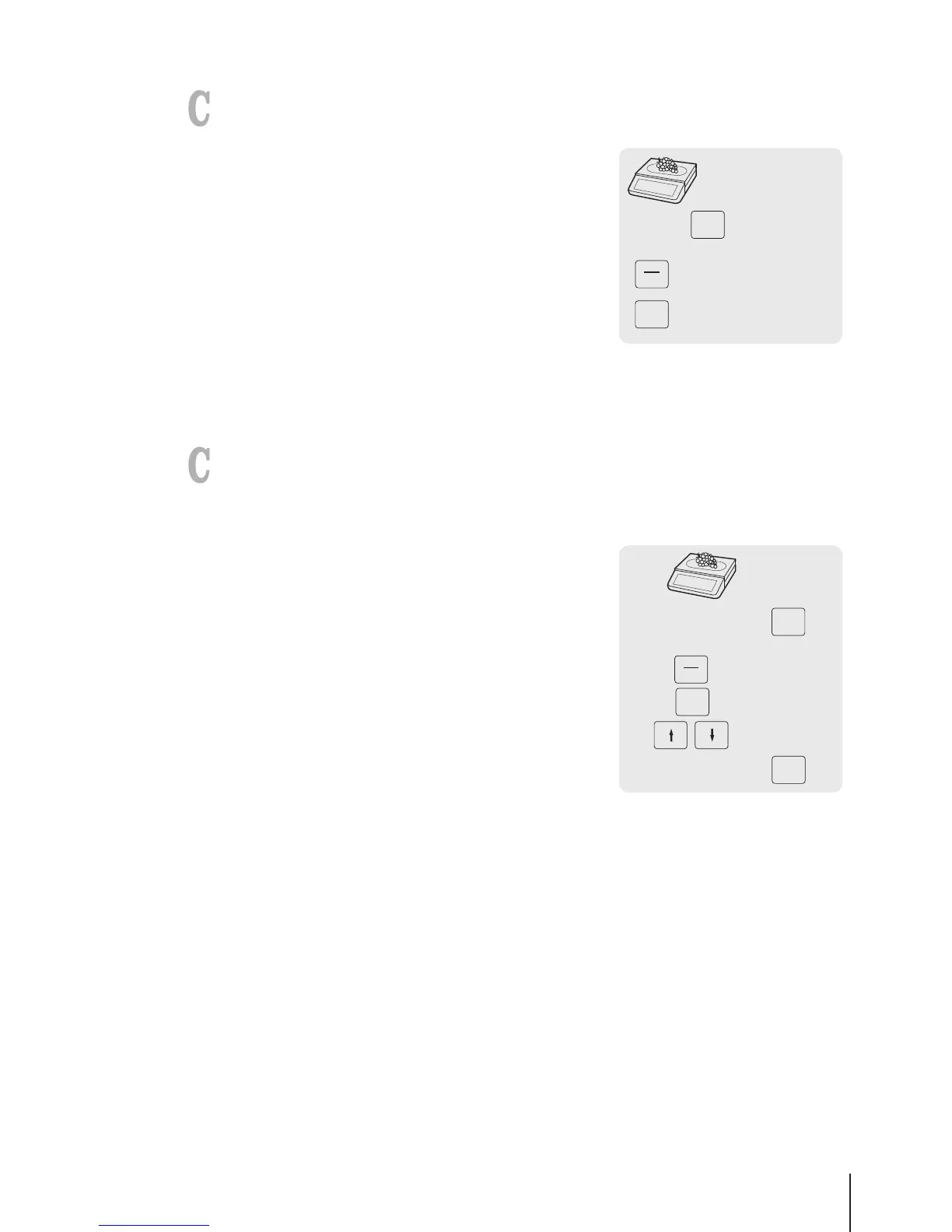
1 Book the customer's items and confirm each item with the Vendor
key.
2 Total items with the Star key.
3 Press the Vendor key.
3.13.3 Working with multiple payment
For multiple payment, e.g., with credit cards, cheques and vouchers, the following settings must be
made:
• Payments defined in sub-menu F141.
• "Multiple Payment" enabled in sub-menu F218.
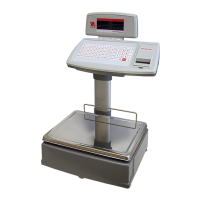
1 Book the customer's items and confirm each item with your
Vendor key.
2 Total items with the Star key.
3 Press the Vendor key.
4 Select from the displayed payments.
5 Confirm the payment with the Vendor key.
6 Enter the amount and confirm with the Vendor key.
7 For multiple payment, repeat steps 3 to 6.
8 Complete the transaction as described in section [Free
input}Page14].



 To Next Page