3.12 Granting a discount
3.12.1 Granting a discount on a single item
To grant a discount, the following setting must be made:
• "Discount on Unit Price" or "Discount on Total Price" enabled in sub-menu F217.
When choosing "Discount on Unit Price", the reduction is applied to price per weight/unit. When
choosing "Discount on Total Price", the reduction is applied to the calculated item price.
Example:
• PLU 1: 10 EUR per kg
• Weighed good: 200 g
• Discount on total price: 10% on 2 EUR
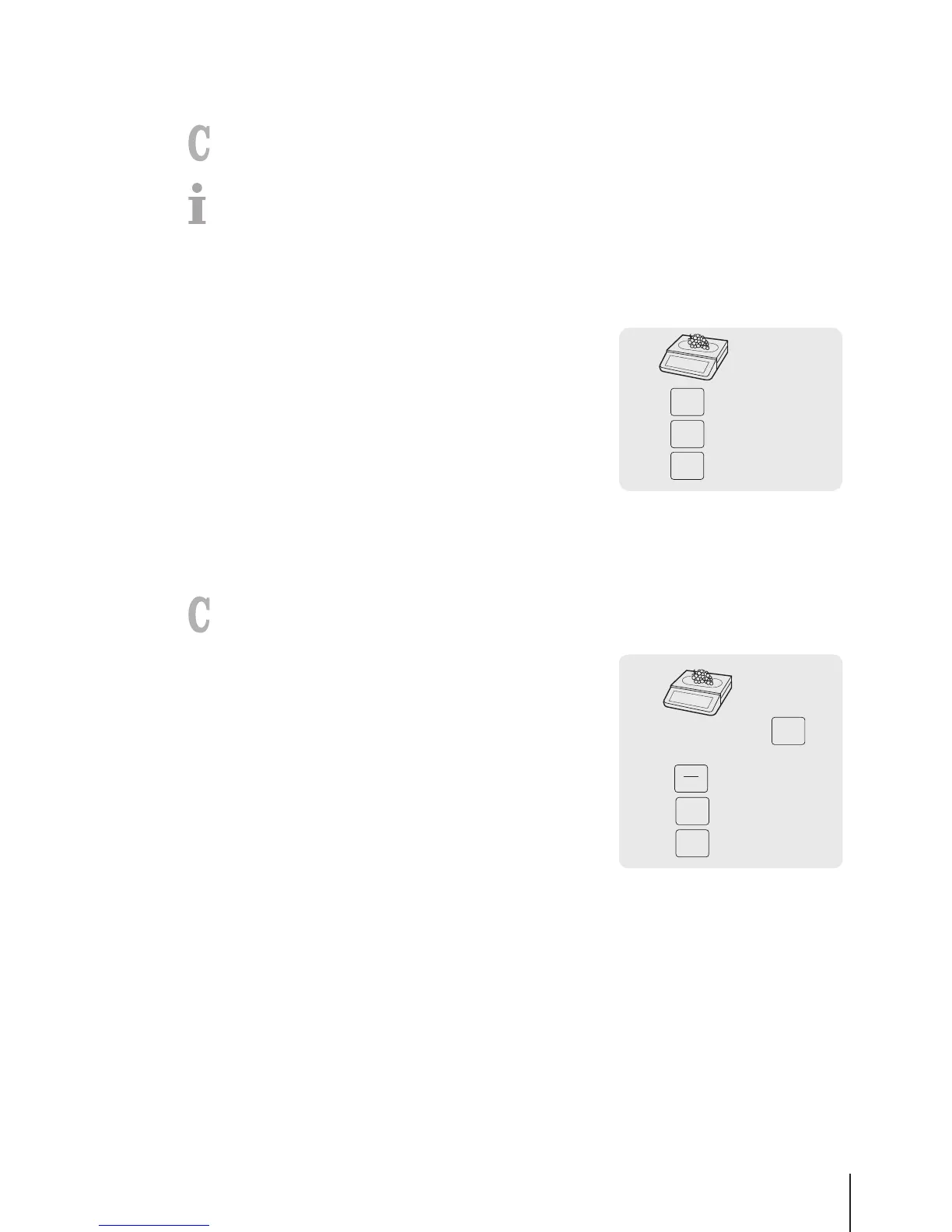
1 Place the item on the scale.
2 Call up the PLU.
ð The unit price and item name appear in the display.
3 Press the [Discount] key.
4 Enter the discount value.
5 Confirm the discount with the Vendor key.
ð The reduced price is displayed.
6 For more items, repeat steps 1 to 5.
7 Complete the transaction as described in section [Free
input}Page14].
3.12.2 Granting a discount on the total sum
To grant a discount, the following setting must be made:
• "Discount on Sales Total" enabled in sub-menu F217.
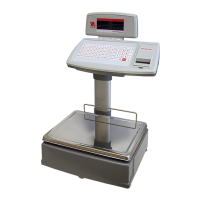
1 Book the customer's items and confirm each item with your
Vendor key.
2 Total items with the Star key.
3 Press the [Discount] key.
4 Enter the discount value.
5 Confirm the discount with the Vendor key.
ð The reduced total price is displayed.
6 Complete the transaction as described in section [Free
input}Page14].



 To Next Page