12
1.11 WLS SENSOR
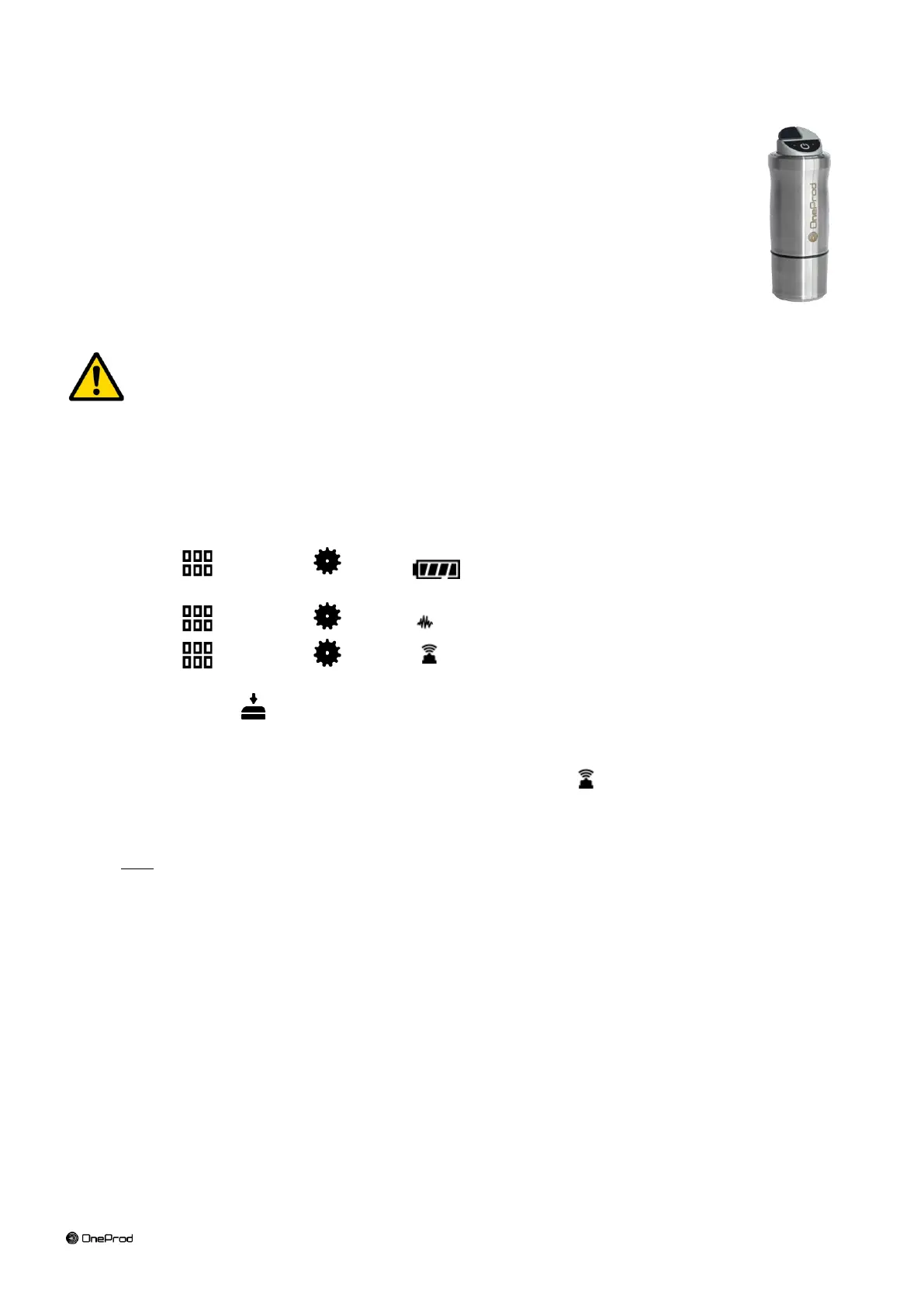
FALCON can be used with a wireless triaxial accelerometer (WLS Sensor). This chapter
described how to use FALCON with this sensor.
1.11.1 WLS sensor battery
Use the USB cable and charger supplied with the sensor. The connector is protected by the
rubber cap on the top of the sensor. It can also be charged from any USB interface with power
supply (! measurement is not possible if the WLS is connected to a USB PC port). Charging time
is 8 hours with the standard 500 mA charge current.
Note: WLS sensor battery replacement must be done by qualified personnel only.
1.11.2 WLS sensor first connection
Switch on WLS: press on/off for 2s, until the red LED is on, and wait until the red LED is off and the blue
LED is continuously on. See details below concerning LED indication.
On FALCON from the home screen proceed as follows:
o Check first if Wi-Fi is enabled in:
Shortcuts > Setting > > Wi-Fi = enabled
o Set FALCON to work with a WLS sensor:
Shortcuts > Setting > > Accelerometer link = Wireless
o Shortcuts > Setting > Wireless sensor:
Input WLS serial number (e.g., 10015)
Save the settings
Wait for about 30 s until the blue LED is flashing. Then 20 s later, the connection must be
set up. It can be seen from the status panel where you can see the sensor identification
(e.g., WLS_10015). It can also be checked from Wireless sensor setting with the Test
function.
If Wi-Fi is enabled further connections are automatic after switch on of the instrument and the WLS sensor.
Note: it is not possible to connect an instrument with a WLS sensor already connected to another
instrument.
1.11.3 WLS sensor switch off
Press on/off for 6s until the red LED flashes on. The sensor is also automatically switched off if there is no
connectivity during 10 min.


 To Next Page