27
2.3 WIRELESS SENSOR
Instructions for the first connection are presented in § 1.11.2.
If the communication is bad or not possible, check following points:
Check if the sensor is switched on and if the blue LED is continuously on (searching for connection) or
flashing (connected to an instrument)
Check on FALCON if Wi-Fi is enabled in:
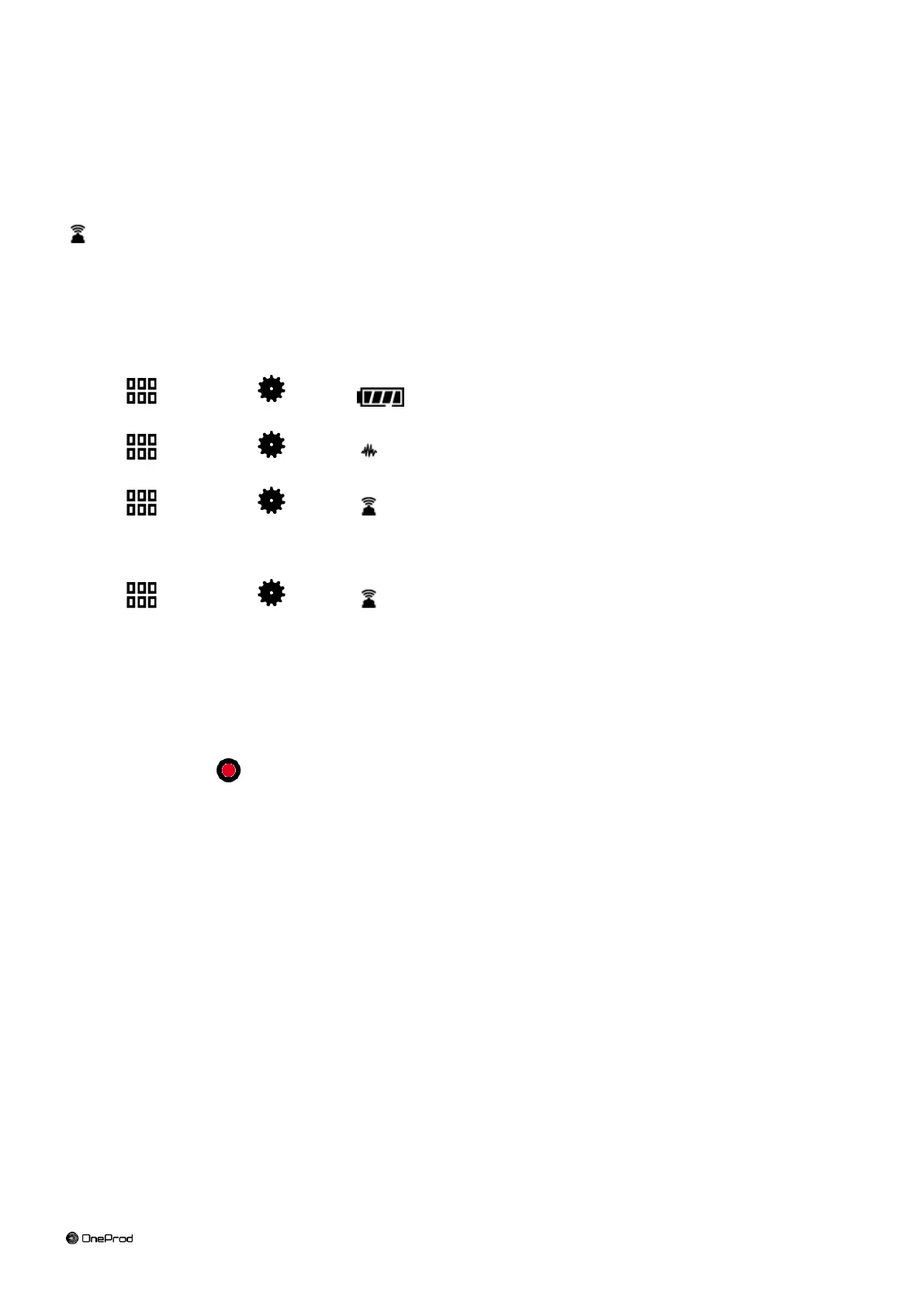
Shortcuts > Setting > > Wi-Fi = enabled
Check if FALCON is set to work with a WLS sensor:
Shortcuts > Setting > > Accelerometer link = Wireless
Check if the serial number of the sensor is that declared in FALCON
Shortcuts > Setting > Wireless sensor
Check with a shorter distance and no obstacle between the sensor and the instrument.
If the connection is OK and the communication is bad, it may be due to another Wi-Fi network using the
same channel. You can try to use another one:
Shortcuts > Setting > Wireless sensor:
o Change the channel number only in case of bad quality transmission
o Select in the list another channel: 1, 6 or 11.
WARNING: WLS sensor firmware version must be at least v1.08.
To update the WLS sensor see § 5.6
o Keep the sensor powered near the device
o Press "Save".
o It will take a few seconds for the sensor to restart on the new channel.
You can also use the test function, it returns:
The status of the test (Successful or Failed)
WLS firmware version
WLS hardware version
Sensitivity for each of the 3 channels.


 To Next Page