156 Infotainment system
Repeating tracks
Select OPTIONS and touch the
Repeat icon n repeatedly to select
one of the following options:
● repeat tracks of currently
selected list (album, artist, etc.)
● repeat tracks of currently
selected list (album, artist, etc.)
once
● play tracks of currently selected
list (album, artist, etc.) in normal
playback mode
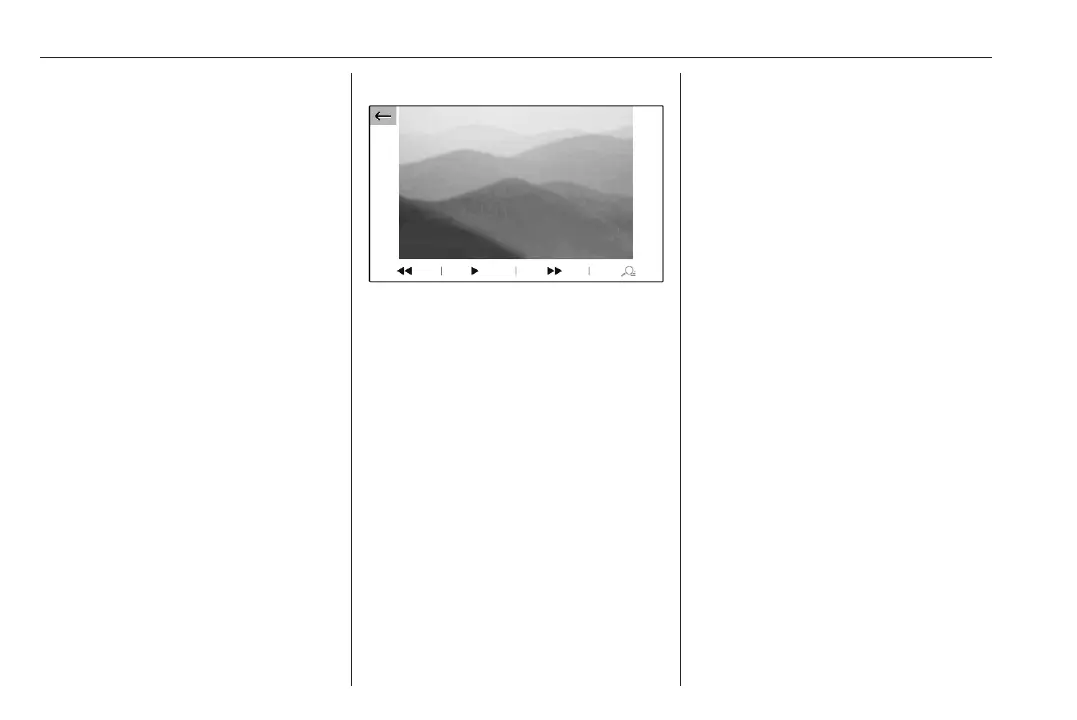
Activating the picture viewer
Connecting the USB device.
If device already connected, but
picture viewer not active:
Press d, select Photos and choose
the desired folder and picture.
Touch the screen to display the menu
bar.
Viewing the previous or next
picture
Touch l or m.
Starting or stopping a slide show
Select l to view the pictures stored
on the USB device in a slide show.
Touch / to end the slide show.
Phone projection
The phone projection applications
Apple CarPlay and Android Auto
display selected apps from your
smartphone on the Info Display and
allow their operation directly via the
Infotainment controls.
Check with the device's manufacturer
if this function is compatible with your
smartphone and if this application is
available in the country you are in.
Preparing the smartphone
iPhone
®
: Make sure Siri
®
is activated
on your phone.
Android phone: Download the
Android Auto app to your phone from
the Google Play™ Store.
Connecting the smartphone
iPhone
Connect the phone to the USB port.
If the phone is already connected via
Bluetooth, upon connecting to the
USB port and launching Apple
CarPlay, the Bluetooth connection
will disconnect. After disconnecting
the USB connection, the phone will be
connected via Bluetooth again.
Android phone
Connect the phone via Bluetooth
3 158 and then connect the phone to
the USB port.



 To Next Page