OpenText Tableau Forensic TX1 Imager
The Information Company 11
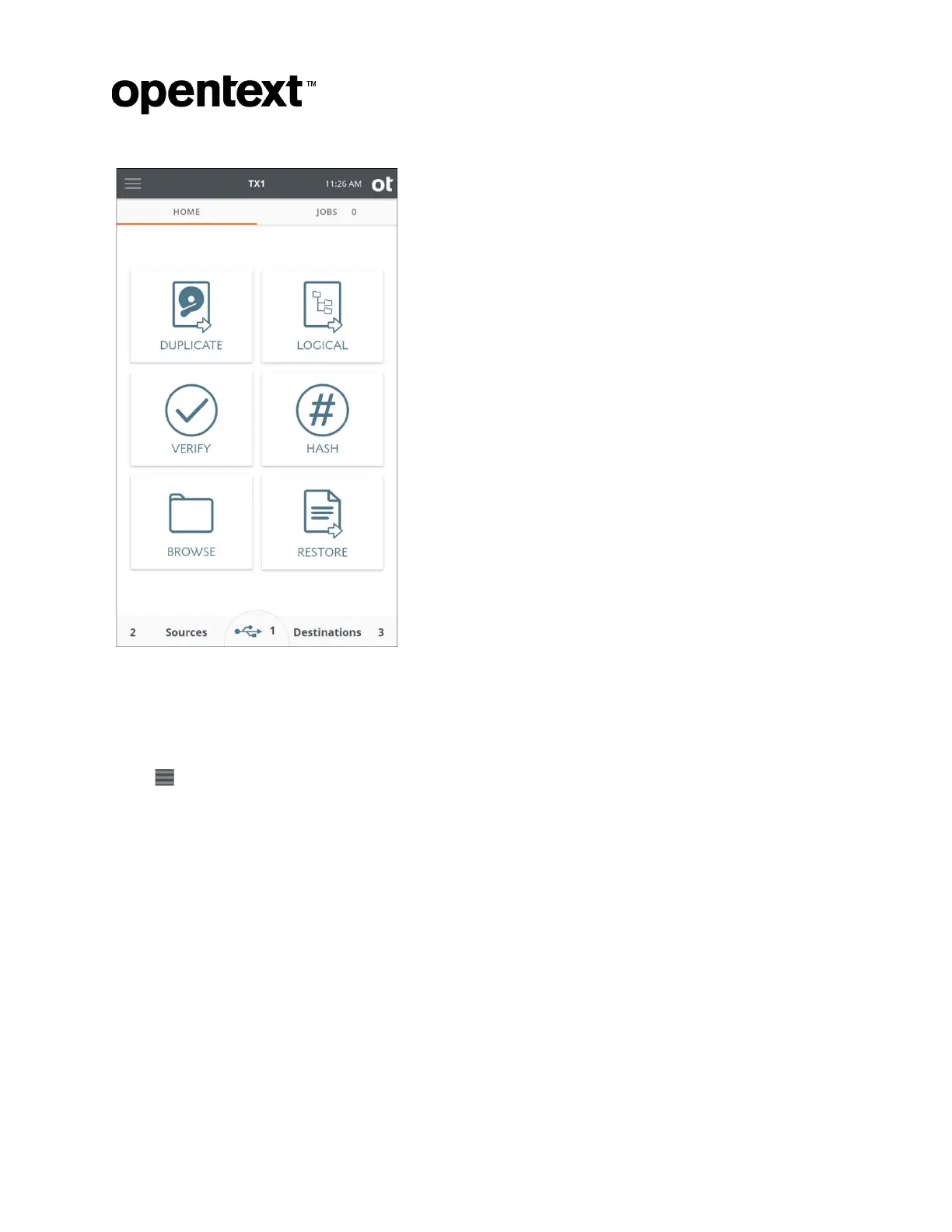
Tap one of these icons to begin a job and enter the job setup screen. A job setup screen
provides a stepper-based flow from which you can view default settings, enter job notes
for your case, change settings, and start the job. Tap the left arrow in the job setup tab to
navigate back to the previous screen or to the Home screen.
Across the top navigation bar there are buttons to quickly access the side navigation
menu , the Home screen, and view the current time. The TX1 model name in the top
navigation bar links to the Home screen.
Note: In the event of abnormal cooling conditions, a warning triangle will be shown in the
top navigation bar, to the right of the time. Such a warning will never be seen under
normal operating conditions. Please refer to “Troubleshooting common problems” on
page 175 for more information.
There are two tabs on the main screen: Home and Jobs. The Home tab shows the
Home screen or one of the many other screens. The Jobs tab always shows the Jobs
summary screen and the current number of total active and queued jobs.
The three buttons at the bottom of the Home screen are for Sources, Accessory drives,
and Destinations. The number in each area represents the number of attached and
detected drives (including mounted network shares). In addition to providing the drive
Copyright © 2022 Open Text. All rights reserved. Trademarks owned by Open Text.



 To Next Page