56 The Information Company
may contain different repeating patterns. If any sector is found to not be blank, the drive
is not considered blank, and the blank check will stop.
Note: The Fast and Smart blank check options do not perform exhaustive checks of the
entire drive. It is possible for a drive to appear to be blank according to the Fast or Smart
check while still storing forensically relevant information.
3.3.8 Browse filesystem
The Browse function provides an easy way to view the contents of a recognized
filesystem on any mounted drive, whether it is connected locally or via the network
interface (iSCSI or CIFS). Simply tap the Browse button on the Home screen and select
the desired drive/filesystem. The Browse operation is also accessible from the Media
Utilities list in the drive details screen and from the filesystem details box within the
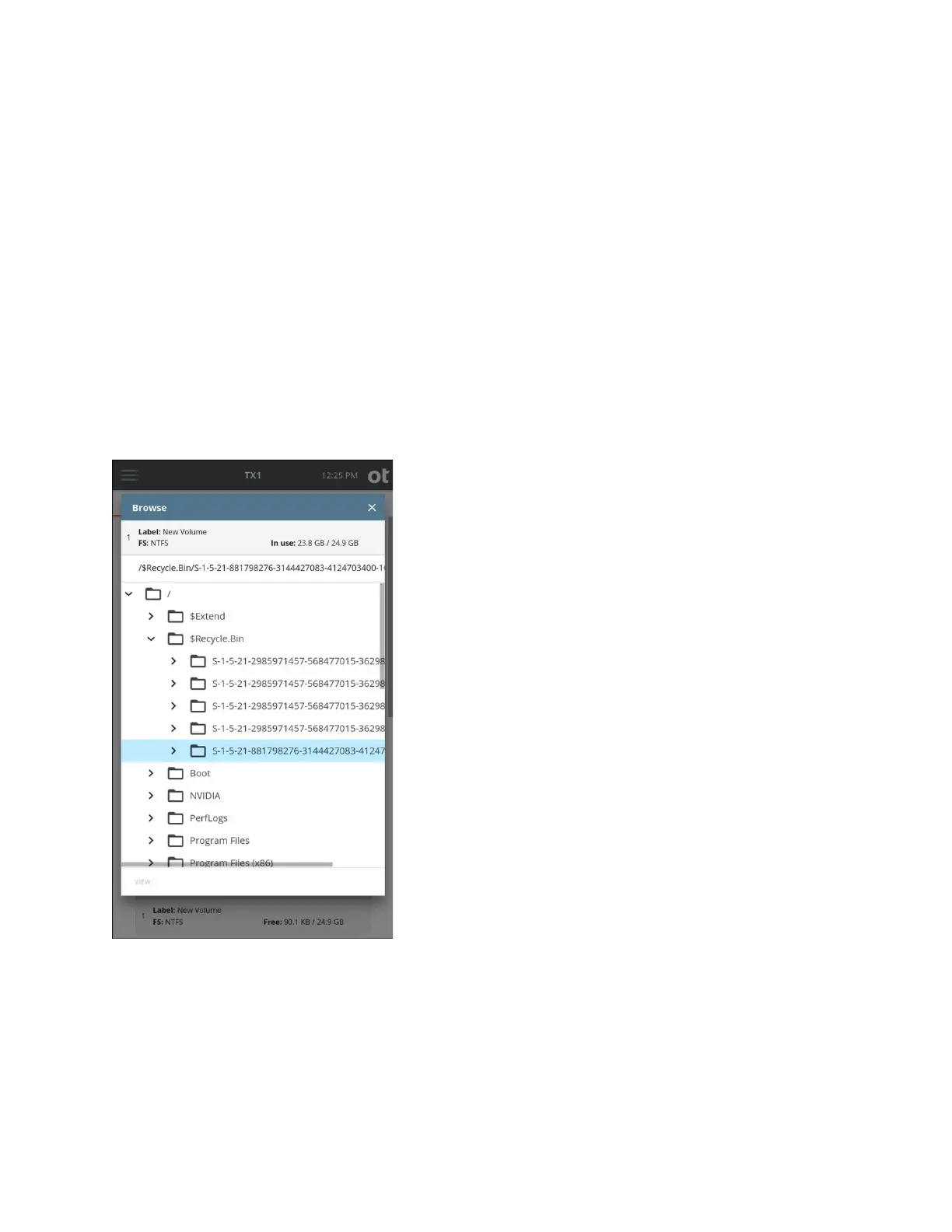
Content Breakdown media utility. A sample Browse screen is shown below.
The Brow
se window provides basic information about the selected filesystem (label,
type, and used space) in the first row. Note that, when multiple filesystems are present on
a drive, tapping the top information row will allow for selection of a different filesystem on
the same drive, without needing to back out of the Browse window to select the other
filesystem. The second row of the Browse window shows the complete path name for
Copyright © 2022 Open Text. All rights reserved. Trademarks owned by Open Text.



 To Next Page