32 The Information Company
To create a new user, simply tap the Create New User button at the bottom right of the
Users list screen and enter the username and initial password for the new user and tap
submit. A User Management screen will appear for the new user allowing complete user
configuration (as shown in the screenshot above for User1).
Note that the currently logged-in local user is always shown at the bottom of the side
navigation bar. Also, the username associated with the logged-in user is shown in the
forensic log. For systems that do not have multiple users set up, the default User1 will be
shown in the side navigation bar and in the forensic log.
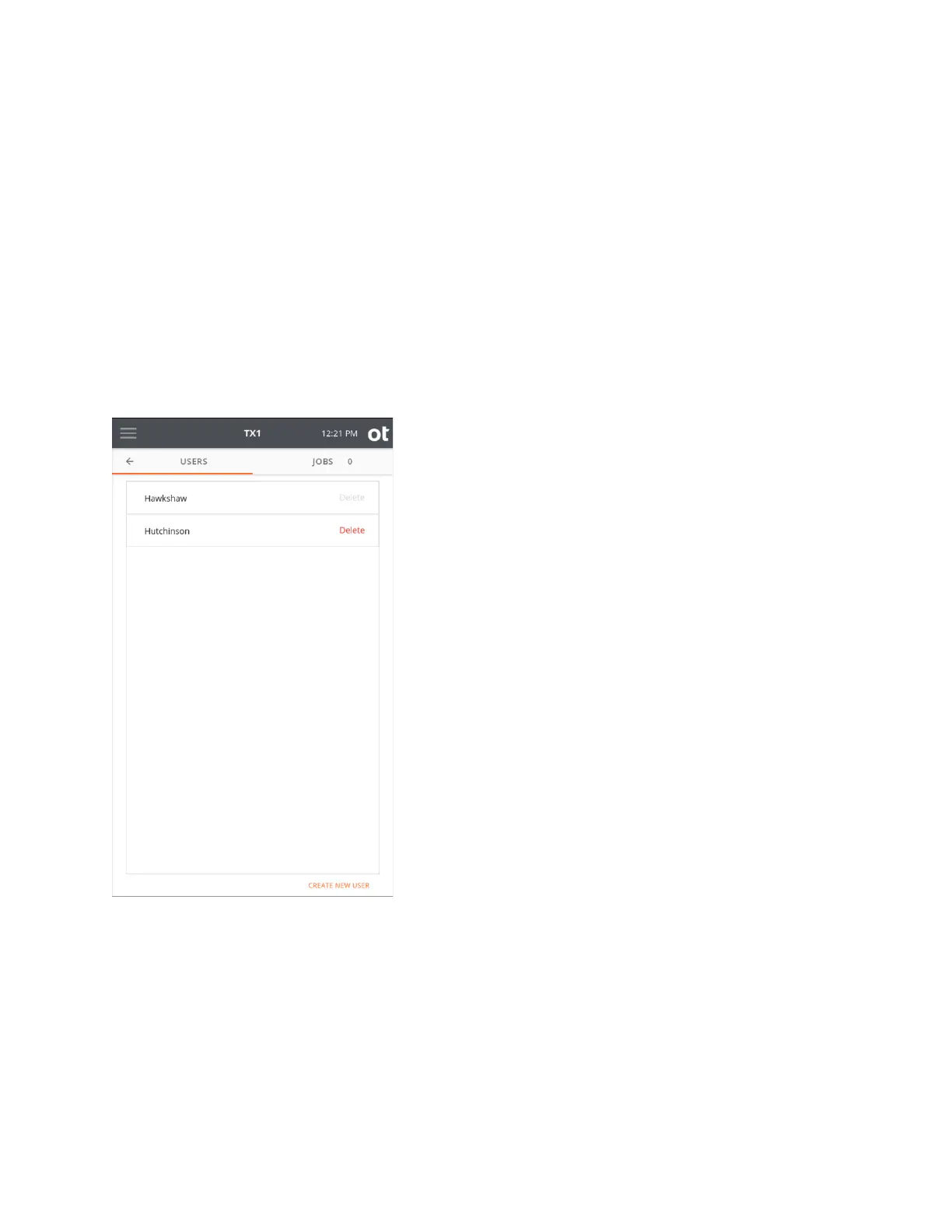
A sample Users list screen with multiple users setup is shown below for reference.
Should you have further questions while setting up users on your TX1 units, contact
Customer Support.
3.2.5 Locking the system
It may be desirable to lock your TX1 system while unattended to ensure no settings are
changed or that your active/queued jobs are not altered in any way. To lock your system,
simply tap on the Lock System item on the side navigation menu. A screen will appear
that allows for entry of a six-digit personal identification number (PIN), as shown below.
Copyright © 2022 Open Text. All rights reserved. Trademarks owned by Open Text.



 To Next Page