12 The Information Company
count, these buttons can be tapped to display a summary list of available drives and
allow access to further drive details, screens, and operations.
Note: The middle area of the bottom row of the Home screen (for USB Accessory drives)
is only shown when a USB Accessory drive is connected.
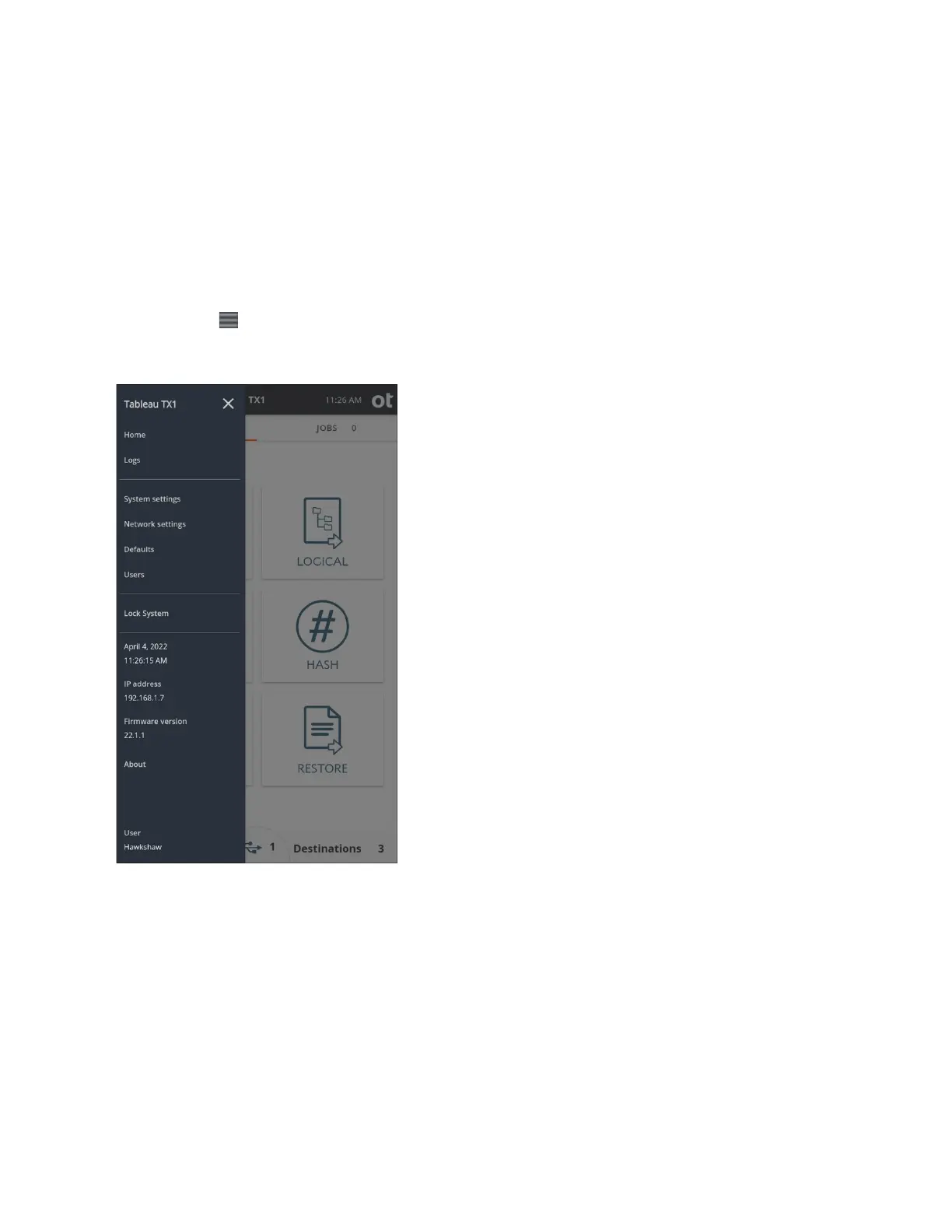
2.2.2 Side navigation menu
The menu icon in the upper left corner of the top navigation bar displays the side
navigation panel that provides a menu of additional options and information. For
additional information on the items in this menu, see “Configuring TX1” on page 18.
2.2.3 Jobs tab
The Jobs tab, which is found on the right side of the tab navigation bar, provides a
convenient way to keep track of queued jobs, active jobs, and recent work done by TX1.
It includes a counter in the top tab area. When TX1 is first powered on, the jobs counter
is at 0. Once jobs are underway, each active or queued job will increment the counter.
The Jobs screen has four areas: Automated Acquisition, Active Jobs, Queued Jobs,
and Recent Jobs.
Copyright © 2022 Open Text. All rights reserved. Trademarks owned by Open Text.



 To Next Page