166 The Information Company
Once you install your own certificate, TX1 will retain it in the event of reboot
or power disruption. Manually generating a TX1 self-signed certificate will
overwrite your own certificate and return TX1 to the default state of
generating a new self-signed certificate upon annual expiration.
Note: TX1 remote user interface has been validated for use with the following web
browsers: Chrome (v86.0.4240.75), Firefox (v81.0.2), and Safari (v13.2.1). Older and
newer versions of these browsers and even other browsers may work fine but have not
been validated at this time.
4.11.2 Accessing TX1 remotely
To access TX1 remotely, a valid username and password are required. The user account
must also have remote access enabled.
To access a TX1 remotely:
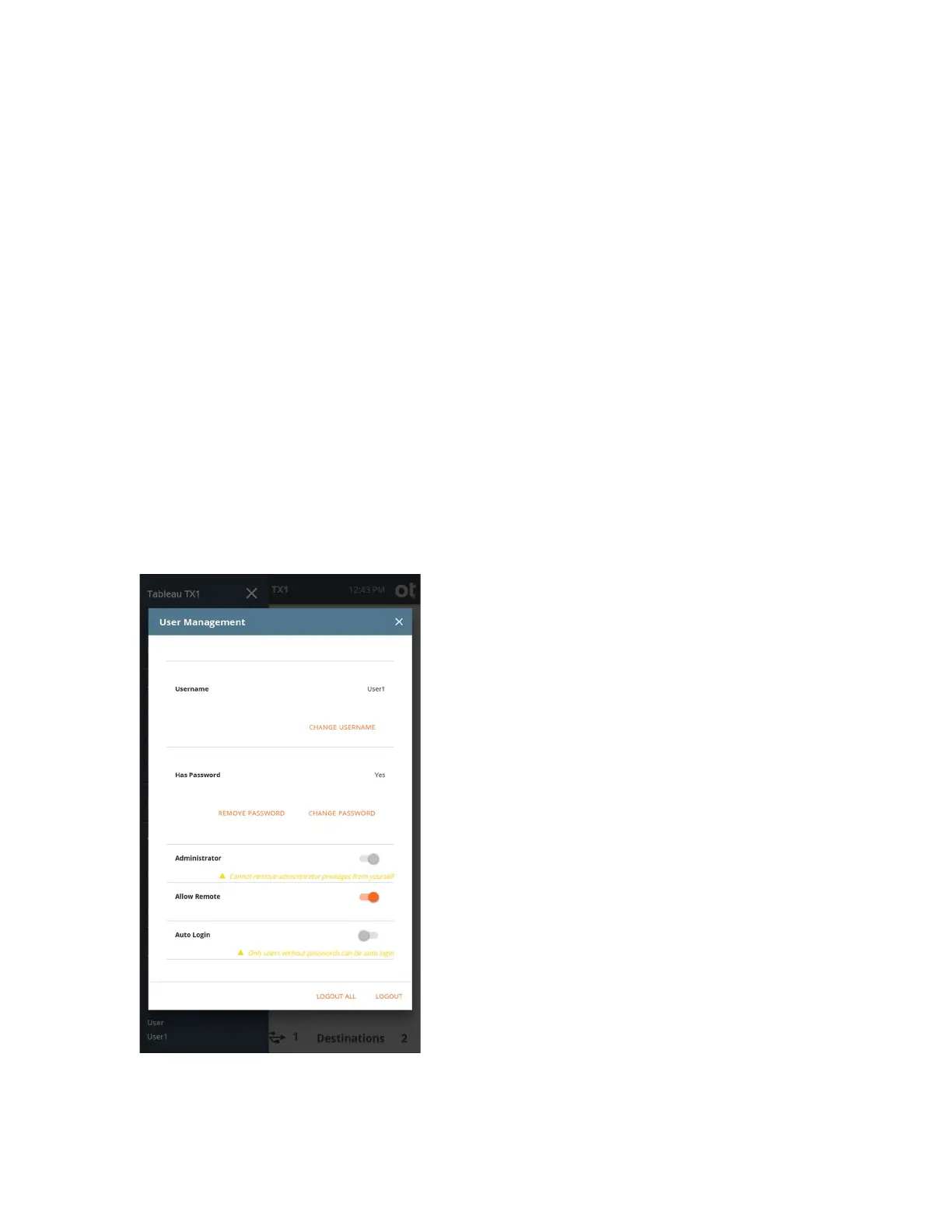
1. On the User Management screen, confirm the user is set up on the system with a
password and remote access is enabled. In the example below, default user User1 is
shown. Before enabling remote access, a password must be added by tapping the
Add Password button. Once a password has been entered, toggle the Allow
Remote switch, as shown below.
Copyright © 2022 Open Text. All rights reserved. Trademarks owned by Open Text.



 To Next Page