118 The Information Company
• Searches within a given job setup can be a mix of new and saved searches. Simply
tap the desired search entry method at the bottom of the last search criteria box (Add
New Search or Add Saved Search) to add another search to the job.
• If a saved search is edited in the job setup area, those changes can optionally be
saved back to the originally named search, saved as a newly named search (by
editing the name field), or just used during the current job, without altering the original
saved search that was added. To save the in-line changes, simply tap the Save
Changes button at the bottom left of the search window. Please be aware that
editing saved searches for a given job without saving the changes could lead to
confusion about what the named, saved search means. For that reason, it is
recommended to save any in-line changes back to the saved search that it started
from or as a new saved search.
• Naming your searches provides a convenient way to identify the type of criteria used
in the search, which is particularly useful for a list of saved searches. However,
naming of searches is optional. If you do not enter a name for a given saved search,
the default name of Saved Search will be used with a number at the end that
increments for each newly saved, unnamed search.
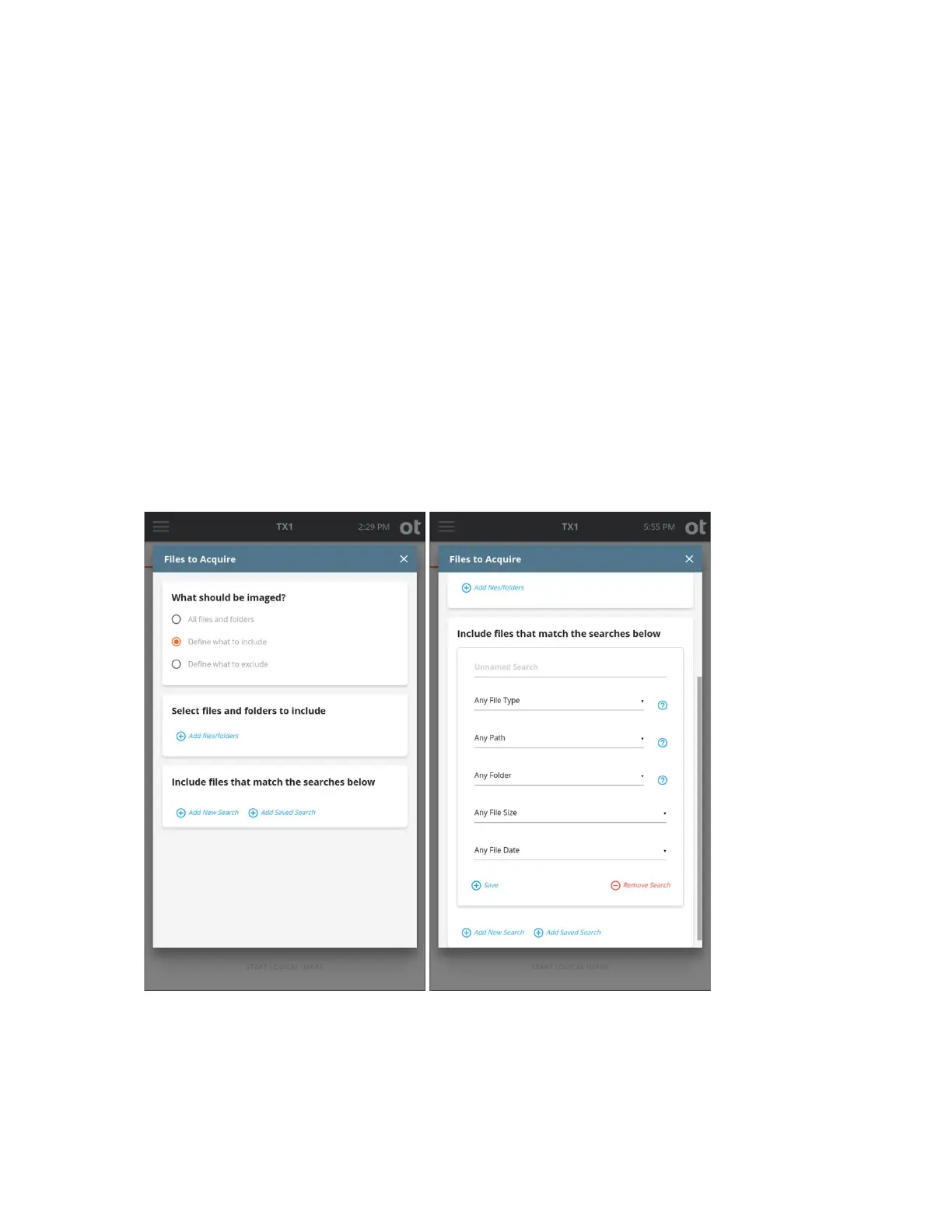
In the example on the right above, we have decided to add a new search using the
Include files that match the searches below function. Again, since we started with
Copyright © 2022 Open Text. All rights reserved. Trademarks owned by Open Text.



 To Next Page