OpenText Tableau Forensic TX1 Imager
The Information Company 39
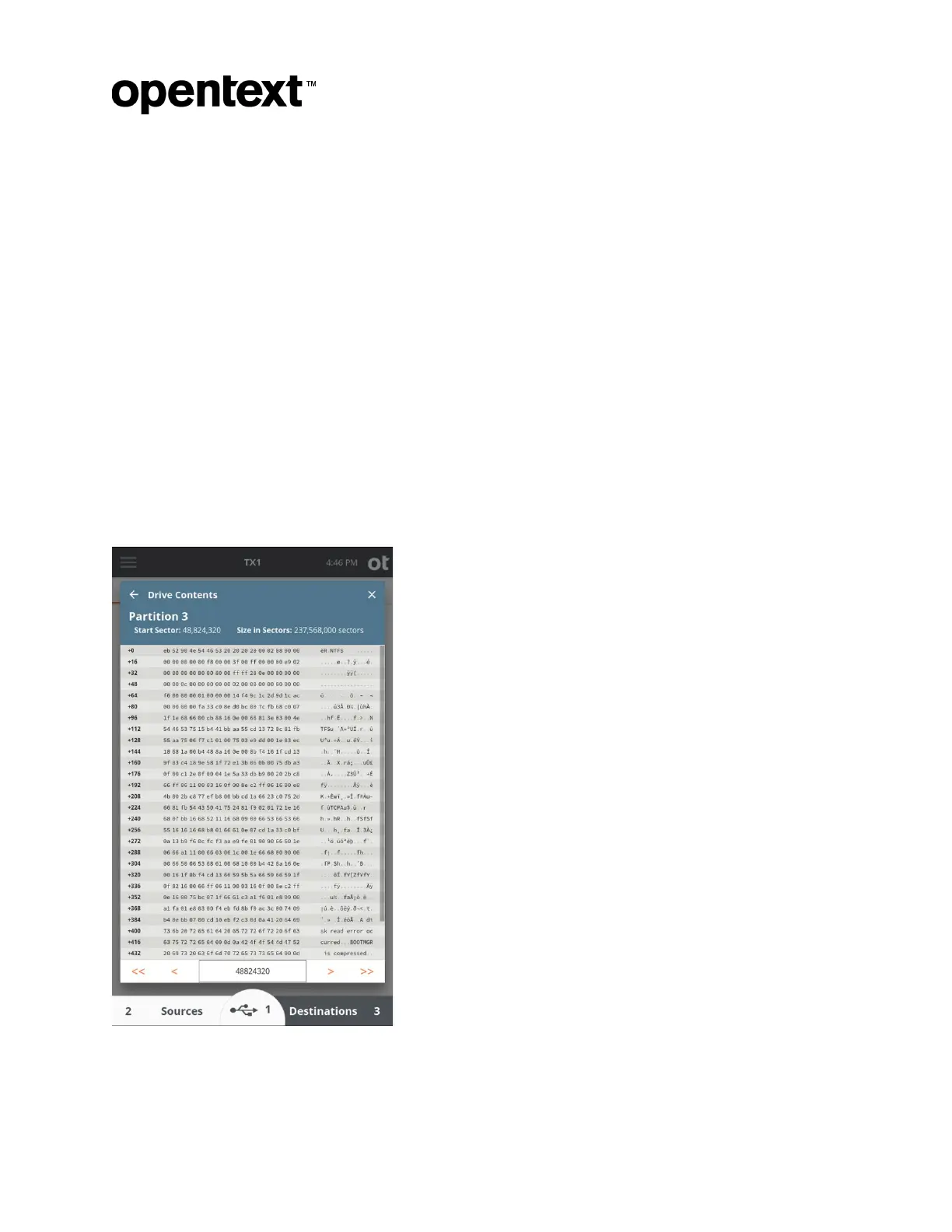
To view the raw hex data for a given drive/partition, tap the View Hex button within the
information box. A sample hex view window is shown below. Each row shows 16 bytes of
hex data, along with each byte’s ASCII equivalent on the right side. The number with the
plus sign to the left of each row represents the byte value offset from the start of the
shown sector. The initial sector number (shown in the top blue header) is always the
starting sector for the selected drive or partition. This starting sector number is also
shown as the initial value in the rectangular box near the bottom of the screen (between
the orange arrows). It is easy to navigate through the sectors within a given drive/partition
and even into adjacent sectors by tapping the orange arrows. The single arrows will take
you either one sector forward (right arrow) or one sector backward (left arrow). The
double arrows will jump you to the next (or previous) boundary. That is to say, if you are
in the middle of a given partition, the double-right arrow will jump to the end of that
partition. Tapping the double-right arrow again in that scenario will take you to the
beginning of the next partition or gap area (whichever happens to be there). These
double-arrows make it easy to peruse an entire drive and see the very beginning and end
of each drive element (partition or gap area) without having to go back to the map view to
select a different element. Note that a specific sector number can also be entered in the
box at the bottom of the screen. Simply tap the box, enter the desired sector number, and
tap outside the entry field to go directly to that sector.
Copyright © 2022 Open Text. All rights reserved. Trademarks owned by Open Text.



 To Next Page