Chapter 3 - How to...
1. Prepare the device for image capture, see How to prepare for image capture on page36.
2. Align the patient, see How to align the patient on page37.
3. Ask the patient to open both eyes wide, and to look at the center of the alignment target. Using the live
SLO image, center the cross hairs on the pupil until the target is aligned and turns green.
4. Capture the image either manually or using auto-capture.
l
Auto-capture: Auto-capture is enabled when Automatic is shown in green on the touch screen.
The system captures an image when the scan head is correctly aligned. You can press the
screen to manually capture the image. Auto-capture is turned off after capturing an image.
l Manual capture: Align the scan head into the correct position. Press the screen to capture the
image when the pupil is in the center of the cross hairs and the patient alignment target is
green. You can also capture using the hand control.
5. Check the quality of the images, see What to do after the image is captured below.
3.2.4.1 What to do after the image is captured
After you have captured the image, the image quality needs to be checked. You can then continue or
complete the session.
1. The captured image is displayed full screen on the touch screen. After a few seconds you are
automatically returned to the capture page.
2. Check the quality of the captured image and, if required, continue capturing images.
3.
If required, remove the controls from the view by selecting Declutter.
4. If required, change the laterality or delete the image.
5. The capture session can be completed at this stage if no scans or additional images are needed.
6. Alternatively you can browse all images using the image browser, see Manage the patient session on
page47.
7.
Select Finished patient if the quality of all captured images is acceptable.
8. Replace the dust cap when you have finished imaging each patient.
3.2.5 How to capture SLO eye steered images
Depending on the features available on your device, you may be able to capture eye steered images.
The eye steered options are selected by touching an option or pushing the control in the required direction.
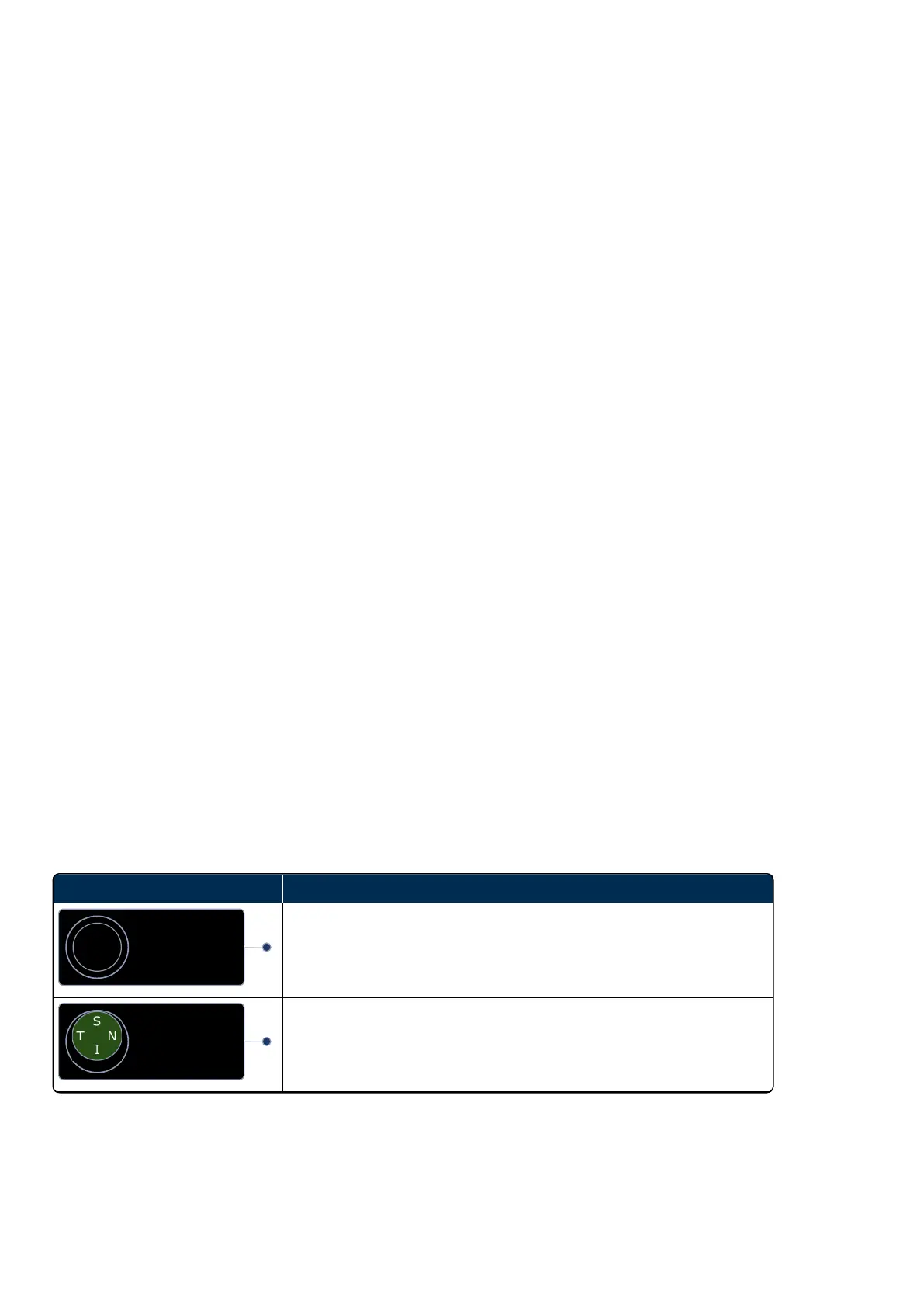
TABLE 5: Examples of eye steering buttons
On-axis selected
The next image captured will be an on-axis image.
Eye steering direction selected
In this example, the next image captured will be a Superior eye steered
image.
Page 40 of 72 Part Number: G110230/1ENG
English Copyright 2019, Optos plc. All rights reserved.



 To Next Page