Chapter 3 - Get started
3.2.4 Restart the image server each week
CAUTION
Exit OptosAdvance before turning OFF the image server.
You should restart the image server each week to allow updates to install.
1. Exit OptosAdvance.
2. Select the "Windows" button.
3.
Select Update and restart.
3.3 Use the system
Before setting up and capturing images, ensure you are familiar with the device and equipment.
3.3.1 Using the touch screen
The touch screen is connected to the scan head and controls the scan head and capture functionality.
Some of this functionality is also available on the hand control (see Using the hand control on the facing
page).
The options are selected by touching an option or pushing the control in the required direction.
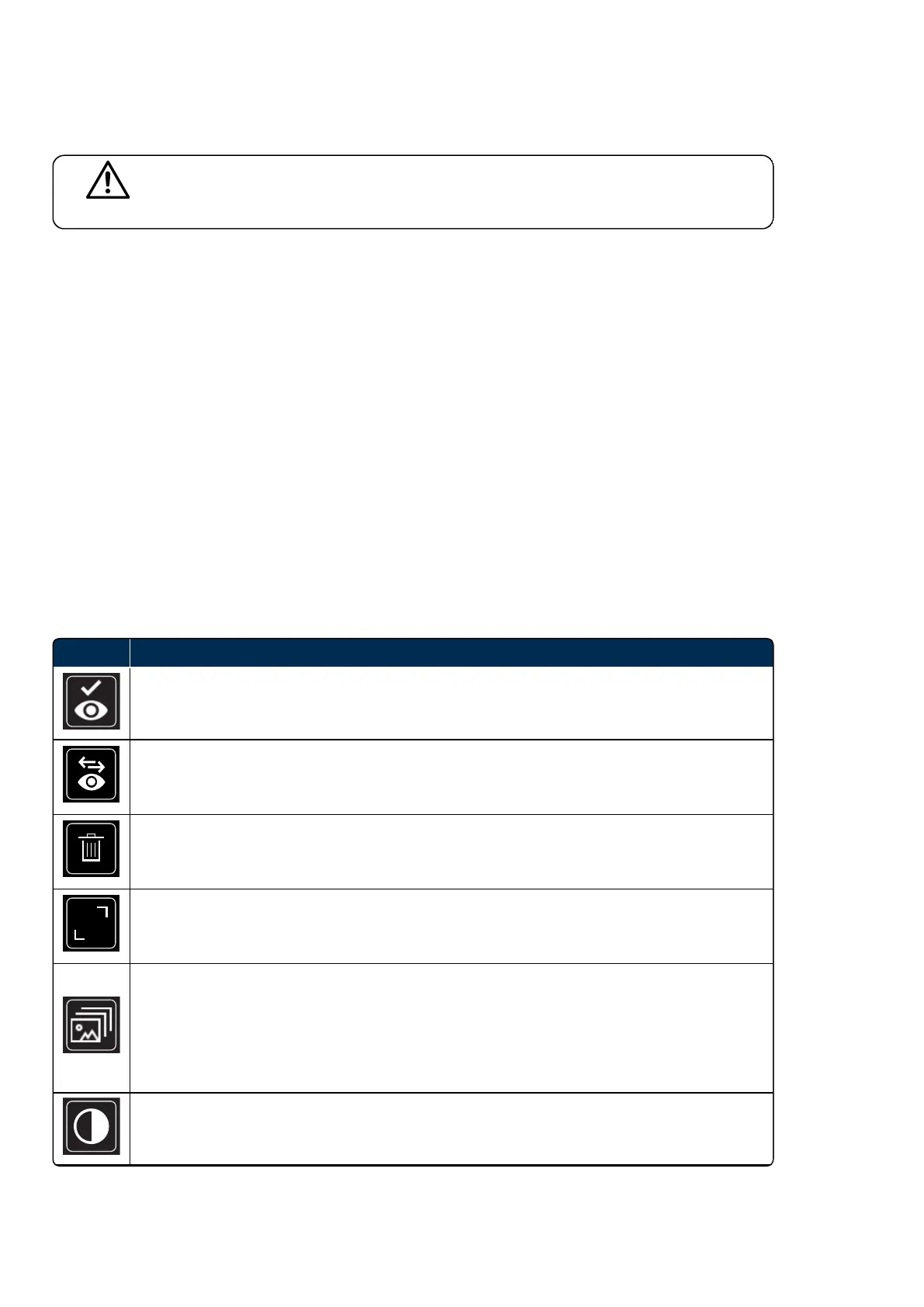
TABLE 3: List of touch screen icons
Icon Description
Accept laterality
Confirms the laterality of the captured image.
Change laterality
Changes the laterality of the captured image.
Discard
Deletes the current image or scan.
Declutter
Removes all icons to show a full sized image. Select the icon again to show all the controls.
Image Browser
Displays the images and scan which will be saved at the end of the session. You can change
laterality and delete images and scans.
The image browser can be used to select a suitable SLOimage at the start of the OCT
capture process.
Contrast
Adjusts the image contrast while capturing angiography images.
Page 32 of 84 Part Number: G110230-003-ENG
English Copyright 2019-2021, Optos plc. All rights reserved.



 To Next Page