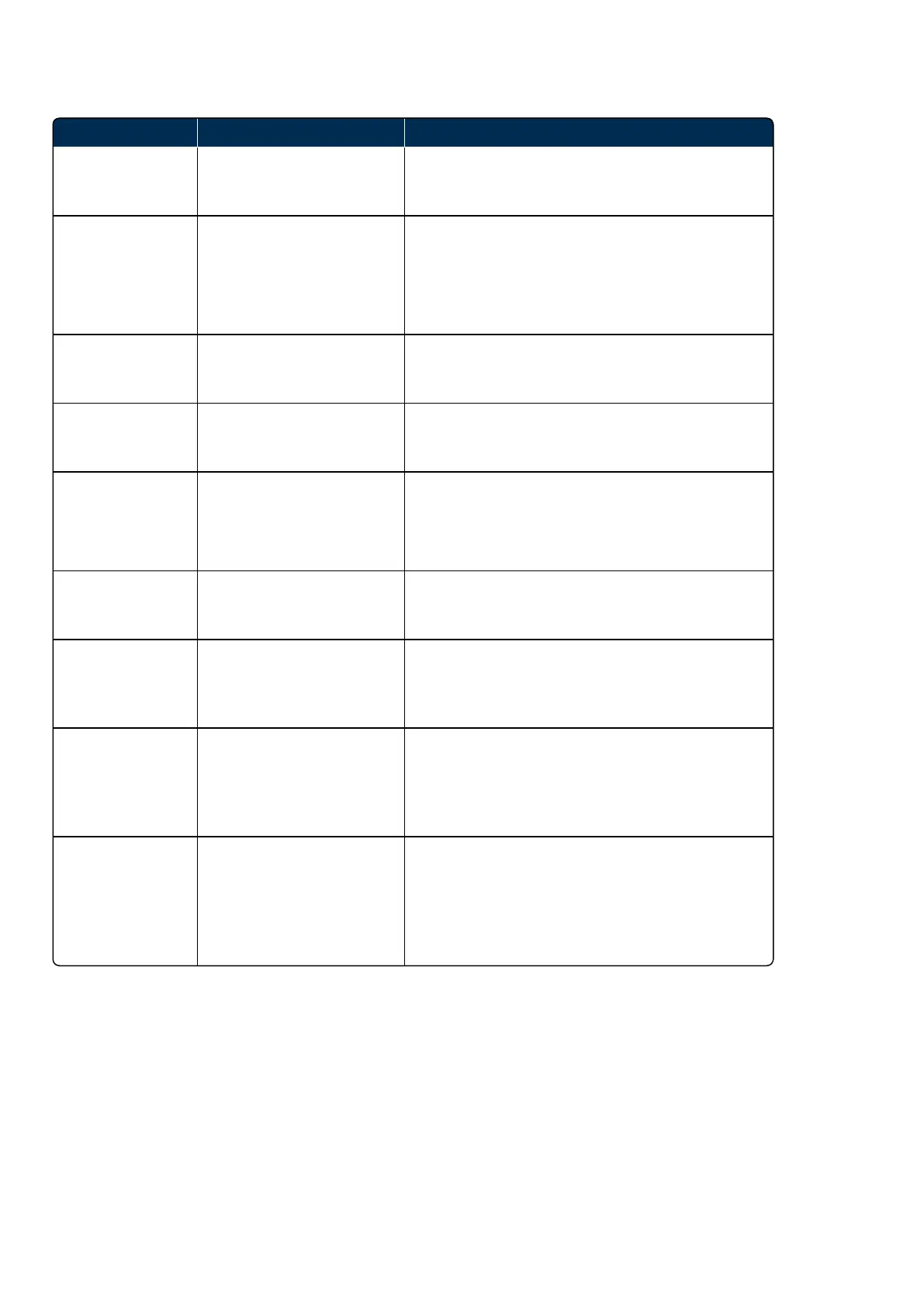
Problem Possible cause Solution
optomap images
show horizontal
line artefacts.
System slit mirror requires
cleaning.
Contact Optos to arrange for a Field Service
Engineer to clean the slit mirror.
optomap images
show small random
artefacts in fixed
position.
Dust on the main mirror, or
main mirror dirty.
Use the recommended cleaning materials and
procedure for cleaning the main mirror (see Cleaning
the main mirror on page61).
If the issue persists contact your Optos
representative.
I see a bright reflex
above the optic
nerve head.
Patient is too close. Image with the patient further out.
OCT images show
horizontal line
artefacts.
Excessive time spent in the
OCT imaging mode, > 5
minutes for 1 OCT capture.
Exit and re-enter the OCT capture mode to ensure
dark frame processing is re-applied.
Scan head NOT
starting up. Screen
and power LEDs
are on.
Uncontrolled shut down
leading to disk checks at
start-up.
Allow 15 minutes for the device to complete start up.
Be sure to shut down correctly at the end of each day
(see Use standby mode at the end of each day on
page30).
Cannot image due
to image server
error.
Image server disk is full.
Storage provisions on the image server need to be
extended. Contact Optos for assistance.
Cannot locate
images just taken
of patient.
Images taken under wrong
patient.
Confirm the patient's name and check against the
patient name displayed for the recently captured
images. If they do NOT match contact Optos for help
moving them.
Images are NOT
appearing in
review.
Server or communications
error.
Shut down the scan head and image server. Restart
the image server first followed by the scan head (see
How do I restart the image server? on the facing
page and How do I restart the scan head? on the
facing page).
I cannot login to
OptosAdvance.
Account does NOT exist;
password error.
Contact your local system administrator.
Check login details (see Why can't Ilogin? below).
Multiple failed login attempts will result in the user
account being locked until a System Administrator
unlocks the account.



 To Next Page