OPTIMOD-FM OPERATION
3-65
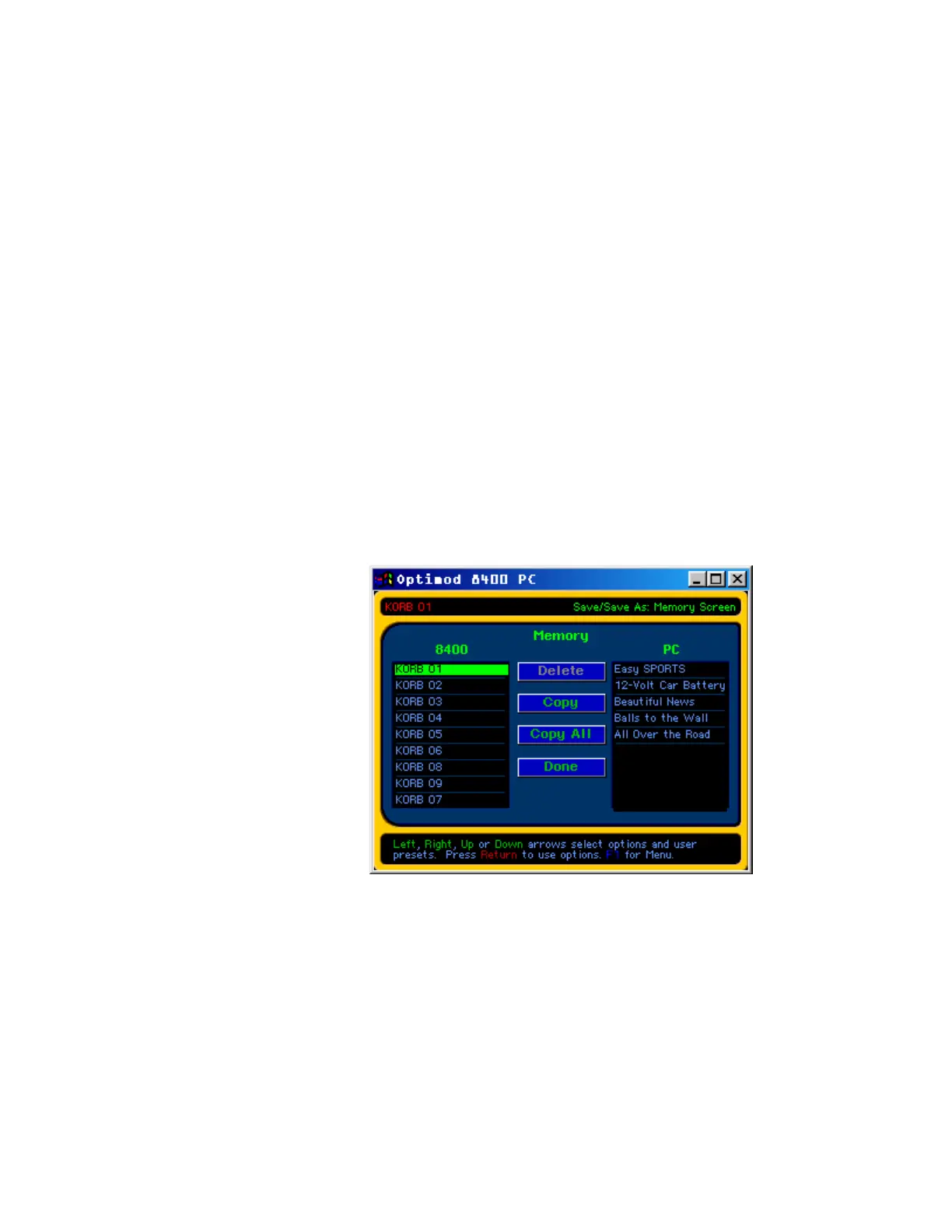
c) Click on a preset in the 8400 column. Use the wheel on your mouse to bring the
desired preset to the top of the column, where it will be highlighted in green.
d) Click Copy to copy the preset to your PCs’ hard drive. Click Copy All to do a
batch copy of all user presets in the
8400 list.
User presets are stored in the directory ~\user, where ~ is the path where you initially in-
stalled the PC Remote software. The default for ~ is:
c:\Program Files\Orban\
Optimod 8400.
To restore an archived preset to your 8400:
Note that if you want to restore a user preset to your 8400, it must be in the ~ \ user direc-
tory (where ~ is the path to which you initially installed the PC Remote software) or the
8400 PC Remote software will be unable to find it. The default for ~ is:
c:\Program Files\Orban\Optimod 8400.
a) Double-click the Save/Save As screen from the main menu.
b) Click on Memory.
The Memory screen will appear.
c) Click on a preset in the
PC column. Use wheel
on your mouse to bring
the desired preset to the
top of the column,
where it will be
highlighted in green.
d) Click Copy to copy the
preset to your 8400’s
nonvolatile memory as a
User Preset. Click
Copy
All
to do a batch copy of
all user presets in the
PC
list.
The
Input/Output and System
screens work as they do in the
8400.
The
Contrast screen is not functional.
TEST modes: To prevent on-air accidents, in order to activate the Bypass or Tone test
modes you must highlight the appropriate button and then hit ENTER on your com-
puter’s keyboard. You cannot enter a
Test mode by using only the mouse.
You can access the test modes from the
System Setup screen.


 To Next Page