EasyManua.ls Logo

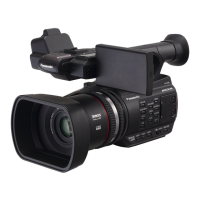
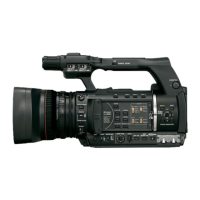
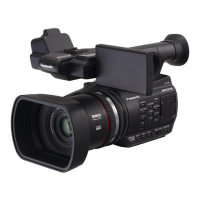
Panasonic AG-AC30 - User Manual

Panasonic AG-AC30
161 pages
Print Icon
To Next Page IconTo Next Page
Loading...
Operating Instructions
Memory Card Camera-Recorder
Model No. AG-AC30
Please read these instructions carefully before using this product, and save this manual for future
use.
SQW0779
ENGLISH
F0816NK0
PJ
PB
R68S3_PJPB.book 1 ペー 016年9月2日 金曜日 午前10時43分

Table of Contents

Other manuals for Panasonic AG-AC30

Questions and Answers

  • M
    Melissa HallAug 19, 2025
    What to do if my Panasonic Camcorder is not detected by the PC when connected by USB Cable?
    • G
      gallenSep 12, 2025
      If your Panasonic Camcorder is not detected by the PC when connected via USB, try re-inserting the SD card into the unit and reconnecting the USB cable. You can also try a different USB terminal on your PC. Check the operating environment. Restart your PC and the camcorder, then reconnect the USB cable.
  • K
    Karen WattsAug 21, 2025
    What to do if my Panasonic Camcorder cannot be operated even though it is turned on?
    • R
      ricesamuelAug 21, 2025
      If your Panasonic Camcorder cannot be operated even when it is turned on, remove the battery or AC adapter, wait approximately one minute, and then reconnect it. Wait another minute before turning the unit on again. Note: Performing this operation while the SD card is being accessed may damage the data on the media. If normal operation is still not restored, disconnect the power and consult the dealer from whom you purchased the unit.
  • N
    Nichole JacksonAug 23, 2025
    Why does my Panasonic Camcorder battery run down quickly?
    • N
      Nicole HillAug 23, 2025
      If your Panasonic Camcorder battery runs down quickly, ensure it is sufficiently charged. In cold environments, battery life decreases. The battery also has a limited lifespan; if the operating time remains short after a full charge, the battery may need replacement.
  • J
    Jennifer ColeAug 26, 2025
    What to do if my Panasonic AG-AC30 Camcorder displays “ERROR OCCURRED. PLEASE TURN UNIT OFF, THEN TURN ON AGAIN.”?
    • S
      Sharon KellyAug 26, 2025
      If your Panasonic Camcorder displays the error message, it means the unit has detected an error. Restart the unit by turning it off and then on again. Note that the unit will automatically turn off in about 1 minute if you don't manually turn it off and on. If the error persists after restarting, it indicates a need for repair, and you should seek assistance from the dealer where you purchased the unit. Do not attempt to repair the unit yourself.
  • Y
    Yolanda EvansAug 27, 2025
    How to fix Panasonic AG-AC30 Camcorder when it stops recording arbitrarily?
    • P
      pamelawilliamsAug 28, 2025
      If your Panasonic Camcorder stops recording arbitrarily, ensure you are using an SD card suitable for motion picture recording. The recordable time may also be shortened due to the deterioration of the data writing speed or repeated recording and deletion. Try formatting the SD card using the unit.
  • C
    Cody LewisAug 30, 2025
    Why is there no sound when recording with my Panasonic AG-AC30 Camcorder?
    • E
      Edwin HaynesAug 30, 2025
      If no audio is being recorded with your Panasonic Camcorder, check if Super Slow Recording or Interval Recording is enabled, as audio is not recorded in these modes. When A.REC is displayed, audio is not recorded during Super Slow Recording, and audio is also disabled for Interval Recording.
  • B
    brownaaronSep 1, 2025
    Why is my Panasonic AG-AC30 not focusing automatically?
    • C
      Cheyenne LopezSep 1, 2025
      If the Auto Focus function on your Panasonic Camcorder is not working, and you're trying to record a scene that is difficult to bring into focus in Auto Focus Mode, switch to Manual Focus Mode to adjust the focus manually.
  • B
    Brianna Diaz DVMSep 3, 2025
    How to fix the issue when Panasonic Camcorder scenes/still pictures cannot be deleted?
    • J
      Jason YangSep 3, 2025
      If you're unable to delete scenes or still pictures on your Panasonic Camcorder, first release the protect setting. It may not be possible to delete scenes or still pictures where the thumbnails are displayed as protected. If the scenes or still pictures are unnecessary, format the SD card to erase the data. Note that formatting the SD card will erase all data, which cannot be recovered. Back up important data on a PC, etc.
  • S
    susanroachSep 5, 2025
    Why is the SD card not recognized in my Panasonic Camcorder?
    • J
      joshuabowersSep 5, 2025
      If the SD card is not recognized in your Panasonic Camcorder, and it was formatted on a PC, it may not be recognized by the unit. Use the camcorder to format SD cards.
  • C
    castrosuzanneSep 7, 2025
    How to fix Panasonic AG-AC30 images squeezed horizontally on TV?
    • D
      Daniel MunozSep 7, 2025
      If the images from your Panasonic Camcorder appear squeezed horizontally when connected to a TV, consult your TV's operating instructions to select the channel that corresponds to the input used for the connection. Also, adjust the setting of the unit based on the type of cable connecting it to the TV.

Summary

Information for Your Safety

AC adaptor

Details on AC adaptor usage, including voltage requirements and plug configurations for different regions.

IMPORTANT SAFETY INSTRUCTIONS

Concerning the battery

FCC NOTICE (USA)

Cautions for use

About connecting to a PC

Guidelines for connecting the unit to a PC, including recommended cable specifications.

When you are not going to use the unit for an extended time

About the battery

Details on battery performance, temperature effects, storage, and handling for optimal lifespan.

About the AC adaptor

About the SD card

About the recording method for recording motion pictures

Cards that you can use with this unit

Accessories

Optional accessories

Preparation

Recording to the SD card

Information on recording motion and still pictures to SD cards using various recording functions.

Linking to external devices

Guidance on connecting the unit to external devices for data transfer and nonlinear editing.

USB Host Mode

Connecting to a TV

Names and Functions of Main Parts

Power supply

Inserting;removing the battery

Procedure for correctly inserting and removing the unit's battery pack for power.

Charging the battery

Connecting to the AC outlet

Instructions on connecting the AC adaptor to power the unit and charge the battery.

Charging;Recording time

Preparation of SD cards

Cards that you can use with this unit

Details on compatible SDHC and SDXC memory cards, including capacity and specifications.

Inserting;removing an SD card

Turning the unit on;off

Using the LCD monitor;Viewfinder

Using the LCD monitor

How to use the touch screen

Setting date and time

Using the menu screen

Recording

Before recording

Essential checks and considerations before starting any recording operation.

Selecting a media to record

How to select the SD card slot (1 or 2) for recording motion pictures or still pictures.

Formatting media

Recording motion picture

Recording still pictures

Intelligent Auto Mode;Manual Mode

Using the zoom

Using the Built-in LED Light

Focus

Focus Assist

White Balance

Iris;Gain adjustment

Iris adjustment

Procedure for manually adjusting iris using the iris ring for exposure control.

Gain adjustment

Manual shutter speed

Audio Input

Using an external microphone or audio equipment

How to connect and configure external microphones or audio equipment to the unit's input terminals.

Adjusting the audio input level

Using the ALC function

Counter display

USER button

Functions of the USER button

A comprehensive list of functions that can be assigned to USER buttons for quick access.

Digital Zoom

Area Mode

Push AF

EVF;LCD detail

Flash band compensation

PRE-REC

Super Slow Recording

Optical Image Stabilizer

ZEBRA

Menu

Using Operation Icons

Image Stabilizer Function

Zebra

Using of jog dial

Using the multi manual function

Motion picture;Still picture playback

Motion picture playback using operation icon

Useful functions

Repeat Playback

Playing back scenes or still pictures by date

Deleting scenes;still pictures

Protecting scenes;still pictures

Copying between SD cards

Copying

Steps for copying scenes/still pictures between SD cards or to an external media device.

Linking to external devices

Connecting Headphones, a Remote Control or an External Monitor

Guidance on connecting external audio and control devices like headphones and remote controls.

TV

Connect this unit to a TV.

Steps for connecting the unit to a TV via HDMI or AV cable for viewing output.

Setting the external output resolution

About external output resolutions

Connecting to a PC

(File transfer;nonlinear editing)

Overview of PC connection for transferring files and performing nonlinear editing of recorded data.

Connecting to a PC

About the PC display

Copying;playing back with an external media device

Preparing for copying;playing back

Steps and prerequisites for copying and playback operations with external media devices.

Copy once

Formatting

Procedure for initializing external media devices, including data erasure warnings.

Copy selected files

Playing back the External Media

Using the Menu

Camera Setup

Configuration options for camera settings, including scene modes, sharpness, color, and exposure.

[BACKLIGHT COMPENS.]

[FLASH BAND COMPENSATION]

[NR CONTROL]

System mode

[REC MODE]

Selection of recording modes (MOV, MP4, AVCHD) to suit editing or playback requirements.

[REC FORMAT]

User switch

Switch setting

[SLOW SHUTTER]

[FOCUS ASSIST 1]

[FOCUS ASSIST 2]

[AREA MODE]

[ZEBRA MODE]

[DIGITAL ZOOM]

Recording Setup

[MEDIA SELECT]

Selection menu for choosing the SD card slot for recording motion or still pictures.

[2 SLOTS FUNC.]

Configuration for relay or simultaneous recording using the two SD card slots.

Relay recording

Simultaneous recording

[INTERVAL REC]

[SUPER SLOW REC]

[PRE-REC]

Audio Setup

Output Setup

[RESOLUTION]

Setting the output resolution for images to external devices like TVs and recorders.

[REMOTE REC]

Enabling/disabling the function that controls recording on an external device connected to the unit.

[H;PHONE MODE]

[VOLUME]

Display setting

[POWER LCD]

[LCD SET]

[EVF;LCD DETAIL]

[EVF;LCD PEAK LEVEL]

[EVF;LCD PEAK FREQ.]

Other Functions

[FORMAT MEDIA]

Procedure for formatting SD cards or external media devices, including data backup advice.

[USB MODE SELECT]

Maintenance

Video Setup

Picture Setup

[DELETE]

Function to delete individual still pictures from the recorded media.

Copy

[COPY ONCE]

Copies all scenes/still pictures not previously copied to an external media device.

[SELECT COPY]

Allows selection and copying of specific scenes/still pictures between cards or to external media.

Display

Playback indications

Messages

During recording;playback

Confirmation and error messages displayed during recording or playback, with causes and solutions.

Warning Indications

Troubleshooting

Power

Troubleshooting steps for power-related issues like unit not turning on or battery drain.

Recording

Solutions for recording problems like unit stopping, focus issues, or no audio.

Playback

Troubleshooting steps for playback issues such as unplayable scenes or deletion problems.

With a PC

Troubleshooting steps for PC connection issues, including detection and disconnection.

About recovery

Updating the firmware incorporated into the unit

Recording functions that cannot be used simultaneously

Recording modes;approximate recordable time

Approximate number of recordable pictures

Specification

Panasonic AG-AC30 Specifications

General IconGeneral
Sensor Type1/3.1-type BSI MOS Sensor
Recording FormatAVCHD, MP4
Video Resolution1920 x 1080
Recording MediaSD/SDHC/SDXC Memory Card
ApertureF1.8 - F3.6
ND FilterYes (1/4, 1/16, 1/64)
Image Stabilization5-Axis Hybrid O.I.S.
LCD Screen3.0-type LCD (460, 800 dots)
Audio InputXLR x 2
Audio RecordingLinear PCM (2ch)
InputsHDMI, USB 2.0
OutputsHDMI, USB 2.0
Focal Length4.08 - 81.6 mm
Viewfinder0.24-inch OLED (approx. 1.56 million dots)

Related product manuals