EasyManua.ls Logo

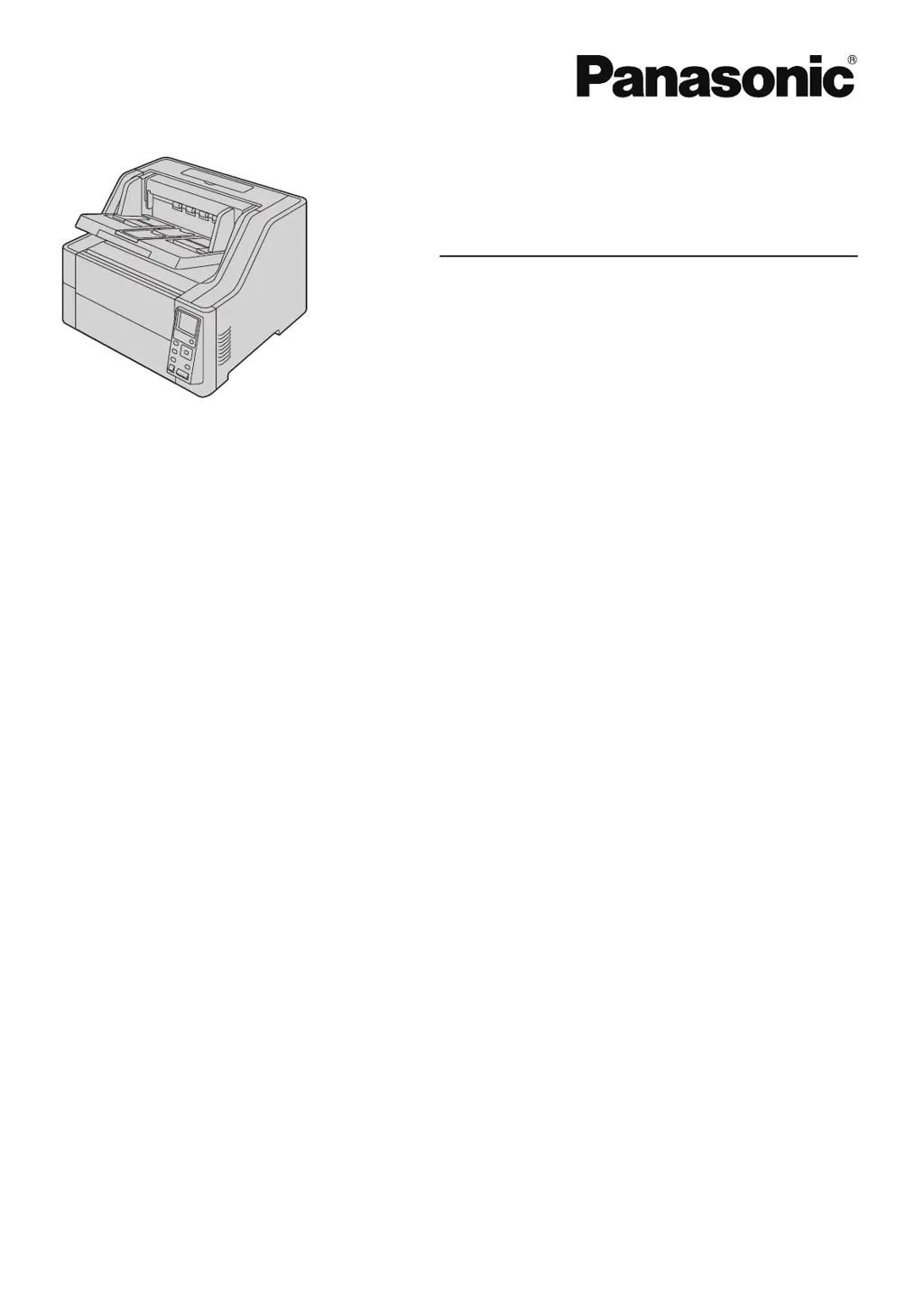
Panasonic KV-S8147 - User Manual

Panasonic KV-S8147
104 pages
Print Icon
To Next Page IconTo Next Page
Loading...
Operating Manual
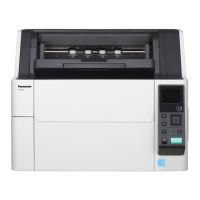
Document Scanner
Model No. KV
-S8147
KV-S8127
These instructions contain information on operating the scanner. Before reading these instructions, please read
the Quick Installation Guide enclosed with this unit.
Keep all documentation in a safe place for future reference.
Current model availability depends on your country/area. Please contact your dealer
.

Table of Contents

Questions and Answers

  • J
    James FrenchSep 12, 2025
    What to do if there are noise or wave patterns (moire patterns) on the scanned image from my Panasonic KV-S8147 Scanner?
    • J
      josephlambSep 12, 2025
      If you observe noise or wave patterns (moire patterns) on the scanned image, it might be due to the scanning resolution settings combined with patterns within the scanned image. Try changing the scanning resolution or turning the Moire Reduction function ON, and perform scanning again.
  • J
    James ChristensenSep 13, 2025
    Why are documents not being fed separately on my Panasonic KV-S8147?
    • S
      Sara WrightSep 13, 2025
      Documents may not be fed separately if manual feeding is selected. Select automatic feeding.
  • D
    Daniel PetersSep 15, 2025
    What to do if the Ready LED (Green) does not light when the Panasonic unit’s power is turned ON?
    • R
      Rodney HinesSep 15, 2025
      If the Ready LED (Green) does not light, ensure the power cord is plugged in firmly.
  • B
    Barbara WrightSep 17, 2025
    Why can't I open the ADF door on my Panasonic KV-S8147 Scanner?
    • N
      nicholaskingSep 17, 2025
      The ADF door cannot be opened if the shipping screw is not loosened. Loosen the shipping screw.
  • N
    nathanrowlandNov 21, 2025
    Why does double feeding occur frequently on my Panasonic KV-S8147 Scanner?
    • P
      Phillip CookNov 21, 2025
      Double feeding can occur frequently due to several reasons: * The paper feed roller, separation roller, or double feed prevention roller is dirty. Clean these rollers. * The double feed detectors are dirty. Clean the double feed detectors. * The paper feed roller, separation roller, or double feed prevention roller has become worn down. Replace these rollers. * The document to be scanned has right and left sides that are not the same in height, because of curling or folding. Flatten the document and load it again after reducing the number of sheets. * The document is printed on an unsupported type of paper or thick paper. Make a copy of the document on compatible paper and scan the copy. * The length of the paper is too short. Make a copy of the document on compatible paper an...

Summary

Introduction

Documentation Overview

Manuals and Software CD-ROM Contents

Details the included Operating Manual, Quick Installation Guide, and CD-ROM contents.

System Requirements

Scanner Feature Highlights

Before You Start

Important Precautions and Notices

Covers illegal duplication, environmental requirements, CD-ROM handling, and general warnings.

Location of Controls

Scanner Installation

Operation Panel Overview

Basic Operations

Using the Scanner

Preparing Documents for Scanning

Covers compatible paper types, incompatible documents, and general document preparation.

Scanning Documents

Step-by-step guide on loading and initiating the scanning process.

Push Scan Functionality

Details how to set up and perform scanning without direct computer interaction.

Clearing Paper Jams

Care and Maintenance

Replacing Scanner Rollers

Guides on how to replace worn-out paper feed, separation, and double feed prevention rollers.

Optional Imprinter Unit

Installing the Imprinter Unit and Ink Cartridge

Instructions for installing the pre-imprinter or post-imprinter and their ink cartridges.

Replacing the Ink Cartridge

Guides on how to remove and install the ink cartridge for the imprinter.

Troubleshooting and Appendix

Troubleshooting Common Issues

Provides solutions for common scanner problems like LED status, recognition, and speed.

Error Code Reference

Lists scanner error codes, their causes, and recommended remedies.

Panasonic KV-S8147 Specifications

General IconGeneral
BrandPanasonic
ModelKV-S8147
CategoryScanner
LanguageEnglish

Related product manuals