19
GETTING STARTED
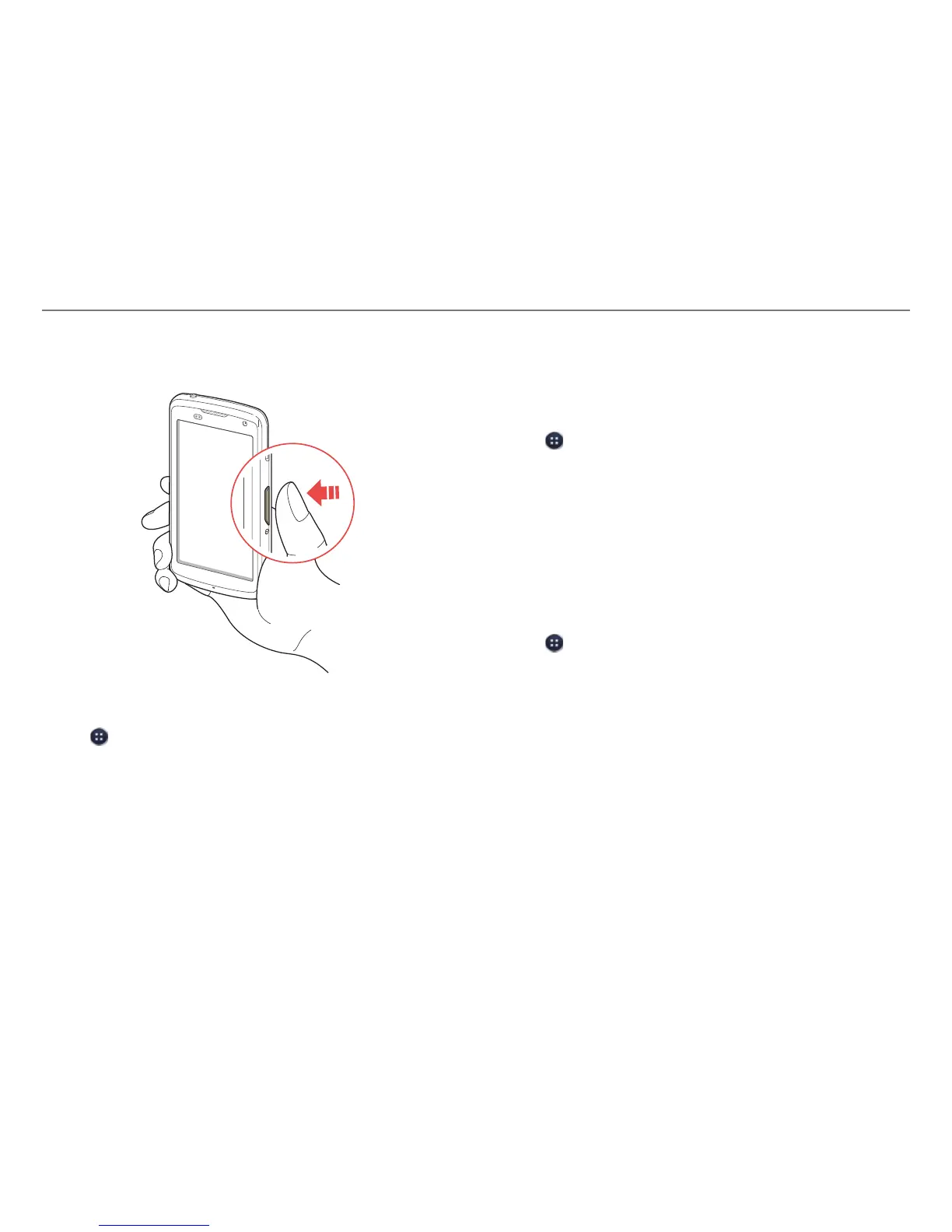
Locking the Screen
Press and hold the LOCK/PWR key briefly to lock the screen.
Changing the Screen Lock Type
1. Tap > Settings.
2. Tap Security > Screen lock.
3. Select and tap a screen lock type.
Setting an Unlock Pattern, PIN, or Password
You must connect at least four dots for a pattern lock, enter at
least four numbers for a PIN lock, or enter a password that is
at least four characters long (at least one character must be a
letter).
1. Tap
> Settings.
2. Tap Security > Screen lock.
3. Select and tap a lock type, and then follow the on-screen
instructions.
x Tap None to disable the screen lock.
Setting the Face Unlock Function
You can use this feature to recognize your face for unlocking
the phone. The face unlock function is less secure than locking
the phone with a pattern or PIN.
1. Tap
> Settings > Security > Screen lock > Face Unlock.
2. Tap Set it up > Continue.
3. Align your face with the figure on the screen.
4. Tap Continue when your face is captured.
5. Select and tap the secondary unlock type.
6. Configure the secondary unlock settings, and then tap OK.



 To Next Page