39
BASIC OPERATIONS
Connecting to the Internet
Connecting to a Wi-Fi Network
When you activate Wi-Fi after turning on the phone for the first
time or resetting the phone, the Wi-Fi settings screen appears.
1. Drag the area at the top of the screen downward.
2. Tap
Wi-Fi in Quick Settings to turn on Wi-Fi.
x Tap
Wi-Fi again to turn off Wi-Fi.
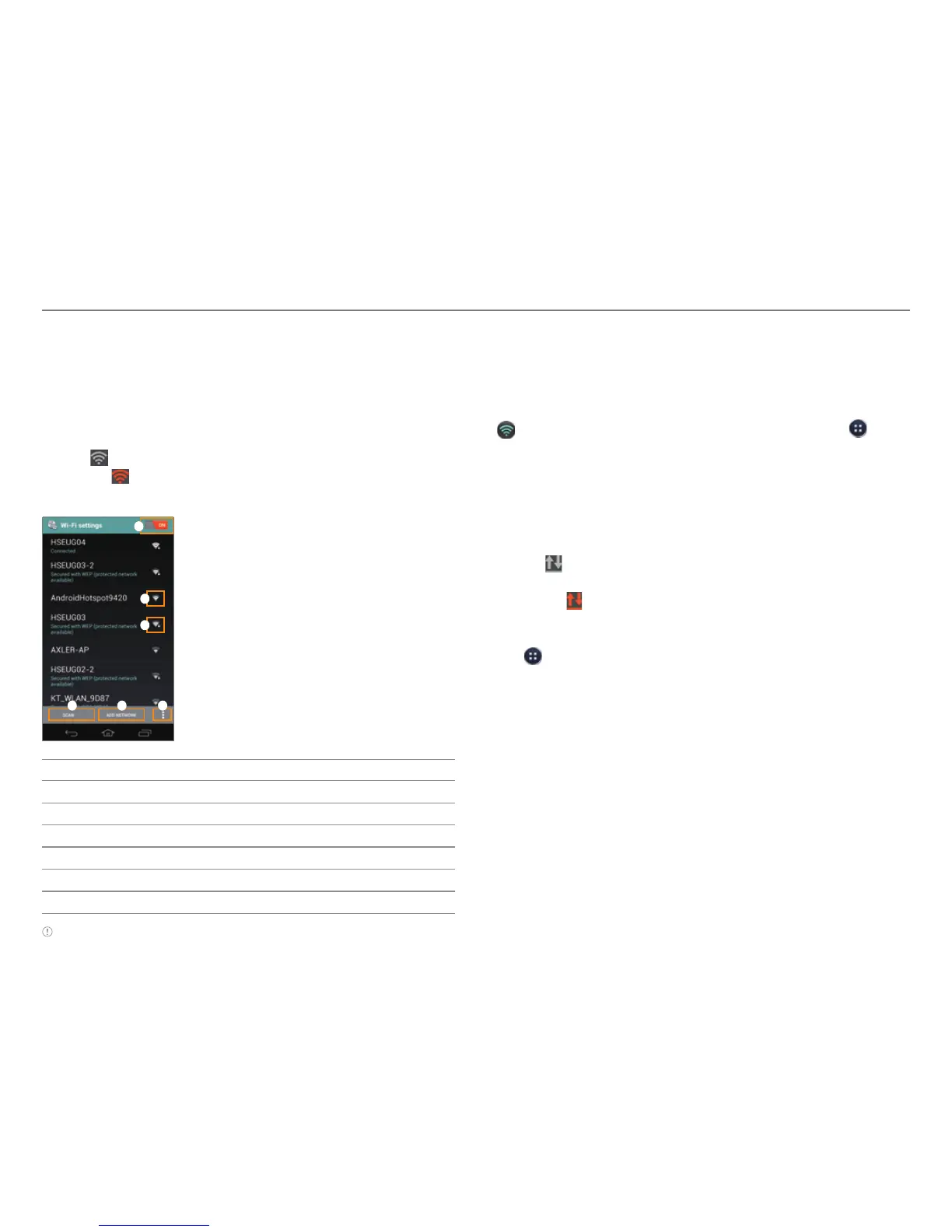
3. Select and tap a network in the Wi-Fi network list.
5
1
2
3
46
No. Description
1
Turn Wi-Fi on or off.
2
Unsecured network
3
Secured network
4
Access advanced settings and configure a WPS connection.
5
Add a Wi-Fi network.
6
Search for available Wi-Fi networks again.
Note You must enter a password to connect to a secured Wi-Fi
network.
To Configure Wi-Fi Settings
If you turn off Wi-Fi and then turn it on again, the phone
automatically connects to the most recently-used network. To
connect to another Wi-Fi network or configure Wi-Fi settings,
drag the area at the top of the screen downward, and tap
Wi-Fi Settings in Detail Settings. You can also tap >
Settings > Wi-Fi.
Connecting to a Mobile Network
You will need a data plan to access a mobile network.
1. Drag the area at the top of the screen downward.
2. Tap
Data in Quick Settings to access the mobile
network.
x Tap
Data to disconnect from mobile network.
To Configure Mobile Network Settings
Tap > Settings > More... > Mobile networks, and then check
Data Services to enable data access over mobile networks.



 To Next Page