38
BASIC OPERATIONS
Using the Applications Menu
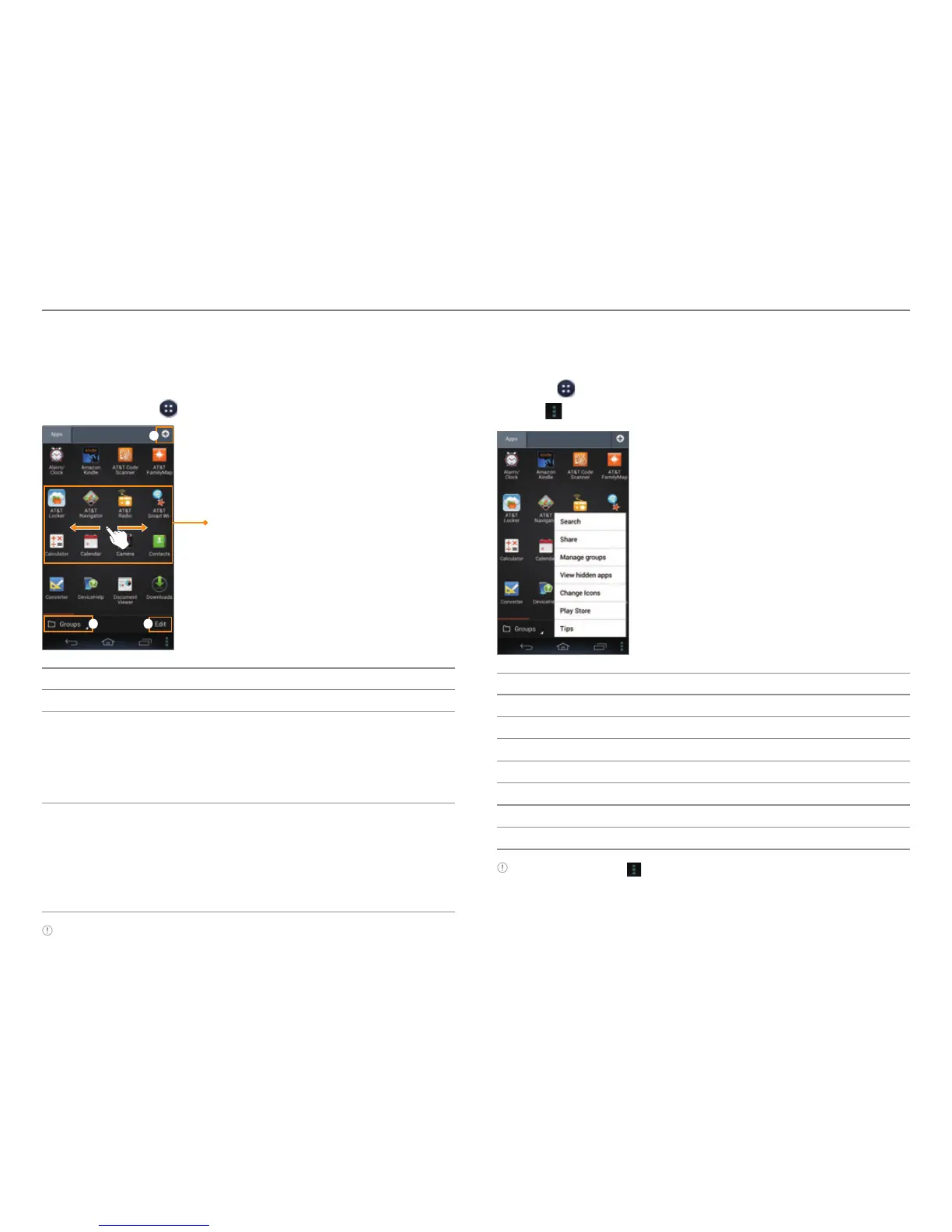
Layout of the Applications Menu Screen
You can sort applications by group, alphabetical order, or
downloads. Press
to open the Applications menu.
Tap an icon to run the application.
x Tap and hold an icon to create
a shortcut on the Home
screen.
x Flick the screen to the left or
right to move to the previous
or next page.
1
32
No. Description
1
Create a new group.
2
Sort applications.
x T
ap Groups to arrange icons manually.
x Tap Alphabetical to sort icons in alphabetical order
(flick upward or downward to search for applications).
x Tap Downloads to view downloaded applications.
3
View application information, move, uninstall, or hide
applica
tions.
x Tap and hold an icon, and then drag it to another
location.
x Tap an icon to uninstall, hide, or view the application
information.
Note You cannot uninstall pre-installed applications.
Using the Menu Options
Use the menu options to configure the menu screen.
1. Press
.
2. Tap
.
1
4
5
2
3
6
7
No. Description
1
Search for an application.
2
Share applications with people.
3
Add, move, or delete groups.
4
View hidden applications.
5
Change icon style.
6
Access Play Store.
7
View the tips.
Note When you tap , the items available will vary depending on the
sorting method (Groups, Alphabetical, or Downloads).



 To Next Page