62
MEDIA CENTER
Using Options for Taking Pictures
Configure the camera settings to match shooting conditions.
1. Tap
> Camera.
2. Tap
.
3. Tap a menu > an item.
x Tap and hold an item, and then drag it into an orange
box to add a shortcut.
x Tap and hold a shortcut, and then drag it off of the menu
bar to delete it.
Menu Setting (when you use the rear camera)
Options
Exposure, Timer, Flash, Resolution,
White Balance, Scene Mode
Mode Normal, Self, Instant Film, Division, Speed
Effects Color Effect
Settings
Review Screen, Photometry, GPS, Shutter Sound,
Save Location
Note
x Instant Film mode allows you to apply the instant camera effect
and edit pictures.
x If you set the Review Screen function, you can use the album, edit,
share, and delete menus after taking pictures.
x If you tap
in portrait mode, you can drag the screen upward or
downward to view items.
x In Self mode, you can flip a photo from left to right. Tap to
capture a self portrait with the same orientation as the image
shown on the preview screen. Tap to flip it horizontally
(left to right).
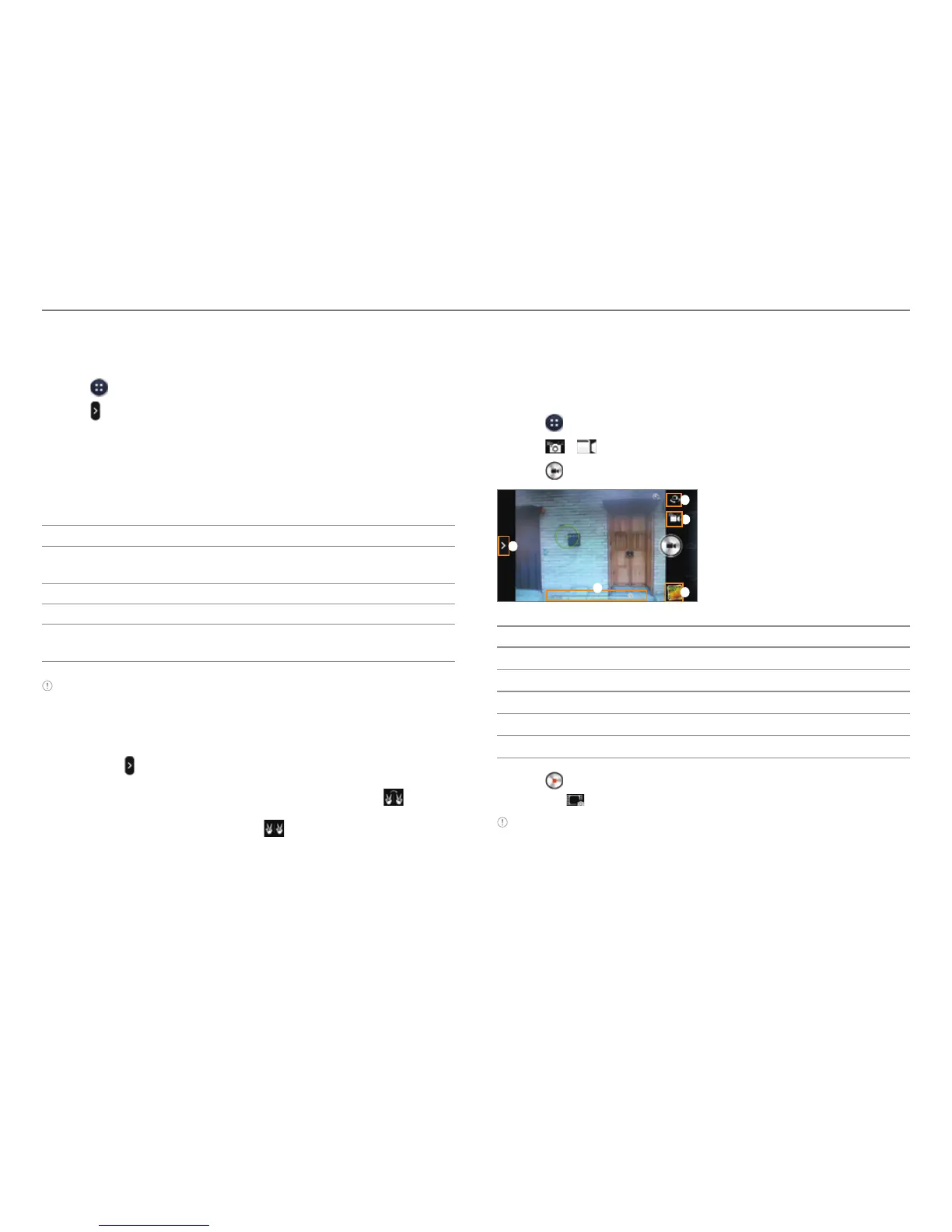
Recording Videos
Record videos with the built-in camera. You can also capture
an image during playback. Captured videos and photos are
saved in the Camera folder under the Gallery application.
1. Tap
> Camera.
2. Tap
> to switch to the video mode.
3. Tap
.
1
2
3
5
4
No. Description
1
Open menus and options.
2
Switch to the front camera.
3
Switch to picture or panorama mode.
4
View captured videos.
5
Zoom in or out.
4. T
ap
to stop recording.
x Tap
to capture a picture during recording.
Note You can also zoom in or out by pressing the volume key up or
down or spreading your fingers apart or pinching them together.



 To Next Page