53
COMMUNICATION
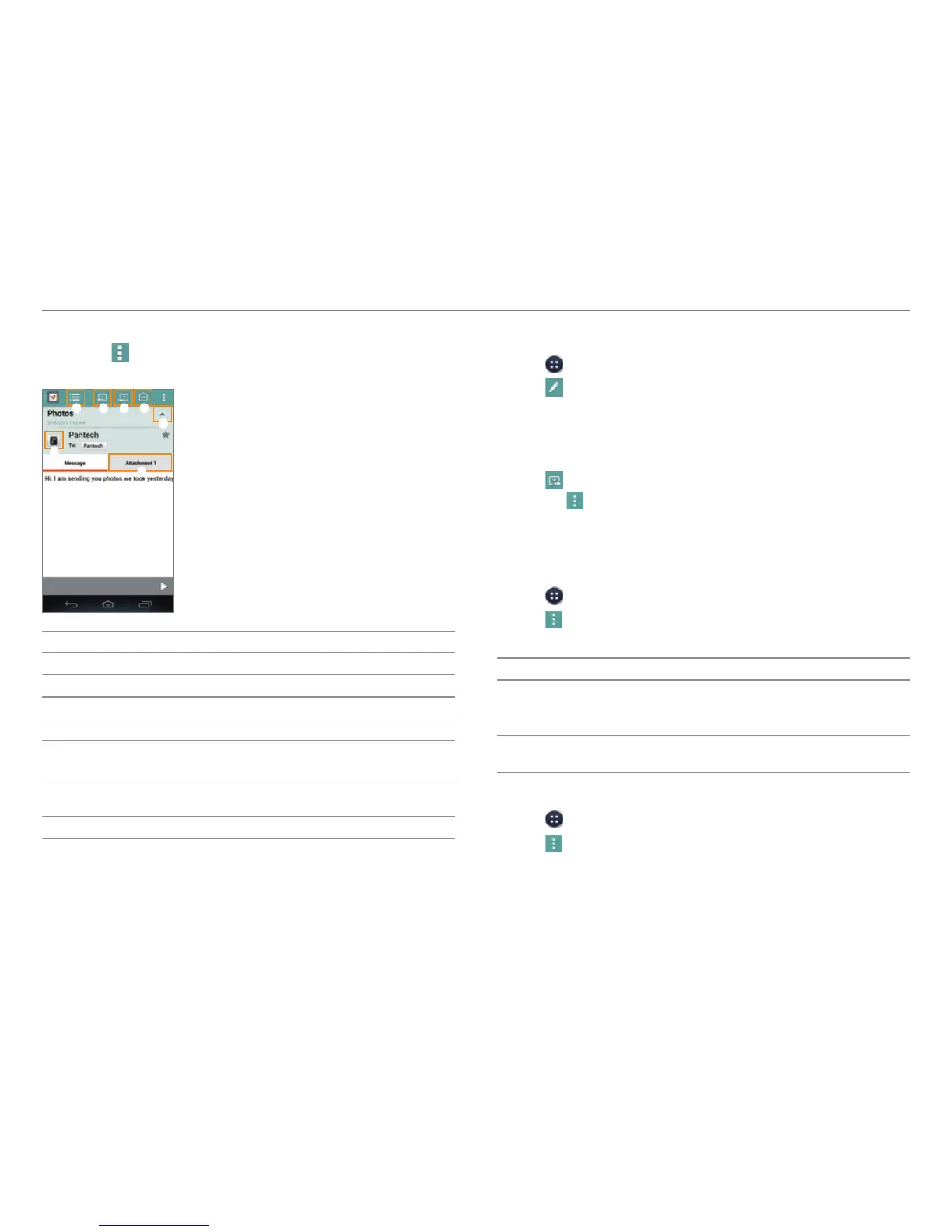
3. View the message.
x Tap
to move, delete, save to calendar, or mark the
message as unread.
1 2 3 4
5
6
7
No. Description
1
View the mail list.
2
Reply
3
Reply to all.
4
Forward
5
Show or hide the sent date and time, sender's email
addr
ess, or star.
6
Add the email address to contacts or view options
when the addr
ess is already saved.
7
View or save the attachment.
Create an Email Message
1. Tap > Email.
2. Tap
to create a new message.
3. Tap the To field and enter the recipient’s email address.
4. Tap the Subject field and enter a subject.
5. Tap the text input field and write a message.
6. Tap
to send the message.
x Tap
to attach a file, add cc or bcc fields, save as a
draft, discard it, turn on or off the save to calendar
option, or set priority.
Changing Email Settings
1. Tap > Email.
2. Tap
> Settings.
3. Select and tap an option.
Option
Settings
General
Automatic picture view, Ask to show
pictures, Ask before deleting, View mode,
Conversation mode
Pre-registered
accounts
Account settings, Detail settings,
Notification settings, Remove account
To Delete an Email Account
1. Tap > Email.
2. Tap
> Settings.
3. Select and tap an email account to remove.
4. Tap Remove account > OK.



 To Next Page