24
GETTING STARTED
Entering Text
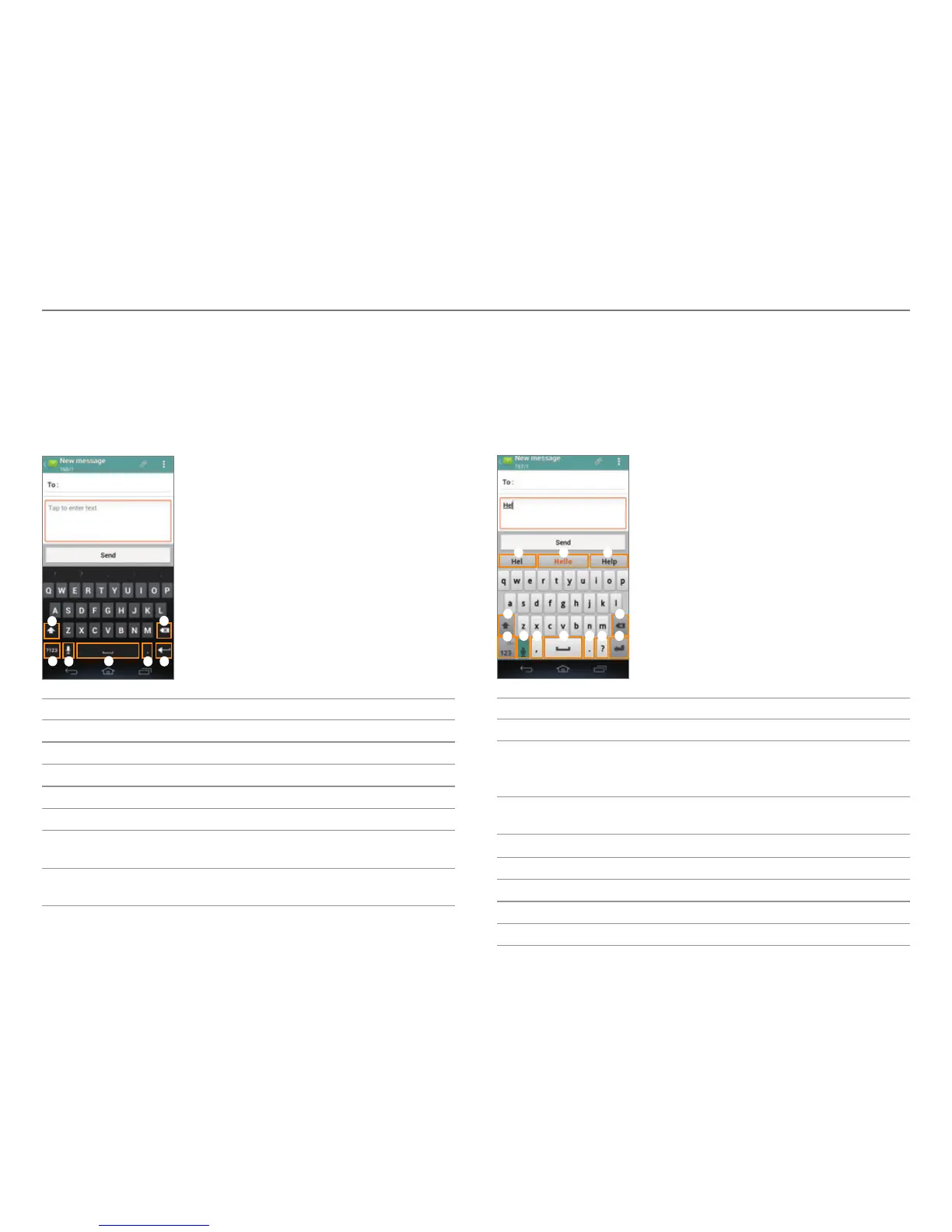
Entering Text with the Android Keyboard
Enter text with the keypad at the bottom of the screen.
The keyboard shows word suggestions as you type.
Tap a word to use it.
1
7
6
2
34
5
No. Description
1
Change the case.
2
Clear your input.
3
Start a new line.
4
Insert a period.
5
Insert a space. Tap and hold to select an input method.
6
Switch to Voice mode. Tap and hold to open input
options.
7
Switch between ABC mode and Number/Symbol
mode.
Entering Text with SwiftKey for Pantech
SwiftKey predicts what you want to type before you type
your text. SwiftKey learns new words as you enter them, and
suggests those words in its future predictions. Tap one of
the three dynamic buttons above the keyboard to select a
prediction.
1 2 3
4
5
0
@
!
6789
No. Description
1
Actual characters entered.
2
Primary SwiftKey prediction. Tap on the word or
hit space to enter (depending on your spacebar
settings.)
3
Secondary SwiftKey prediction. Tap on the word to
en
ter.
4
Clear your input.
5
Start a new line.
6
Insert a question mark.
7
Insert a period.
8
Insert a space.



 To Next Page