33
BASIC OPERATIONS
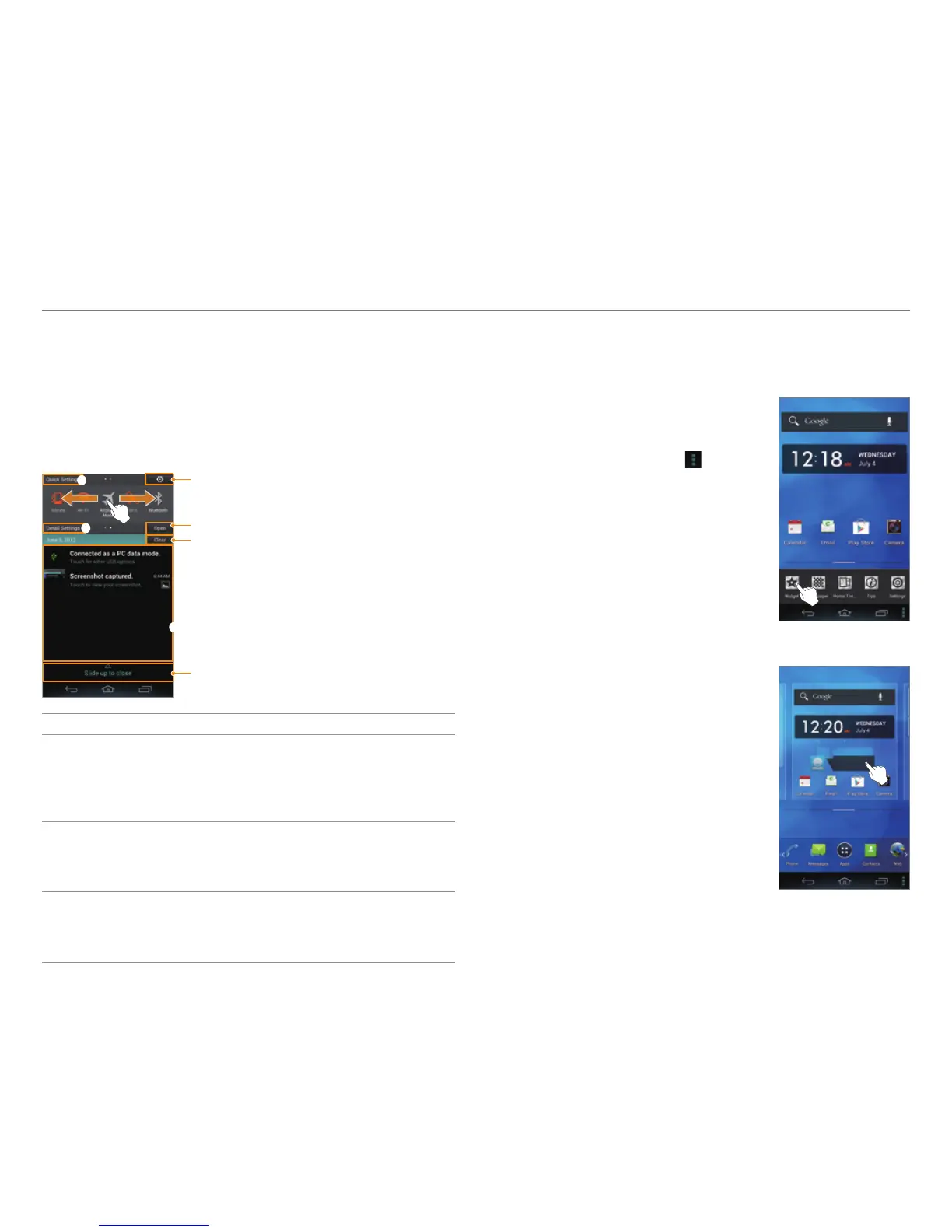
Navigating the Quick Settings, Detail Settings,
and Notification Screen
The Quick settings, Detail settings, and Notification screens help
you to manage important functions easily and to keep up with
events, network, GPS, or sound settings, or running applications.
such as events, network, GPS, Sound settings and running
applications. Drag the area at the top of the screen downward.
1
Clear all notifications.
2
3
Drag it upward to close the screen.
Access the settings.
Close or open the Detail settings.
No. Description
1
Quick settings
T
urn on or off Vibrate mode, Wi-Fi, Airplane
mode, GPS, Bluetooth, data connection,
Power saver mode, Auto rotate, Auto sync, or
Auto brightness.
2
Detail settings
Access the settings f
or sound, Wi-Fi, display,
Power saver, Bluetooth, lock, sync, mobile
hotspot, or application management.
3
Ongoing events or notifications
View running applica
tions, notifications for
application updates, missed calls, new emails, or
new messages.
Customizing the Home Screen
Adding a Widget or Shortcut
1. On the Home screen, tap and hold
an empty area.
x You can also flick the Home
screen upward, or tap
.
2. Tap Widget.
3. Tap and hold an item.
4. Drag it to the desired location.
x Tap an item to align it with other
icons automatically.



 To Next Page