32
BASIC OPERATIONS
Understanding the Home Screen
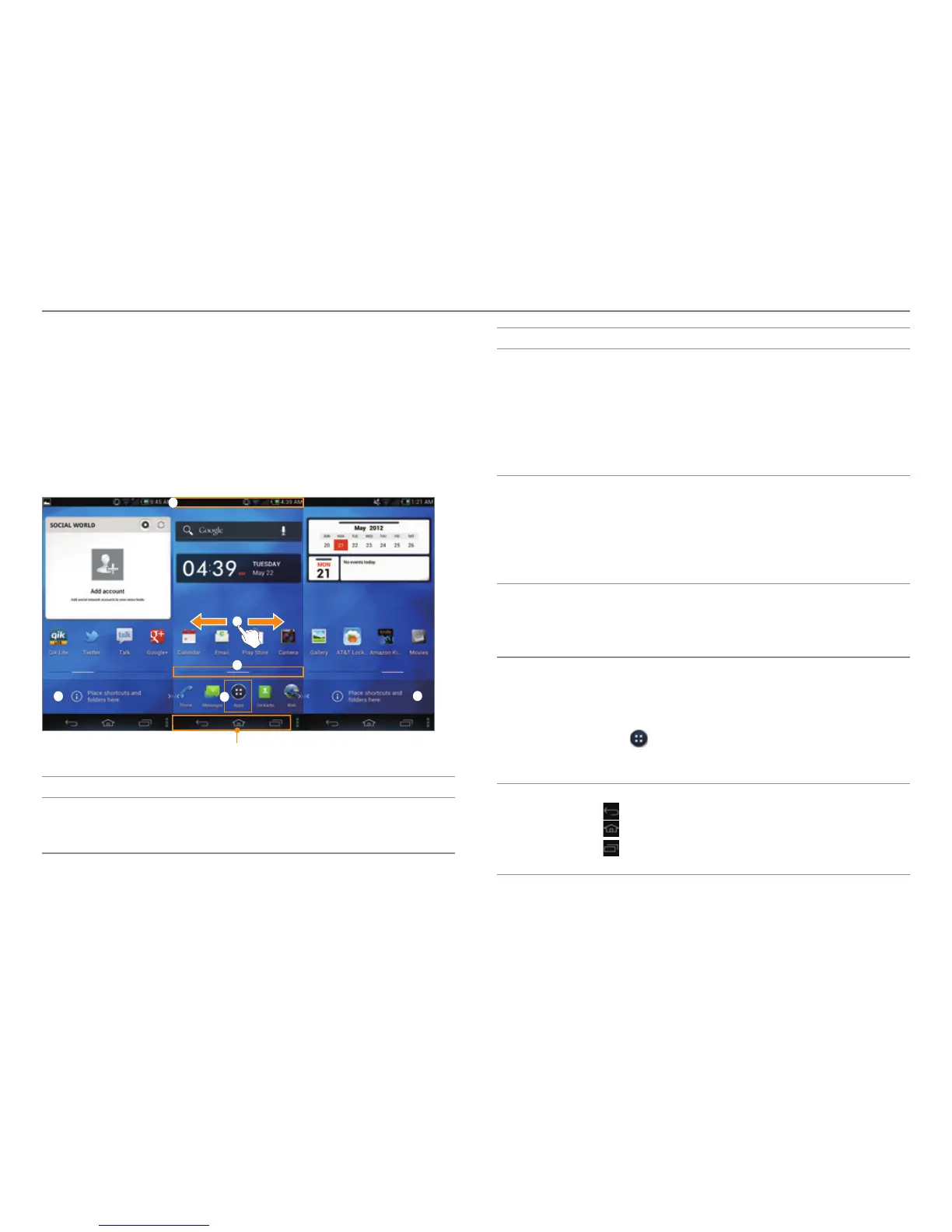
Layout of the Home Screen
The Home screen is the starting point for using applications.
Here you can access widgets, shortcuts, or folders. The Home
screen consists of five panels. When you access the Home
screen for the first time, you will be shown usage tips for the
Home screen.
2
3
4
4
5
6
1
No. Description
1
Notification bar
View the phone's st
atus, battery usage, current
time, and more.
No. Description
2
Home screen
x F
lick to the left or right to move to another
panel. There are two panels to the left and two
panels to the right.
x Spread your fingers apart to hide icons.
x Pinch your fingers together to edit the Home
screen.
3
Panel location bar
View the number of panels and the loca
tion of
the current panel.
x Drag the white line to move to another panel.
x Tap the line below a panel to switch to that
panel.
4
Extended launcher bar
View shor
tcut icons and folders.
x Tap a shortcut to run an application.
x Tap a folder to open it.
5
Basic launcher bar
View shor
tcut icons and the applications
menu icon.
x Tap a shortcut to run an application.
x Tap
to open the menu screen.
x Flick to the left or right to view the Extended
launcher bar (
4
) .
6
Navigation buttons
x
(Back): Return to the previous screen.
x
(Home): Return to the Home screen.
x
(Recent applications): View a list of
recently-accessed applications.



 To Next Page